Showing posts with label icloud. Show all posts

2024/05/07

Sync iCloud’s Contacts and Calendars with Outlook

Sync your Outlook with iCloud Contacts and Calendars.

In 2024, an increasing number of jobs necessitate remote work due to the COVID-19 pandemic. Syncing calendars, contacts, and tasks from home to effectively collaborate with colleagues has become a challenge for those unfamiliar with the process.

Recently, someone inquired about syncing iCloud contacts and calendars to Outlook, especially since iCloud Control Panel experiences occasional breakdowns. Well, with EVO Collaborator for Outlook, or ECO, you can certainly achieve this.

ECO is an outlook plugin for CardDAV and CalDAV.

eco

With a file size of less than 4MB, ECO and Outlook work together and perform a two-way sync of contacts, calendars and tasks between CardDAV/CalDAV services and Outlook 2007, 2010, 2013, 2016, and 2019.

What are CardDAV and CalDAV anyway?

carddav_vs_caldav_logo

CardDAV and CalDAV are standard protocol APIs defined by the IETF's RFC for managing contacts and calendars. Apple utilizes this open standard to handle contacts and calendars across its devices. How can you achieve this? It's simpler than a breeze with ECO. Just:

  1. Download ECO from EVO Official Site and install it with admin’s privilege on your Outlook.
  2. Open Outlook and click on EVO ribbon at the top banner.
  3. Click on Configure profile(s)

    eco_gui_config_selected

  4. Select Profile #2 for iCloud profile. Edit it by filling in your iCloud account and app password (you have to enable 2 steps verification on Apple and create an app password)
  5. Upon sync completion, Items on your iCloud account will be sync’d to your Outlook.

Build your own Cloud!

While iCloud serves individuals well, it may not meet the needs of larger companies where extensive information is scattered. Why not create your own solution tailored to your company's needs? Consider installing the EVO Mail Server along with the CardDAV and CalDAV add-on (ECA). Once set up, synchronize all Outlook contacts, calendars, and tasks effortlessly. This solution offers a viable alternative worth considering.

2021/06/09

Five Best Online Calendar services Review (FREE)

Five Best Online Calendar services Review (FREE)

In this year of 2022, more and more jobs require people to work from home due to COVID-19 pandamic. Syncing calendar, contact and task remotely from home in order to cope with colleagues has become an issue for those who have not done this before. If you have not tried it before, it is time to take a look now since we do not know how much longer this pandamic will last in near future.

After 8/1/2014, some of you may be disappointed by the termination of Google Calendar Sync services for Outlook. However, it is not the end of the world. There are still Gmail alternatives to choose from, and these online calendaring services are mostly free. If you want to share you appointments or events with someone else, you may try any of the following.

  1. Yahoo! -

    yahoo

    This United states based calendar sharing service is always there on its web based interface, OS X, iOS APP, and Android. To use it under Windows Outlook environment, you need an add-in such as EVO Collaborator for Outlook which links your online calendar to Outlook.

  2. iCloud -

    icloud

    This service is a good one under Apple machines and devices. Though it has an iCloud Control Panel but it has a few problems like you can only sync with one iCloud account and it is impossible to use Outlook default calendar to sync with iCloud. If you use iPhone then this online calendar reminder service will work very well. It also provides holidays events for your convenience.

  3. fruux (Germany) -

    fruux

    This scheduling service has a good web base GUI and tutorials on how clients configure calendar/contact applications in different platforms are well written. However, it does not have its own Outlook add-in. Perhaps you can use ECO add-in to access calendar/contact in Outlook. It is free to sign up for users world-wide although it is a German based service provider.
  4. QQ and 163 (China) -

    qq

    If you are somewhere in China, these two agenda cloud service providers are the ones you can count on and the speed are fast.
  5. Google -

    gmail_calendar_spanish

    Why Google is still on the list? The reason being is that Apple and Android are still good on it for mobility and collaboration. If you happen to be the victims using Outlook, then you can still survive by syncing some kind of add-in by thirld party software vendor such as EVO Collaborator for Outlook.

If you were to use more than one service from above in you Outlook 2007, 2010, 2013, 2016 or 2019, then you may want to try EVO Collaborator for Outlook. It is compatible with all services mentioned plus some other on-premise CardDAV/CalDAV platforms, paid or free mail server such as EVO Mail Server, OwnCloud, Zimbra, SabreDAV and etc. 

REFERENCE: Synchronizace Google kalendáře s Outlookem - postřehy ze světa počítačů a internetu

2018/08/02

How to share calendar between outlook 2007 and 2010?

How to share calendar between outlook 2007 and 2010?

How to share an Outlook calendars with other people without Exchange server? This is a simple question with no easy answer. If you go to Microsoft website, they will tell you that you can share your calendar by e-mail or an exchange server account. We all know that is not we wanted. Anyway, the above case has been discussed in another article that I wrote: How to share my Outlook calendar with another user?

Let's try another scenario, you have one desktop in office, one desktop at home and one laptop in your car. One of them is Outlook 2007 and two of them are Outlook 2010. Here comes a very easy way to do it:
  1. First, you need to get an online calendar account such as fruux, or you can use your existing iCloud or Gmail account.
  2. Download EVO Collaborator for Outlook from EVO's Official Site and install it with administrator's privilege. This 5.5MB Outlook add-in is the magic that makes everything possible.
    EVO Collaborator for Outlook, an Outlook add-in from EVO software production
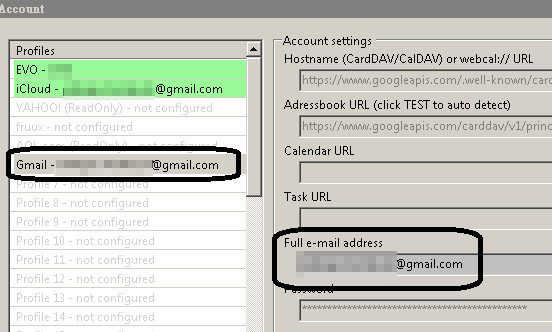
  3. Install ECO on your computer at work. In Configure profile(s), select Gmail profile at the left-hand side. Enter your Gmail account at the right-hand side. Click TEST to complete OAuth process. Once you quit Configure profile(s), synchronization will start automatically.
  4. Install ECO on your computer at home. In Configure profile(s), select Gmail profile at the left-hand side. Enter your Gmail account at the right-hand side. Click TEST to complete OAuth process. Once you quit Configure profile(s), synchronization will start automatically.
  5. Install ECO on your laptop on the road. In Configure profile(s), select Gmail profile at the left-hand side. Enter your Gmail account at the right-hand side. Click TEST to complete OAuth process. Once you quit Configure profile(s), synchronization will start automatically.
From now on, when you turn on any of your computers and open Outlook, ECO will start synchronization and update your calendar events automatically.

Not only between Outlook 2007 and 2010, it can be deployment between all Outlook versions from 2007, 2010, 2013, 2016 to 2019. Yet, if you run your mobile life on iPhone or Android, it would be even more convenient. Let say if you meet someone in business meetings on the road, you simply add new potential customer's contact on your mobile phone. When you go back to office, you will see the new contact entry on your PC's Outlook once sync session is taking place. It will work in similar fashion for future meetings created on the road.

What was mentioned above is a scenario that has always worked for users with Exchange accounts. However, what we are talking about now is a much cheaper alternative that everyone can afford even for a one-man company with no complicated infrastructure involved.


2018/06/21

How to share Outlook's calendar with other people?

Without Exchange Server, how to share Outlook's calendar?

Back in the old days, Outlook users could share their calendars with others via Microsoft Exchange Server. However, only users within the same domain could be accessing to the calendars since it is within a proprietary network environment.

Outlook Calendar Sharing
Now, Microsoft started to promote Office365 a few years back after realizing content sharing is getting more popular through Internet. Not only Office, but also its own Outlook.com was merged in with Exchange Online Service as its backend. As a result, individuals other than users within the same domain, such as free Outlook.com users, are able to access shared calendar resource.

HARVARD UNIVERSITY

It is almost summer vacation for schools. Teachers and club staffs may want to plan out agenda of the upcoming school year during summer instead of at last second. But, the fact is that everyone is on vacation and planning trips here and there. 

In the past, teachers and staffs used to hold meetings somewhere they need to physically show up. Then, they would have discussions and use Excel to jot everything down. It was not really effective and yet a good summer vacation was interrupted for some of them.

For now, I suggest that teachers and staffs can create a shared calendar to which every member has access. Whenever there is any idea popped up in mind, just simply create an entry in the shared calendar. By using this collaboration scheme, an outline of agenda for next school year is almost complete. What is left is to wrap it up with some touch and fix on back-to-school day before school really starts.

How to share calendars with users on different platforms?

As we mentioned before, not every teacher or staff has an Outlook.com or Exchange account and gets to add, modify or delete calendar entries. Some has Gmail while some has Yahoo, iCloud or etc. Yet, everyone is on a variety of devices to get online, such as Android, iPhone, desktop PC, or laptop.

As perhaps the most commonly used calendar cloud service provider, Google is strongly recommended. Once this shared Google account is created, every teacher or staff can easily log in this shared Google account from his/her device. Since only one account is being used, everyone logged surely has the privileges to add, modify or delete entries.

How to confgiure shared Google account on different platforms?

Let's talk about how to configure Google account on various platforms.

1. Android:


Android
Whether it is Android phone or tablet, we can log in the shared Google or Gmail account. Then, we can download and install Google Calendar app. Lastly, open this installed app and we will see entries synchronized.

2. iOS:
iPhone
Whether it is iPhone or iPad, we can create Google/Gmail account from within Settings/Passwords & Accounts/Add Account. Then, we can open the built-in Calendar app and put checkmarks in the boxes next to the shared Google calendars. Lastly, we will see the entries.

3. Windows 10/8.1:
Built-in Calendar app within Windows 10/8.1 is rarely used by Windows users because they mostly use Outlook or Thunderbird instead. But, it is working fine. Once a Google account is created within the Calendar app, calendar entries will also be synced.

4. Outlook:

A known fact is that Google Calendar Sync for Outlook was discontinued 4 years ago. Even we downoad and install it on Outlook 2019, 2016, 2013, 2010 or 2007, it would not work because this Outlook add-in cannot connect to Google server. Yet, calendar ics files off Google Calendar can only be imported to Outlook and thus fails serving the purpose of synchronizing. I would rather recommend you to use some third-party Outlook add-in, such as EVO Collaborator for Outlook. Setting up such Outlook add-ins is similar to Google Calendar Sync for Outlook. Once installed, enter username, authenticate through Google OAuth 2.0, configure sync folders and that is all.

5. Thunderbird:
If some teacher or staff is using Thunderbird, then they can refer to Using Lightning with Google Calendar to install & configure Lightning and Provider for Google Calendar. 

6. Mac OS X:
Mac OS X
Like iOS, simply add the shared Google account within Internet Accounts. Once added, open the built-in Calendar application to access shared calendar entries.

2017/12/12

How to sync Google Calendar with Outlook 2016 & 2019?

How to synchronize Google calendar to Outlook 2016 & 2019?

In this year of 2020, more and more jobs require people to work from home due to COVID-19 pandamic. Syncing calendar, contact and task remotely from home in order to cope with colleagues has become an issue for those who have not done this before.

On July 29 of 2015, the long awaited Windows 10 was released. Two months following that, Microsoft Outlook 2016 was released on Sept. 22 of 2015. Many of us are looking for good synchronization compatibility between Google Calendar (or shall I say CardDAV and CalDAV) and Outlook. Well, apparently, Microsoft let us down.


Microsoft may have its own reason not to blend in CardDAV and CalDAV. However, I think lots of users around the globe are looking for a solution of synchronizing their contact, calendar, and task items on Google, iCloud, Yahoo, Outlook.com and many more service of the kind with Outlook 2016.

Developers such as gSyncit and EVO Collaborator for Outlook have well prepared for the launch of Outlook 2016 in a Windows 10 environment. While gSyncit released its v4.0 last August, EVO Collaborator for Outlook took a whole year to consolidate itself with compatibility vs. various cloud and on-premises platforms. Yet, EVO has announced the official release of v2.0 to welcome Outlook 2016 with the same ease of use and simplicity of configuring profiles.

If you have not used ECO before, you may refer to my old posts of how to configure contacts, calendars and tasks from various source with Outlook since steps are basically the same and simple.

2018.01.05

2017/08/04

Transfer contacts and calendars from iCloud/iPhone to Gmail/Android

Transfer contacts and calendars from iCloud/iPhone to Gmail/Android

It’s time to share some new IT stuff with you guys.

A friend was asking me, “Can I Transfer contacts and calendars from iCloud/iPhone to Gmail/Android?”

Of course, you can.
I have done some research on Google and conclude with some solutions below:

Contacts: Users log in iCloud and save every contact into .vcf file and log back in Gmail and import those files.

Calendars: Many different ways of doing it. It is similar to the Contact solution. It has to go through an intermediate account, such as from iCloud to Android or iCloud to iCAL first and then from either Android or iCAL to the destination.

Experienced users must understand how time wasting it is. If there is a way to perform a direct transfer from iCloud to Gmail, then it is nice to have it, right?


Let’s look at EVO Collaborator for Outlook.

This Outlook plug-in enables Contacts and Calendars of Outlook 2007, 2010, 2013, 2016, and 2019 to be a bridge between multiple cloud services. Through this tunnel, a cloud-to-cloud on-the-fly duplication, moving, or synchronizing now becomes possible.


What is CardDAV and what is CalDAV? CardDAV and CalDAV are standard protocol API by IETF’s RFC for contacts and calendars. Google and Apple are using the contacts API and the calendar API to take care of contacts and calendars at the backend to service their customers’ needs on such information..

How to perform cloud-to-cloud contacts and calendar duplication and transfer on-the-fly? 1. Download ECO from EVO’s official website


STEP.1


Download URL (when you install it, please log in as administrator) 2. Set up Gmail account within ECO’s Configuring profile(s)

a. Go to ‘Configuring profile(s)’ under EVO ribbon


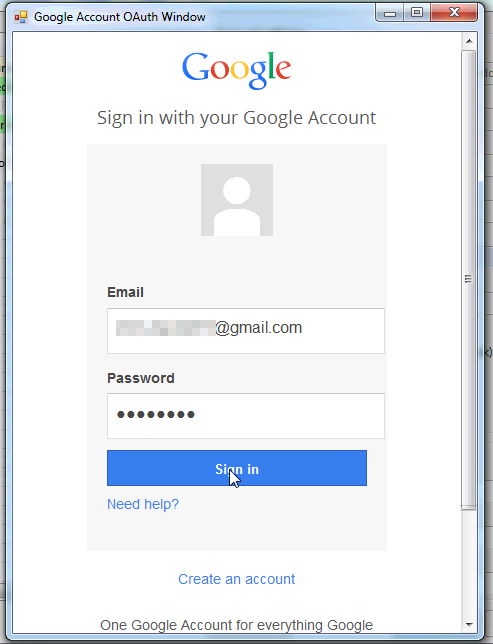
b. Due to OAuth, there will pop up a small browser for Gmail logon. Once authenticated, close the window


c. Once completed, Gmail contact, calendar will be bi-directionally synchronized. Data from Android mobile devices will be sync’d too.

3. Create iCloud profile

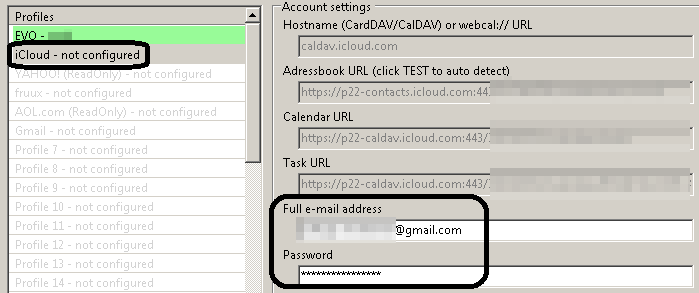
a. Repeat account adding like Gmail


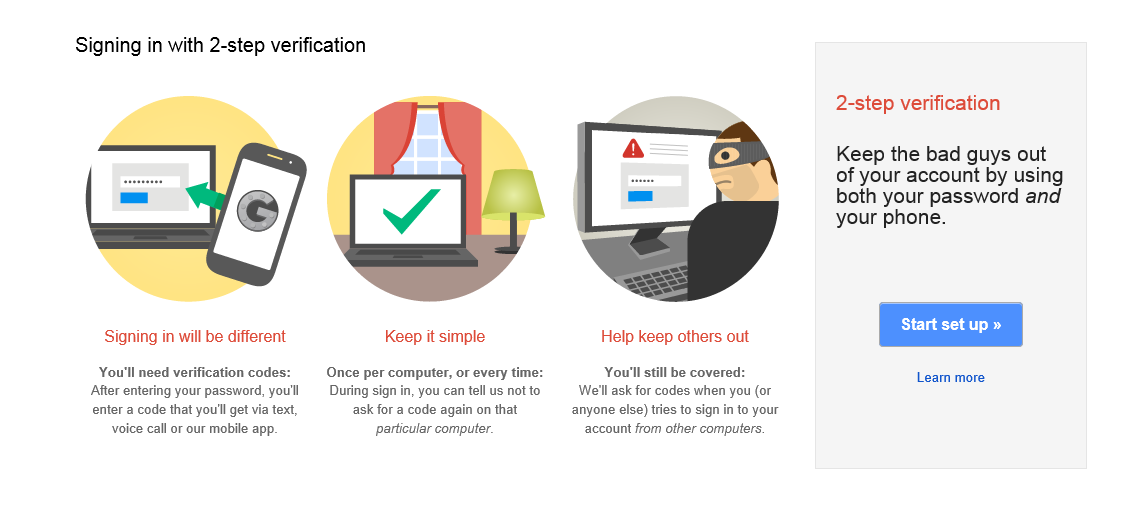
b. There will be no OAuth window popping up, but you will need to use Apple ID's App password, to do that you also have to enable 2-steps verifications in Apple.

c. Once completed, iCloud contact, calendar will be bi-directionally synchronized. Data from iPhone mobile devices will be syn’d too

4. Synchronize contacts between iCloud and Gmail

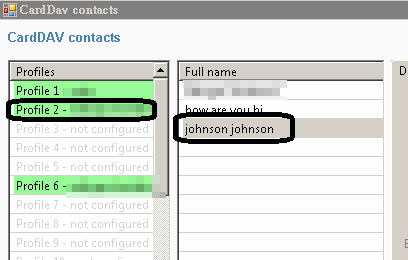
a. Click on ‘Explore server’ under ‘CardDAV actions for contacts’ on ECO ribbon


b. Click on ‘Profile2’ in the ‘Profiles’ section

c. At this moment, ‘Full name’ in the middle will display all contacts under this iCloud account.


d. Hold ‘Ctrl’ and mouse left-click for selecting multiple contacts

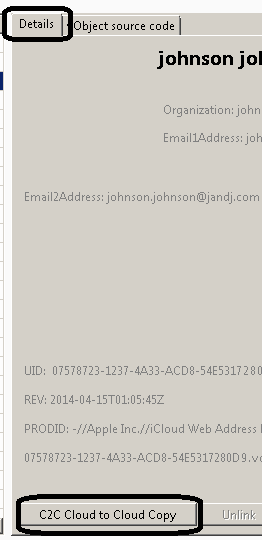
e. Go to bottom of ‘Detail’ tab and click on ‘C2C Cloud to Cloud Copy’


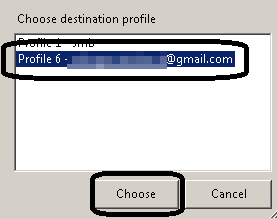
f. In the pop-up box, click on Profile6 to continue duplicating


g. Once completed, a message box appears and inform number of success and failed items


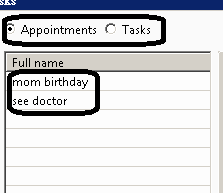
5. For the calendar part, it is similar to step 4. The difference is clicking on ‘Explore server’ under ‘CalDAV actions for calendars’ in step a. Under Full name, all calendar and task will be shown and you can click on either radial button at the top from step c. However, Gmail does not provide Tasks service.


All the tutorials above can also provide synchronization between different other cloud services that run on CardDAV and CalDAV. Also, one easy-to-use alternative choice rather than cloud solution is EVO Mail Server. It has both CardDAV and CalDAV of its own for better performance over the slow and scolded information retrieval from Gmail services on contacts and calendars. Try it out: EVO Mail Server

2018.01.05

2015/02/24

Six useful Outlook Add-ins

Six useful Outlook Add-ins

As quoted from http://emailclientmarketshare.com/, desktop Outlook users are just behind portable devices and Gmail’s web-GUI. We are talking about 9% out of 1.16 billion users worldwide. In other words, there are 100 million desktop users that stick with Outlook desktop software. 

Lots of extra features are missing from the original package. Yet, many software vendors have developed Outlook add-ins through program API for Outlook. These utilities are fairly small and quite handy when you need to do tasks that require features missing from Outlook itself.

Here is a wish list of add-ins that may be exactly what you need:


  1. Microsoft Outlook Hotmail Connector –

    With this add-in, your desktop Outlook is able to access and manage e-mails, contacts and calendars of your hotmail.com, outlook.com and live.com. Supporting Outlook 2003 to 2010 x86 & x64 compatible.
  2. Duplicate Email Remover –

    Remover detects duplicate email messages according to your pre-configured criteria and there are flexible ways for users to decide what to do with them. Supporting Outlook XP to 2013.
  3. Outlook Password –

    Recovers Outlook Personal Storage files (Personal Folders or Outlook Data files) as well as e-mail account passwords and server settings saved in Microsoft Outlook records. Supporting Outlook 97 to 2013 x86 & x64 compatible.

  4. Email Scheduler –

    Sends specific messages with attachment of selected individual files or files within a selected folder once at selected time and date or on a periodic basis. Supporting Outlook XP to 2013.
  5. YouSendIt –

    A large file delivery service by Hightail. Different levels of subscription is available according to your needs. Files are sent over secure TLS/SSL connections
  6. EVO Collaborator for Outlook –

    Accessing contacts, calendars and tasks of your cloud services such as Gmail, iCloud, Yahoo!, AOL, fruux, QQ.com, 163.com, DaviCAL, Kolab, Toodledo, MI.com, Yandex.ru, Mail.ru from Outlook 2007, 2010, 2013, 2016, or 2019. Additionally, you can also connect to your on-premises CardDAV/CalDAV services such as Baikal, ownCloud, Zimbra and EVO Mail Server.


2014/10/12

How to sync android with iCloud calendar / contacts (or Zimbra contacts)


How to sync android with iCloud calendar / contacts (or Zimbra contacts)


Android phones occupy more than half of smartphone population worldwide. Many of the Samsung galaxy, Sony Xperia and HTC users are asking the following question:


How to sync Android with iCloud (or Zimbra)


These Android phone owners just barely got their new phones or they decide to try out new generation of iPhones. They are spending lots of time migrating or moving between iPhone iOS and Android back and forth. Therefore, data syncing has become a common issue along the way.


We all know that Google phones, such as Nexus, are working fine with Gmail seamlessly. However, what about cloud services such as iCloud, Zimbra, OwnCloud and etc? What if we need to synchronize Android calendars and address books with iCloud (iPhone/iTunes)?


There are two APPs that can help you out: CardDAV-sync and CalDAV-sync.


CardDAV-sync is available at Google Play store.


It helps your Android phone to synchronize contacts with Apple iCloud or Zimbra or other generic CardDAV services.


CalDAV-sync is available at Google Play store.


This App makes it possible for your Google Smartphone to sync calendars with iCloud, OwnCloud or other generic CalDAV services such as EVO Mail Server Prime.


Why CardDAV-sync and CalDAV-sync are able to perform such tasks? The reason behind is that all the major cloud services are operating based on CardDAV and CalDAV protocols. You can check these APPs out on their website: http://www.dmfs.org/ These two APPs cost you a few dollars but it is worth every of your penny.


The above solution is for users on Android platform. What about Outlook platform? What if you want to synchronize Gmail/iCloud contacts and calendars with Outlook?
You can try download EVO Collaborator for Outlook. This outlook add-in is very easy to setup and it can sync your Outlook 2007, 2010, 2013, 2016, or 2019 with Gmail/iCloud account almost instantly. For any modern mobile users, CardDAV-sync, CalDAV-sync & EVO Collaborator for Outlook are 3 must-have for better productivity on the road.

Five Online Address Book Services Review

Five Online Address Book Services Review

Some of you still remember Edward Snowden incident some time ago, right? This incident reminds me of some security issue that may happen if you were to place company confidential information on the cloud service such as Gmail or iCloud. Perhaps we should reconsider where to place our precious and sensitive contact information on the cloud. If you are just using it for specific but trivial purpose like wedding, you may choose some free services such as Zexer.

  1. Yahoo! -

    yahoo

    This contacts service is always there on its web based interface, OS X, OS, and Android. To use it under Windows Outlook environment, you need an add-in such as EVO Collaborator for Outlook.
  2. iCloud -

    icloud

    This address book service is a good one under Apple machines and devices. Though it has an iCloud control panel but it has a few problems. If you want to use its birthday reminders, you need to have an iPhone.
  3. fruux (Germany) -

    fruux

    This service has a good web base GUI and yet provides tutorials on how to set up in different platforms.
  4. QQ and 163 (China) -

    qq

    If you are somewhere in China, these two service providers are the ones you can count on.
  5. Google -

    gmail_calendar_spanish

    Why Google is still on the list? The reason being is that Gmail still works well with Apple and Android devices. If you happen to be Outlook victims, then you still can survive by syncing items through some kind of add-in for Outlook 2007/2010/2013/2016/2019 from third-party software vendor such as EVO Collaborator for Outlook.
If you were to use more than one service from above in you Outlook, then you may want to try EVO Collaborator for Outlook. It is compatible with all services mentioned plus some other on-premise CardDAV/CalDAV platforms, paid or free mail server such as EVO MailServer, OwnCloud, Zimbra, SabreDAV and etc.

How to sync iCloud with Outlook: using two-step verification and app password?


How to sync iCloud with Outlook: using iCloud two-step verification and app password?


You may have heard of Snowden’s incident and Hollywood celebrity’s naked photos. Particularly, celebrity’s photos spread out like snowflakes on Internet due to hackers breaking into users’ iCloud accounts.

Here is a quote from Apple:

If you use iCloud with any third party apps (such as Microsoft Outlook, Mozilla Thunderbird, or BusyCal) you can generate app-specific passwords that allow you to sign in securely, even if the app you're using doesn't support two-step verification. Using an app-specific password also ensures that your primary Apple ID password isn't collected or stored by any third party apps you might use. Starting on October 1, 2014, app-specific passwords will be required to sign in to iCloud using any third party apps.


Before Apple’s announcement, two-step-verification and app password have already been deployed by Google and Yahoo!.


These security mechanisms seem to be popular trends. Two-step verification sends out cellular text message containing confirmation code. After we enter the code on Apple’s verifying website, our identities are proven legit. Now, we are able to create app password and use it to access our iCloud data within third-party applications.

For deploying Apple’s Two-step-verification and app password, please refer to instructions in Apple’sFAQ about two-step-verification for Apple ID. One reminder is that you must enable 2-step-verification before obtaining an app password.

Outlook is one of the popular third-party applications that require app password in order to access Gmail, Yahoo! and iCloud. Outlook users may enter app password to retrieve e-mails through Outlook’s built-in IMAP or POP. For CardDAV and CalDAV, they may use the same app password on Outlook add-in, such as EVO Collaborator for Outlook, to retrieve their Outlook 2007/2010/2013/2016/2019 Contacts, Calendars and Tasks.

Nevertheless, if you do have a serious need of keeping NSA intrusion or hackers off limit, both on-premises mail server and CardDAV/CalDAV server are really what you are looking for. EVO Mail Server is one of your options that integrate all email messaging, contacts, calendars, and tasks in one package. Download from EVO Official Site and try it out.

How to migrate iCloud contacts Gmail? How to migrate iCloud calendars to Gmail?

How to transfer iCloud contacts Gmail? How to transfer iCloud calendars to Gmail?


It’s time to share some new IT stuff with you guys. A friend was asking me, “Can I transfer my iCloud address book and calendar to my Gmail because I am afraid my photos will be hacked like those Hollywood celebritites?” Of course, you can!

I have done some research on Google and conclude with some solutions below:
  • Contacts: Users log in iCloud and save every contact into .vcf file and log back in Gmail and import those files.
  • Calendars: Many different ways of doing it. It is similar to the Contact solution. It has to go through an intermediate account, such as from iCloud to Android or iCloud to iCAL first and then from either Android or iCAL to the destination.
Experienced users must understand how time wasting it is. If there is a way to perform a direct transfer from iCloud to Gmail, then it is nice to have it, right?

Let’s look at EVO Collaborator for Outlook. This Outlook 2007/2010/2013/2016/2019 plug-in enables Outlook’s Contacts and Calendars to be a bridge between multiple cloud services. Through this tunnel, a cloud-to-cloud on-the-fly duplication, moving, or synchronizing now becomes possible.

What is CardDAV and what is CalDAV?


CardDAV and CalDAV are standard protocol API by IETF’s RFC for contacts and calendars. Google is using the contacts API and the calendar API to take care of contacts and calendars at the backend to service their customers’ needs on such information.

How to perform cloud-to-cloud contacts and calendar duplication on-the-fly?


  1. Download ECO from EVO’s official website (when you install it, please log in as administrator)
    

  2. Set up Gmail account within ECO’s Configuring profile(s)a. Go to Configuring profile(s) under EVO ribbon


    b. Due to Google's OAuth 2.0, there will pop up a small browser for Gmail logon. Once authenticated, close the window
    c. Once completed, Gmail contact, calendar will be bi-directionally synchronized. Data from Android mobile devices will be syn’d too.
  3. Create iCloud profilea. Repeat adding account like Gmail
    b. There will be no OAuth window popping upc. However, please refer to my other post to obtain your iCloud app password. Once completed, iCloud contact, calendar will be bi-directionally synchronized. Data from iPhone mobile devices will be syn’d too
  4. Synchronize contacts between iCloud and Gmail
    a. Click on Explore server under CardDAV actions for contacts on ECO ribbon
    b. Click on Profile2 in the Profiles section. At this moment, Full name in the middle will display all contacts under this iCloud account
    d. Hold Ctrl and mouse left-click for selecting multiple contactse. Go to bottom of Detail tab and click on C2C Cloud to Cloud Copy
    f. In the pop-up box, click on Profile6 to continue duplicating
    g. Once completed, a message box appears and inform number of success and failed items

  5. For the calendar part, it is similar to step 4. The difference is clicking on Explore server under CalDAV actions for calendars in step a. Under Full name, all calendar and task will be shown and you can click on either radial button at the top from step c. However, please be aware that Gmail's Tasks is not CalDAV compatble and cannot be imported.
All the tutorials above can also provide synchronization between different other cloud services that run on CardDAV and CalDAV. Also, one easy-to-use alternative choice rather than cloud solution is EVO Mail Server. It has both CardDAV and CalDAV of its own for better performance over the slow and scolded information retrieval from Gmail services on contacts and calendars. Try it out: EVO Mail Server Official Site