Showing posts with label agenda. Show all posts

2018/06/21

How to share Outlook's calendar with other people?

Without Exchange Server, how to share Outlook's calendar?

Back in the old days, Outlook users could share their calendars with others via Microsoft Exchange Server. However, only users within the same domain could be accessing to the calendars since it is within a proprietary network environment.

Outlook Calendar Sharing
Now, Microsoft started to promote Office365 a few years back after realizing content sharing is getting more popular through Internet. Not only Office, but also its own Outlook.com was merged in with Exchange Online Service as its backend. As a result, individuals other than users within the same domain, such as free Outlook.com users, are able to access shared calendar resource.

HARVARD UNIVERSITY

It is almost summer vacation for schools. Teachers and club staffs may want to plan out agenda of the upcoming school year during summer instead of at last second. But, the fact is that everyone is on vacation and planning trips here and there. 

In the past, teachers and staffs used to hold meetings somewhere they need to physically show up. Then, they would have discussions and use Excel to jot everything down. It was not really effective and yet a good summer vacation was interrupted for some of them.

For now, I suggest that teachers and staffs can create a shared calendar to which every member has access. Whenever there is any idea popped up in mind, just simply create an entry in the shared calendar. By using this collaboration scheme, an outline of agenda for next school year is almost complete. What is left is to wrap it up with some touch and fix on back-to-school day before school really starts.

How to share calendars with users on different platforms?

As we mentioned before, not every teacher or staff has an Outlook.com or Exchange account and gets to add, modify or delete calendar entries. Some has Gmail while some has Yahoo, iCloud or etc. Yet, everyone is on a variety of devices to get online, such as Android, iPhone, desktop PC, or laptop.

As perhaps the most commonly used calendar cloud service provider, Google is strongly recommended. Once this shared Google account is created, every teacher or staff can easily log in this shared Google account from his/her device. Since only one account is being used, everyone logged surely has the privileges to add, modify or delete entries.

How to confgiure shared Google account on different platforms?

Let's talk about how to configure Google account on various platforms.

1. Android:


Android
Whether it is Android phone or tablet, we can log in the shared Google or Gmail account. Then, we can download and install Google Calendar app. Lastly, open this installed app and we will see entries synchronized.

2. iOS:
iPhone
Whether it is iPhone or iPad, we can create Google/Gmail account from within Settings/Passwords & Accounts/Add Account. Then, we can open the built-in Calendar app and put checkmarks in the boxes next to the shared Google calendars. Lastly, we will see the entries.

3. Windows 10/8.1:
Built-in Calendar app within Windows 10/8.1 is rarely used by Windows users because they mostly use Outlook or Thunderbird instead. But, it is working fine. Once a Google account is created within the Calendar app, calendar entries will also be synced.

4. Outlook:

A known fact is that Google Calendar Sync for Outlook was discontinued 4 years ago. Even we downoad and install it on Outlook 2019, 2016, 2013, 2010 or 2007, it would not work because this Outlook add-in cannot connect to Google server. Yet, calendar ics files off Google Calendar can only be imported to Outlook and thus fails serving the purpose of synchronizing. I would rather recommend you to use some third-party Outlook add-in, such as EVO Collaborator for Outlook. Setting up such Outlook add-ins is similar to Google Calendar Sync for Outlook. Once installed, enter username, authenticate through Google OAuth 2.0, configure sync folders and that is all.

5. Thunderbird:
If some teacher or staff is using Thunderbird, then they can refer to Using Lightning with Google Calendar to install & configure Lightning and Provider for Google Calendar

6. Mac OS X:
Mac OS X
Like iOS, simply add the shared Google account within Internet Accounts. Once added, open the built-in Calendar application to access shared calendar entries.

2017/03/17

How to export your Outlook appointments?

Backing up your Outlook calendars offline

In absence of Outlook calendar synchronization with calendar server or services, such as CalDAV and Exchange servers, people would think about exporting their calendar entries into iCal files (.ics files), .csv files, .pst files, or Excel files. If you solely work with Outlook 2007, 2010, 2013, 2016 or 2019, then it is recommended to export them into .pst files for the best import result in the future. 

However, users most likely export Outlook appointments for use on other application or database import. The .csv method is not a good choice because foreign language characters in calendar entries will be corrupted after exporting. Thus, the best and the most compatible way to export is using iCal method.


Export Outlook calendar to Excel


EVO staff has once again made some useful Outlook add-in after EVO Collaborator for Outlook. It is called Power Toys for Outlook. This collection of add-ins include a nice Outlook calendar export tool. There are 4 ways that PTO exports Outlook appointments:
1. Export appointments as vCalendars (Outlook ICal (ics)) – This is as same as Outlook’s Save As except Outlook can only save one appointment per operation. PTO is able to save the whole calendar folder at once.

2. Export appointments as vCalendars (iCal (ics); Olson Timezone UTF8) – This is the same as #1 except saving appointments in term of Olson Timezone and UTF8. Olson Timezone is the most widely used time zone system except Windows Timezone. If you export your calendar events to elsewhere such as Google Calendar or other calendar services, then the receiving party will not be able to recognize it and fail the import. Yet, deployment of UTF8 prevents foreign language characters turning into corrupted characters.

3. Export appointments into one single vCalendar (iCal (ics); Olson Timezone UTF8) – Since vCalendar protocol is able to store multiple appointments in one single file, PTO saves the hassle of managing 100s or even 1000s of iCal (ics) files.

4. Export appointments as Excel Document – PTO enables you to output all Outlook calendar events into an Excel file for better viewing purpose with forking in nearly all commonly used fields in Outlook appointments.

Here is a general guideline to export your Outlook appointments:

1. Download Power Toys for Outlook from EVO’s Official website.

2. Close Outlook and run setup.exe with administrator’s privilege.

3. Open Outlook and click on Power Toys ribbon at top.


4. Click on Export appointments.

5. Select your Outlook calendar folder.


6. Click on 1 of the 4 export types as mentioned above.


export outlook calendar to excel

7. A folder created by date will pop up showing all iCal (ics) files accordingly.


As you can see, exporting Outlook calendar becomes as easy as 1-2-3.

2015/01/13

Thunderbird syncs with Google Calendar

Thunderbird syncs with Googlel Calendar

Thunderbird is one of the popular e-mail clients on the market. As the demand for collaboration arises, Thunderbird plug-in developers have written plug-ins for both contact (address book) and calendar that can be associated with a variety of contact and calendar services such as Gmail.

Associating Thunderbird with Google Calendar is feasible but it requires lots of steps. You can follow steps below to do it:

  1. Install Thunderbird’s newest build from Mozilla website
  2. Open Thunderbird and open Tools Add-ons.
  3. Click on Lightning and click on Add to Thunderbird.


  4. Save the add-on to a folder for later use.Click on gear icon and click on Install Add-on From File. Browse to the folder where the .xpi file was saved and click on Open

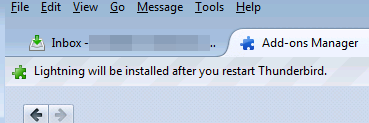
  5. Click on Install Now to continue and restart Thunderbird.
  6. Once Thunderbird restarted, click on Extensions in Add-ons Manager page.
     
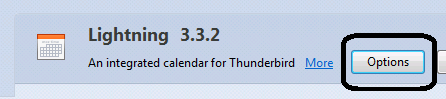
  7. Click on Options to the right and adjust your time zone.
  8. At Add-ons Manager page’s top-right, enter provider and search. You will get Provider for Google Calendar in the search result. Click on Install. Restart Thunderbird afterwards.

  9. Now. click on File -> New -> Calendar…. Select On the Network and click on Next >.

  10. Select Google Calendar and proceed with Next >. Then enter your Gmail account in the space provided and then Next >. Proceed with OAuth 2.0.


  11. Select calendar to synchronize and click on Finish on next window.

  12. You can change sync interval by selecting Manually next to Refresh Calendar:

    .
As you see, importing and synchronizing between your Gmail Calendar and Thunderbird require lots of steps. In case you are using Outlook 2007/2010/2013/2016/2019, you can try EVO Collaborator for Outlook which enables you to synchronize your Gmail Calendar bi-directionally.