Showing posts with label gmail. Show all posts

2024/11/19

Sync Google calendar with Outlook 2016-2021 and Office 365

Synchronizing Gmail Contacts and Calendars with Outlook 2016-2021

Can Google Calendar sync with Outlook? Absolutely! It's achievable!

Given that Gmail is a service provided by Google, it's worth exploring whether Google's Google Apps Sync for Microsoft Outlook offers this feature. However, there are some limitations with Google's tools when it comes to integration with Outlook:

Google only provides Google Apps Sync for its Google Apps customers rather than its free gmail accounts. 

What if you wish to seamlessly synchronize Microsoft Office 365 with Google Calendar and contacts, without any hassle? Yet, for both Google and Microsoft, this is where the financial opportunity arises. How can they enable such effortless synchronization without generating any revenue?

Let's look at a solution from third-party. EVO Collaborator for Outlook is an outlook plugin for CardDAV and CalDAV.

eco_logo

Consider its size, which is merely 8MB. Remarkably, when Outlook collaborates with ECO, it can surpass the limitations of both Microsoft and Google, enabling bidirectional synchronization of contacts and calendars with Google's CardDAV and CalDAV.

What are CardDAV and CalDAV?

carddav_vs_caldav_logo

CardDAV and CalDAV are standardized protocol APIs defined by the IETF's RFC for managing contacts and calendars. Google employs these APIs in the backend to fulfill their customers' requirements for accessing such information.

What are the steps to synchronize Google Calendar with Outlook 2016-2019 and Office 365?

It is easier than a ever with ECO:
  1. Download ECO from ECO's download. (run setup.exe as administrator)
  2. Open Outlook 2013/2016/2019 and click on EVO's ribbon at the top banner.

    eco_gui

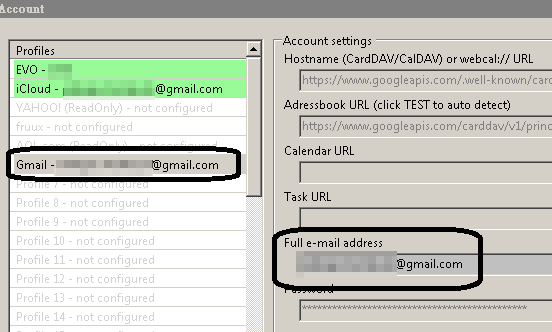
  3. Click on Configure profile(s)and click Profile #6 with filling in your Gmail email account in space below Full e-mail address or username. Then click on TEST at the bottom.

    eco_gmail_profile

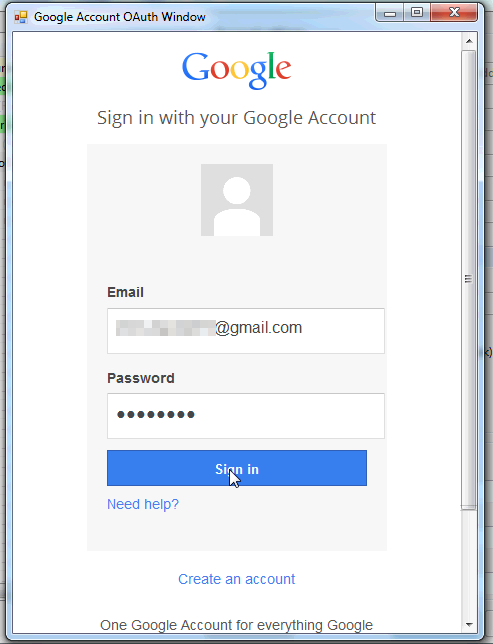
  4. Because GMail uses OAUTH 2, you'll see an OAUTH authentication dialog during the account detection, just authorize it and continue. (if you can not click the authorize button, please check if your IE is updated to latest available)

    oauth_gmail_eng

  5. When finished, click on Apply and Quit. Then, any newly added contacts, calendar under Gmail folder will be syncing in a bi-directional fashion. Any items that were added on your Android phone will be synced into Outlook.

    gmail_contacts_screenshot

Besides what we just talked about, as you know that CardDAV and CalDAV are written according to industrial standards, therefore you can expect ECO to work with any other CardDAV/CalDAV services for the same tasks.. 

After all your Outlook calendar, contact and task entries are synchronized with Google's services, it will be very convenient to have one single master copy on Google cloud and distribute them across all your other PC, laptop, ipad, and iphones in a breeze.

Build your own Calendar and Contact Cloud service!

Gmail serves well for individuals, but its suitability diminishes in larger company environments with extensive information and user requirements. Instead, consider setting up an in-house solution tailored to your company's needs.

EVO Mail Server (Email & Contact & Calendar server) provides a straightforward approach. Start by downloading and installing the free mail server along with the CardDAV and CalDAV addon (EVO Collaboration Add-on). Once your customized cloud environment is established, Outlook's address book, calendars, and reminders can be securely stored and shared. This solution and software offer a viable option for small to medium-sized companies seeking to manage their services independently rather than relying on cloud platforms for sensitive business data.

Outlook 2021 or Office 365? What is my Outlook version?

ECO works with all versions of Outlook after 2007, including versions 2010, 2013, 2016, 2019, 2021 and Office 365 (Microsoft 365). However, if you want to know what version of Outlook you have, you can check this help page.

2024.5.25

2024/10/14

Sync Google Calendar with Outlook in real-time Push Notification

Sync Google Calendar and Gmail with Outlook in real-time Push Notification

It has been 2 years since I last wrote the article about “How to synchronize Google Calendar with Outlook”. Lots of things have changed since then. Now, many of you already know how to sync Google Calendar and address book with Office 365, Outlook 2019/2016/2010/2013/2007. Today, I am going to update this article and elaborate on how to also sync Google Task with Outlook, how to sync Google Calendar in real-time.


Push Technology


Other than GASMO matter, I believe that many of you are using Android smart phones. When your Gmail account has e-mails coming in, your smartphone will notify you. Perhaps you are getting so used to it and you do not realize that it is the Gmail Push Email feature doing the job. With this push notification scheme, you can receive emails in real-time. However, when you use Outlook, it is still only designed to check for emails every few minutes.

What is real-time Google Calendar Sync with Outlook?

Calendar entries you created elsewhere (for example on an android smartphone) are pushed to your other devices or software immediately. As far as I know, almost all other sync tools still rely on manual or sync-counter to pull new entries from Google Calendar. 


Is it possible for us to sync Gmail Calendar with Microsoft Outlook in real-time as mentioned above?

Of course, you can! EVO Collaborator for Outlook is handling the jobs for you. Other than synchronizing Gmail contacts and tasks with Outlook, you will experience the advantage of real-time sync upgrade from timer-sync over Gmail Calendar.

Technology behind EVO Collaborator for Outlook


EVO collaborator for Outlook uses many different Google API, including Google Contacts API, Google Calendar API, Google Tasks API so that Outlook can talk to Google services. Meanwhile, CardDAV and CalDAV are also implemented to make synchronizations with popular CardDAV and CalDAV services possible, such as iCloud, Synology, Yahoo!, GMX, ownCloud and etc. 1. Download and install EVO Collaborator for Outlook with Run as administrator

2. Open Outlook 2007/2010/2013/2016 and click on EVO ribbon


3. Click on Configure profile and select Profile #6 


Gmail push notification has been removed since Google introduced more restrictive restrictions to their API.

4. Enter your Gmail account (if you have Gmail configured in Outlook, your Gmail account is auto-detected and listed in the email space) and click on TEST to proceed Google OAuth.


5. Once authenticated, click on Apply and Quit to leave Confgiure profile window. Synchronization will take place. Be sure to click on Calendar/People/Tasks section at lower-left within Outlook and you will find your contact/calendar/task entries inside Gmail contacts/Gmail calendar/Gmail task respectively.


An ultimate and complete Gmail companion for outlook is finally here.

With ECO’s Google contacts/calendar/tasks sync as well as Google Calendar Push Notification technology on Outlook, now Microsoft’s Outlook and Google’s Gmail are now finally like a family.

This is also the main reason I think EVO Collaborator for Outlook works better than gSyncit, Outlook Google Calendar Synchronization or Companionlink's Google Calendar Sync tool. When it comes to calendar sync matter, it would be much nicer if users gets reminded via Gmail Push Notification. Otherwise, a meeting invitation may be past due before the calendar event is synced periodically or manually.

2021/06/09

Five Best Online Calendar services Review (FREE)

Five Best Online Calendar services Review (FREE)

In this year of 2022, more and more jobs require people to work from home due to COVID-19 pandamic. Syncing calendar, contact and task remotely from home in order to cope with colleagues has become an issue for those who have not done this before. If you have not tried it before, it is time to take a look now since we do not know how much longer this pandamic will last in near future.

After 8/1/2014, some of you may be disappointed by the termination of Google Calendar Sync services for Outlook. However, it is not the end of the world. There are still Gmail alternatives to choose from, and these online calendaring services are mostly free. If you want to share you appointments or events with someone else, you may try any of the following.

  1. Yahoo! -

    yahoo

    This United states based calendar sharing service is always there on its web based interface, OS X, iOS APP, and Android. To use it under Windows Outlook environment, you need an add-in such as EVO Collaborator for Outlook which links your online calendar to Outlook.

  2. iCloud -

    icloud

    This service is a good one under Apple machines and devices. Though it has an iCloud Control Panel but it has a few problems like you can only sync with one iCloud account and it is impossible to use Outlook default calendar to sync with iCloud. If you use iPhone then this online calendar reminder service will work very well. It also provides holidays events for your convenience.

  3. fruux (Germany) -

    fruux

    This scheduling service has a good web base GUI and tutorials on how clients configure calendar/contact applications in different platforms are well written. However, it does not have its own Outlook add-in. Perhaps you can use ECO add-in to access calendar/contact in Outlook. It is free to sign up for users world-wide although it is a German based service provider.
  4. QQ and 163 (China) -

    qq

    If you are somewhere in China, these two agenda cloud service providers are the ones you can count on and the speed are fast.
  5. Google -

    gmail_calendar_spanish

    Why Google is still on the list? The reason being is that Apple and Android are still good on it for mobility and collaboration. If you happen to be the victims using Outlook, then you can still survive by syncing some kind of add-in by thirld party software vendor such as EVO Collaborator for Outlook.

If you were to use more than one service from above in you Outlook 2007, 2010, 2013, 2016 or 2019, then you may want to try EVO Collaborator for Outlook. It is compatible with all services mentioned plus some other on-premise CardDAV/CalDAV platforms, paid or free mail server such as EVO Mail Server, OwnCloud, Zimbra, SabreDAV and etc. 

REFERENCE: Synchronizace Google kalendáře s Outlookem - postřehy ze světa počítačů a internetu

2018/08/02

How to share calendar between outlook 2007 and 2010?

How to share calendar between outlook 2007 and 2010?

How to share an Outlook calendars with other people without Exchange server? This is a simple question with no easy answer. If you go to Microsoft website, they will tell you that you can share your calendar by e-mail or an exchange server account. We all know that is not we wanted. Anyway, the above case has been discussed in another article that I wrote: How to share my Outlook calendar with another user?

Let's try another scenario, you have one desktop in office, one desktop at home and one laptop in your car. One of them is Outlook 2007 and two of them are Outlook 2010. Here comes a very easy way to do it:
  1. First, you need to get an online calendar account such as fruux, or you can use your existing iCloud or Gmail account.
  2. Download EVO Collaborator for Outlook from EVO's Official Site and install it with administrator's privilege. This 5.5MB Outlook add-in is the magic that makes everything possible.
    EVO Collaborator for Outlook, an Outlook add-in from EVO software production
  3. Install ECO on your computer at work. In Configure profile(s), select Gmail profile at the left-hand side. Enter your Gmail account at the right-hand side. Click TEST to complete OAuth process. Once you quit Configure profile(s), synchronization will start automatically.
  4. Install ECO on your computer at home. In Configure profile(s), select Gmail profile at the left-hand side. Enter your Gmail account at the right-hand side. Click TEST to complete OAuth process. Once you quit Configure profile(s), synchronization will start automatically.
  5. Install ECO on your laptop on the road. In Configure profile(s), select Gmail profile at the left-hand side. Enter your Gmail account at the right-hand side. Click TEST to complete OAuth process. Once you quit Configure profile(s), synchronization will start automatically.
From now on, when you turn on any of your computers and open Outlook, ECO will start synchronization and update your calendar events automatically.

Not only between Outlook 2007 and 2010, it can be deployment between all Outlook versions from 2007, 2010, 2013, 2016 to 2019. Yet, if you run your mobile life on iPhone or Android, it would be even more convenient. Let say if you meet someone in business meetings on the road, you simply add new potential customer's contact on your mobile phone. When you go back to office, you will see the new contact entry on your PC's Outlook once sync session is taking place. It will work in similar fashion for future meetings created on the road.

What was mentioned above is a scenario that has always worked for users with Exchange accounts. However, what we are talking about now is a much cheaper alternative that everyone can afford even for a one-man company with no complicated infrastructure involved.


2017/12/12

How to sync Google Calendar with Outlook 2016 & 2019?

How to synchronize Google calendar to Outlook 2016 & 2019?

In this year of 2020, more and more jobs require people to work from home due to COVID-19 pandamic. Syncing calendar, contact and task remotely from home in order to cope with colleagues has become an issue for those who have not done this before.

On July 29 of 2015, the long awaited Windows 10 was released. Two months following that, Microsoft Outlook 2016 was released on Sept. 22 of 2015. Many of us are looking for good synchronization compatibility between Google Calendar (or shall I say CardDAV and CalDAV) and Outlook. Well, apparently, Microsoft let us down.


Microsoft may have its own reason not to blend in CardDAV and CalDAV. However, I think lots of users around the globe are looking for a solution of synchronizing their contact, calendar, and task items on Google, iCloud, Yahoo, Outlook.com and many more service of the kind with Outlook 2016.

Developers such as gSyncit and EVO Collaborator for Outlook have well prepared for the launch of Outlook 2016 in a Windows 10 environment. While gSyncit released its v4.0 last August, EVO Collaborator for Outlook took a whole year to consolidate itself with compatibility vs. various cloud and on-premises platforms. Yet, EVO has announced the official release of v2.0 to welcome Outlook 2016 with the same ease of use and simplicity of configuring profiles.

If you have not used ECO before, you may refer to my old posts of how to configure contacts, calendars and tasks from various source with Outlook since steps are basically the same and simple.

2018.01.05

2017/08/04

Transfer contacts and calendars from iCloud/iPhone to Gmail/Android

Transfer contacts and calendars from iCloud/iPhone to Gmail/Android

It’s time to share some new IT stuff with you guys.

A friend was asking me, “Can I Transfer contacts and calendars from iCloud/iPhone to Gmail/Android?”

Of course, you can.

I have done some research on Google and conclude with some solutions below:

Contacts: Users log in iCloud and save every contact into .vcf file and log back in Gmail and import those files.

Calendars: Many different ways of doing it. It is similar to the Contact solution. It has to go through an intermediate account, such as from iCloud to Android or iCloud to iCAL first and then from either Android or iCAL to the destination.

Experienced users must understand how time wasting it is. If there is a way to perform a direct transfer from iCloud to Gmail, then it is nice to have it, right?


Let’s look at EVO Collaborator for Outlook.

This Outlook plug-in enables Contacts and Calendars of Outlook 2007, 2010, 2013, 2016, and 2019 to be a bridge between multiple cloud services. Through this tunnel, a cloud-to-cloud on-the-fly duplication, moving, or synchronizing now becomes possible.


What is CardDAV and what is CalDAV? CardDAV and CalDAV are standard protocol API by IETF’s RFC for contacts and calendars. Google and Apple are using the contacts API and the calendar API to take care of contacts and calendars at the backend to service their customers’ needs on such information..

How to perform cloud-to-cloud contacts and calendar duplication and transfer on-the-fly? 1. Download ECO from EVO’s official website


STEP.1


Download URL (when you install it, please log in as administrator) 2. Set up Gmail account within ECO’s Configuring profile(s)

a. Go to ‘Configuring profile(s)’ under EVO ribbon


b. Due to OAuth, there will pop up a small browser for Gmail logon. Once authenticated, close the window


c. Once completed, Gmail contact, calendar will be bi-directionally synchronized. Data from Android mobile devices will be sync’d too.

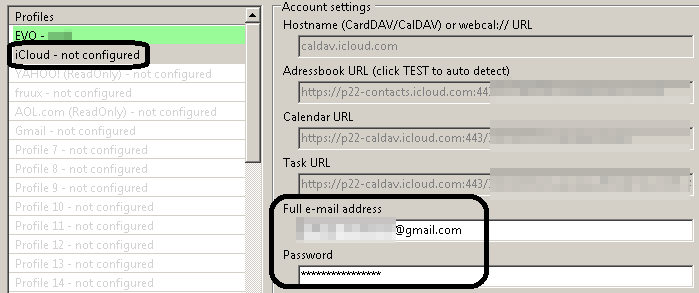
3. Create iCloud profile

a. Repeat account adding like Gmail


b. There will be no OAuth window popping up, but you will need to use Apple ID's App password, to do that you also have to enable 2-steps verifications in Apple.

c. Once completed, iCloud contact, calendar will be bi-directionally synchronized. Data from iPhone mobile devices will be syn’d too

4. Synchronize contacts between iCloud and Gmail

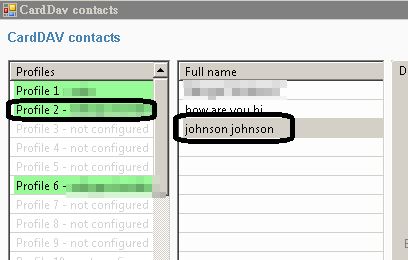
a. Click on ‘Explore server’ under ‘CardDAV actions for contacts’ on ECO ribbon


b. Click on ‘Profile2’ in the ‘Profiles’ section

c. At this moment, ‘Full name’ in the middle will display all contacts under this iCloud account.


d. Hold ‘Ctrl’ and mouse left-click for selecting multiple contacts

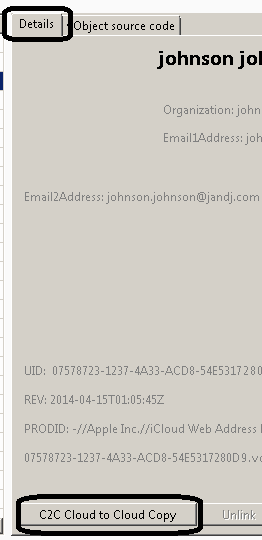
e. Go to bottom of ‘Detail’ tab and click on ‘C2C Cloud to Cloud Copy’


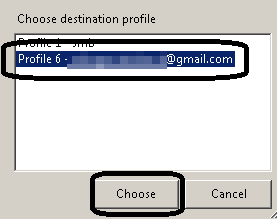
f. In the pop-up box, click on Profile6 to continue duplicating


g. Once completed, a message box appears and inform number of success and failed items


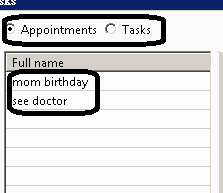
5. For the calendar part, it is similar to step 4. The difference is clicking on ‘Explore server’ under ‘CalDAV actions for calendars’ in step a. Under Full name, all calendar and task will be shown and you can click on either radial button at the top from step c. However, Gmail does not provide Tasks service.


All the tutorials above can also provide synchronization between different other cloud services that run on CardDAV and CalDAV. Also, one easy-to-use alternative choice rather than cloud solution is EVO Mail Server. It has both CardDAV and CalDAV of its own for better performance over the slow and scolded information retrieval from Gmail services on contacts and calendars. Try it out: EVO Mail Server

2018.01.05

2017/06/07

How to setup Gmail POP in Outlook? How to setup Gmail IMAP in Outlook?


How to setup Gmail POP in Outlook? How to setup Gmail IMAP in Outlook?

A majority of users are used to using Gmail on browsers. However, there are occasions integrating Gmail accounts into Outlook user-interface is more convenient. Thus, we do not need to flip between Outlook and browser while working on mails between accounts under Outlook.


Most users may wonder why Gmail cannot be easily configured in Outlook lately? Recently, Gmail, iCloud and Yahoo! mail have implemented an additional security feature that require users to enter a second password for any third-party application including Outlook that is trying to access their email, calendars, contacts and tasks information.

It is called 2-step verification. You must enable it in order to use Gmail under Outlook. 

Here is how to enable it:


Log in your Gmail and go to Account / Security / Password. Click on Setup next to 2-step Verification. Right there, proceed its following instructions.

Then, how do I setup Gmail email in Outlook?

1.      In your account’s Google Account page, go to Security tab at the top and click on Settings (if it appears Disabled) next to Access for less secure apps under Account permissions.Click on radial of Enable next to Access for less secure apps and Done.


3.      Within Gmail, select Settings from the gear-icon pull-down menu at the top right-hand side.


4.      Under Settings page, click on Forwarding and POP/IMAP tab and turn on POP3 and/or IMAP upon your choice. Shown as below:


5.      How to setup Outlook for Gmail? Go to Outlook, click on File at top-left and select Account settings
6.      Manually create a mail profile as usual. On Account Type, choose POP or IMAP according to your preference. Enter password which you just obtained from 2-step Verification.

7.      Click on More settings to the right. Click on Outgoing Server tab and check the box of My outgoing server (SMTP) requires authentication.

8.      Go to next tab of Advanced, check the box of This server requires an encrypted connection (SSL) and the port number will change to 995 for POP and 993 for IMAP.
                                      

9.      Then, change Outgoing server (SMTP): to 587 if value of Use the following type of encryption connection: is TLS.

10.   change Outgoing server (SMTP): to 465 if value of Use the following type of encryption connection: is SSL.

11.  Click OK to exit and OK all the way.

Now we can use Gmail's mail feature in Outlook. But what about contacts and
calendars? There is an Outlook add-in called EVO Collaborator for Outlook and it is able
to handle this type of 2-steps verification process in Gmail, iCloud and Yahoo!. You can
download it from its official website and try it out.

EVO Collaborator for Outlook is compatible with:

Public contact, calendar, task services such as Gmail, iCloud, Yahoo! and fruux

On-premise CardDAV/CalDAV servers such as EVO Mail Server, Mac OS X Server,
OwnCloud and Zimbra

After ECO installation, any contact, calendar and task items created by other means of
mobile devices or web-based interface will be synced to Outlook and vice versa.

For all items before ECO installation, you may manually select items and upload them to
your CardDAV/CalDAV account.

I think it is worth every penny of it.

Please refer to the following links on how to sync popular CardDAV/CalDAV services
with Outlook 2007, 2010, 2013, 2016 or 2019.

3. Sync Mac OS X, Zimbra or OwnCloud with Outlook

2015/02/24

Six useful Outlook Add-ins

Six useful Outlook Add-ins

As quoted from http://emailclientmarketshare.com/, desktop Outlook users are just behind portable devices and Gmail’s web-GUI. We are talking about 9% out of 1.16 billion users worldwide. In other words, there are 100 million desktop users that stick with Outlook desktop software. 

Lots of extra features are missing from the original package. Yet, many software vendors have developed Outlook add-ins through program API for Outlook. These utilities are fairly small and quite handy when you need to do tasks that require features missing from Outlook itself.

Here is a wish list of add-ins that may be exactly what you need:


  1. Microsoft Outlook Hotmail Connector

    With this add-in, your desktop Outlook is able to access and manage e-mails, contacts and calendars of your hotmail.com, outlook.com and live.com. Supporting Outlook 2003 to 2010 x86 & x64 compatible.
  2. Duplicate Email Remover

    Remover detects duplicate email messages according to your pre-configured criteria and there are flexible ways for users to decide what to do with them. Supporting Outlook XP to 2013.
  3. Outlook Password

    Recovers Outlook Personal Storage files (Personal Folders or Outlook Data files) as well as e-mail account passwords and server settings saved in Microsoft Outlook records. Supporting Outlook 97 to 2013 x86 & x64 compatible.

  4. Email Scheduler

    Sends specific messages with attachment of selected individual files or files within a selected folder once at selected time and date or on a periodic basis. Supporting Outlook XP to 2013.
  5. YouSendIt

    A large file delivery service by Hightail. Different levels of subscription is available according to your needs. Files are sent over secure TLS/SSL connections
  6. EVO Collaborator for Outlook

    Accessing contacts, calendars and tasks of your cloud services such as Gmail, iCloud, Yahoo!, AOL, fruux, QQ.com, 163.com, DaviCAL, Kolab, Toodledo, MI.com, Yandex.ru, Mail.ru from Outlook 2007, 2010, 2013, 2016, or 2019. Additionally, you can also connect to your on-premises CardDAV/CalDAV services such as Baikal, ownCloud, Zimbra and EVO Mail Server.


2015/01/13

Thunderbird syncs with Gmail Contact

Thunderbird syncs with Gmail Contact

Thunderbird is one of the popular e-mail clients on the market. As the demand for collaboration arises, Thunderbird plug-in developers have written plug-ins for both contact (address book) and calendar that can be associated with a variety of contact and calendar services such as Gmail.

Associating Thunderbird with Google Contact is feasible but it requires lots of steps. You can follow steps below to do it:

  1. Install Thunderbird’s newest build from Mozilla website.
  2. Open Thunderbird and open Tools --> Add-ons.
  3. At Add-ons Manager page’s top-right, enter google contacts and search. You will get Google Contacts 0.7.xx in the search result. Click on Install.
  4. Restart Thunderbird afterwards.Now. go to Extensions tab to the left and click on Options next to Google Contacts.i
  5. Add your Gmail account by click on Add. Then go to Experimental tab and define a time interval in Auto reload to reload if you like to sync your address book more frequently. Then click on OK to exit window.

  6. Restart Thunderbird, you will be prompted to perform OAuth 2.0. Proceed with entering password.
  7. Click on Tools --> Address Book. You will see You will see an address book: Google-username@gmail.com.

As you see, importing and synchronizing between your Gmail Contacts and Thunderbird require lots of steps. However, synchronization of contacts does not occur explicitly. You may need to watch out for any content change. Yet, restarting Thunderbird will sync trigger the sync. In case you are using Outlook, you can try EVO Collaborator for Outlook which enables you to synchronize your Gmail Contacts bi-directionally.