Showing posts with label google calendar. Show all posts

2017/12/12

How to sync Google Calendar with Outlook 2016 & 2019?

How to synchronize Google calendar to Outlook 2016 & 2019?

In this year of 2020, more and more jobs require people to work from home due to COVID-19 pandamic. Syncing calendar, contact and task remotely from home in order to cope with colleagues has become an issue for those who have not done this before.

On July 29 of 2015, the long awaited Windows 10 was released. Two months following that, Microsoft Outlook 2016 was released on Sept. 22 of 2015. Many of us are looking for good synchronization compatibility between Google Calendar (or shall I say CardDAV and CalDAV) and Outlook. Well, apparently, Microsoft let us down.


Microsoft may have its own reason not to blend in CardDAV and CalDAV. However, I think lots of users around the globe are looking for a solution of synchronizing their contact, calendar, and task items on Google, iCloud, Yahoo, Outlook.com and many more service of the kind with Outlook 2016.

Developers such as gSyncit and EVO Collaborator for Outlook have well prepared for the launch of Outlook 2016 in a Windows 10 environment. While gSyncit released its v4.0 last August, EVO Collaborator for Outlook took a whole year to consolidate itself with compatibility vs. various cloud and on-premises platforms. Yet, EVO has announced the official release of v2.0 to welcome Outlook 2016 with the same ease of use and simplicity of configuring profiles.

If you have not used ECO before, you may refer to my old posts of how to configure contacts, calendars and tasks from various source with Outlook since steps are basically the same and simple.

2018.01.05

2015/01/13

Thunderbird syncs with Google Calendar

Thunderbird syncs with Googlel Calendar

Thunderbird is one of the popular e-mail clients on the market. As the demand for collaboration arises, Thunderbird plug-in developers have written plug-ins for both contact (address book) and calendar that can be associated with a variety of contact and calendar services such as Gmail.

Associating Thunderbird with Google Calendar is feasible but it requires lots of steps. You can follow steps below to do it:

  1. Install Thunderbird’s newest build from Mozilla website
  2. Open Thunderbird and open Tools Add-ons.
  3. Click on Lightning and click on Add to Thunderbird.


  4. Save the add-on to a folder for later use.Click on gear icon and click on Install Add-on From File. Browse to the folder where the .xpi file was saved and click on Open

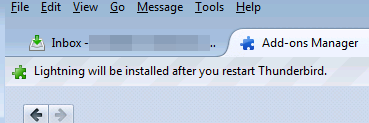
  5. Click on Install Now to continue and restart Thunderbird.
  6. Once Thunderbird restarted, click on Extensions in Add-ons Manager page.
     
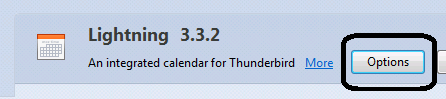
  7. Click on Options to the right and adjust your time zone.
  8. At Add-ons Manager page’s top-right, enter provider and search. You will get Provider for Google Calendar in the search result. Click on Install. Restart Thunderbird afterwards.

  9. Now. click on File -> New -> Calendar…. Select On the Network and click on Next >.

  10. Select Google Calendar and proceed with Next >. Then enter your Gmail account in the space provided and then Next >. Proceed with OAuth 2.0.


  11. Select calendar to synchronize and click on Finish on next window.

  12. You can change sync interval by selecting Manually next to Refresh Calendar:

    .
As you see, importing and synchronizing between your Gmail Calendar and Thunderbird require lots of steps. In case you are using Outlook 2007/2010/2013/2016/2019, you can try EVO Collaborator for Outlook which enables you to synchronize your Gmail Calendar bi-directionally.