Showing posts with label task. Show all posts

2024/10/14

Sync Google Calendar with Outlook in real-time Push Notification

Sync Google Calendar and Gmail with Outlook in real-time Push Notification

It has been 2 years since I last wrote the article about “How to synchronize Google Calendar with Outlook”. Lots of things have changed since then. Now, many of you already know how to sync Google Calendar and address book with Office 365, Outlook 2019/2016/2010/2013/2007. Today, I am going to update this article and elaborate on how to also sync Google Task with Outlook, how to sync Google Calendar in real-time.


Push Technology


Other than GASMO matter, I believe that many of you are using Android smart phones. When your Gmail account has e-mails coming in, your smartphone will notify you. Perhaps you are getting so used to it and you do not realize that it is the Gmail Push Email feature doing the job. With this push notification scheme, you can receive emails in real-time. However, when you use Outlook, it is still only designed to check for emails every few minutes.

What is real-time Google Calendar Sync with Outlook?

Calendar entries you created elsewhere (for example on an android smartphone) are pushed to your other devices or software immediately. As far as I know, almost all other sync tools still rely on manual or sync-counter to pull new entries from Google Calendar. 


Is it possible for us to sync Gmail Calendar with Microsoft Outlook in real-time as mentioned above?

Of course, you can! EVO Collaborator for Outlook is handling the jobs for you. Other than synchronizing Gmail contacts and tasks with Outlook, you will experience the advantage of real-time sync upgrade from timer-sync over Gmail Calendar.

Technology behind EVO Collaborator for Outlook


EVO collaborator for Outlook uses many different Google API, including Google Contacts API, Google Calendar API, Google Tasks API so that Outlook can talk to Google services. Meanwhile, CardDAV and CalDAV are also implemented to make synchronizations with popular CardDAV and CalDAV services possible, such as iCloud, Synology, Yahoo!, GMX, ownCloud and etc. 1. Download and install EVO Collaborator for Outlook with Run as administrator

2. Open Outlook 2007/2010/2013/2016 and click on EVO ribbon


3. Click on Configure profile and select Profile #6 


Gmail push notification has been removed since Google introduced more restrictive restrictions to their API.

4. Enter your Gmail account (if you have Gmail configured in Outlook, your Gmail account is auto-detected and listed in the email space) and click on TEST to proceed Google OAuth.


5. Once authenticated, click on Apply and Quit to leave Confgiure profile window. Synchronization will take place. Be sure to click on Calendar/People/Tasks section at lower-left within Outlook and you will find your contact/calendar/task entries inside Gmail contacts/Gmail calendar/Gmail task respectively.


An ultimate and complete Gmail companion for outlook is finally here.

With ECO’s Google contacts/calendar/tasks sync as well as Google Calendar Push Notification technology on Outlook, now Microsoft’s Outlook and Google’s Gmail are now finally like a family.

This is also the main reason I think EVO Collaborator for Outlook works better than gSyncit, Outlook Google Calendar Synchronization or Companionlink's Google Calendar Sync tool. When it comes to calendar sync matter, it would be much nicer if users gets reminded via Gmail Push Notification. Otherwise, a meeting invitation may be past due before the calendar event is synced periodically or manually.

2024/09/04

Sync Outlook with FastMail server?

Sync Outlook with FastMail server?

FastMail is a private, secure, ad-free email hosting for you or your business according to its website.

Our biz partner came from Australia and he has trouble synchronizing his contact, calendar & task with Outlook 2016 and Office 365. He was disappointed that FastMail does not have solution for synchronization between his FastMail account and Outlook 2016/2013/2019/2010/2007. 


He was asking me if I have come across with any third-party solution. This makes me flashing back that EVO Collaborator for Outlook does support a variety of on-premises & cloud services.


I told him about the website and he was on his own. A few days later, he called me and gave me a surprising answer. Yes! It does support FastMail server as well as many other paid or free mail servers. He briefly told me a few steps on how to sync with FastMail. Here, I like to share with you guys in case you need it:

  1. Download and install EVO Collaborator for Outlook
  2. Open Configure profile(s)
  3. Click on Profile #22 or later as long as it is vacant.
  4. In server URL space, enter:

  5. https://caldav.fastmail.com/dav/
  6. Enter username & password in corresponding area.
  7. Note: password is an APP-PASSWORD which can be created in your fastmail web interface.
  8. Click Test, Apply and Quit.
This is quite straight and simple. 

2024/04/01

Sync Outlook with Kerio Connect Server

Sync Outlook with Kerio Connect Server 

The Kerio Connect Server is a favored messaging solution among mid-sized and small businesses. Notably, it offers beneficial features like contact, calendar, and task sharing, facilitating collaboration within the company.


A decent Exchange alternative

As an Exchange alternative distinct from free mail servers, Kerio offers its own Outlook Connector, allowing Outlook users to access their data on the Kerio Connect Server. However, there have been user reports indicating that it operates sluggishly.

Exploring Mysterious CardDAV and CalDAV URLs

However, if we aim to retrieve CardDAV and CalDAV data from third-party software like Thunderbird on the Kerio Connect Server, we must acquire the URLs for contacts, calendars, and tasks. Although Kerio's KB provides tutorials for this (http://kb.kerio.com/product/kerio-connect/email-clients/mobile-devices/manual-configuration-of-caldav-and-carddav-accounts-1327.html), these URLs often prove ineffective.

In discovering URLs that really work


Here, I found EVO Collaborator for Outlook handy and it works on CardDAV and CalDAV URLs auto discovery. Here is how:

  1. Download and install EVO Collaborator for Outlook from its official website
  2. Open Outlook and go to Configure profiles

  3. Enter your Kerio Connect Server IP like this:

    https://<Server_IP>:port
  4. Enter username and password. Then click on TEST
  5. CardDAV URL and CalDAV URLs will appear, shown as below:

Personal and Public folders 

In ECO's Configure profiles, beside the URLs, there are folder icons that allow you to choose between Personal or Public folders. Opting for the public folder will display public URLs. However, upon examination, we notice that these URLs differ from those instructed in Kerio's KB.

If you utilize Outlook 2007, 2010, 2013, 2016, or 2019, you can proceed with ECO. If you wish to access the Kerio server from Thunderbird, you can simply copy and paste the provided URLs into the SoGO connector and Lightning plug-ins for Thunderbird.

2018/04/10

How to sync OwnCloud / Zimbra calendars and contacts with Outlook?

OwnCloud Outlook Calendar Sync


Some of my friends are using (Owncloud / Zimbra) CardDAV/CalDAV server They complain that the there is no plug-in to import their Zimbra or OwnCloud contacts and calendars with Outlook 2016/2019/2013/2010 or Office 365.


OwnCloud

Zimbra


I tried hooking up to both servers with some connector software plug-ins on the market. Amazingly, I found that EVO Collaborator for Outlook works!

Without this OwnCloud add-in (plugin), Outlook is impossible to show your contacts or calendars in OwnCloud or Zimbra.

All I need to do is to enter the following information inside spaces circled in the screenshot below:


1.      Server URL:

https://<servername_or_server_ip>/owncloud/   (for owncloud)

for Sync OwnCloud 9 calendar with Outlook, please visit this post

https://<servername_or_server_ip>/                     (for zimbra)


2.      Your username and password


After fields within the profile have been properly filled out, calendar sync is a breeze.

Not only (OwnCloud / Zimbra) platform supports CardDAV and CalDAV, but also EVO Mail Server has native support on ECO smoothly.

2018/01/05

How to sync Outlook calendar and contact with gmx.de, gmx.ch, gmx.at, gmx.com, gmx.us and web.de?

How to sync Outlook calendar and contact with gmx.de and web.de?

In this year of 2020, more and more jobs require people to work from home due to COVID-19 pandamic. Syncing calendar, contact and task remotely from home in order to cope with colleagues has become an issue for those who have not done this before.

Both gmx.de and web.de are popular cloud service providers in Germany. They are among the few providers that host paid or even free mail servers and keep customers’ data domestically in Germany. Ever since Snowden's incident, people start to doubt Google or Apple is able to provide data security against NSA. 


Gmx.de and web.de provide easy-to-use and decent mail, calendar, contact & task cloud service for their users. However, if you search for a solution to sync contact, calendar and task with Outlook, you will hardly find any answer even on their website search. The main reason is that Outlook does not support CalDAV and CardDAV protocol even until the recent Outlook 2016/2019.


Staffs from EVO Collaborator for Outlook is kind enough to make the synchonization possible. Yet, it is simple to configure and use. Five steps are all you need to sync your way.

  1. Download and install EVO Collaborator for Outlook
  2. Open Configure profile(s)
  3. Click on Profile gmx.de or web.de.
  4. Enter username & password in corresponding area.
  5. Click Test, Apply and Quit.
GMX cloud services are available in several country code top-level domains, such as .US, .COM, .AT, .DE, and .CH. EVO Collaborator for Outlook can auto-detect e-mail address that you entered and fill in server host name for you. The following server list is for your reference:
  1. Gmx.de account:
    a. carddav.gmx.net
    b. caldav.gmx.net
  2. Gmx.at account:
    a. carddav.gmx.net
    b. caldav.gmx.net
  3. Gmx.ch account:
    a. carddav.gmx.net
    b. caldav.gmx.ch
  4. Gmx.com or gmx.us account
    a. caldav.gmx.com
Please note that GMX.COM and GMX.US accounts do not have CardDAV service available. However, whenever CardDAV becomes available, EVO staff will make it work in future upgrade.

2018.01.05

2017/12/12

How to sync Google Calendar with Outlook 2016 & 2019?

How to synchronize Google calendar to Outlook 2016 & 2019?

In this year of 2020, more and more jobs require people to work from home due to COVID-19 pandamic. Syncing calendar, contact and task remotely from home in order to cope with colleagues has become an issue for those who have not done this before.

On July 29 of 2015, the long awaited Windows 10 was released. Two months following that, Microsoft Outlook 2016 was released on Sept. 22 of 2015. Many of us are looking for good synchronization compatibility between Google Calendar (or shall I say CardDAV and CalDAV) and Outlook. Well, apparently, Microsoft let us down.


Microsoft may have its own reason not to blend in CardDAV and CalDAV. However, I think lots of users around the globe are looking for a solution of synchronizing their contact, calendar, and task items on Google, iCloud, Yahoo, Outlook.com and many more service of the kind with Outlook 2016.

Developers such as gSyncit and EVO Collaborator for Outlook have well prepared for the launch of Outlook 2016 in a Windows 10 environment. While gSyncit released its v4.0 last August, EVO Collaborator for Outlook took a whole year to consolidate itself with compatibility vs. various cloud and on-premises platforms. Yet, EVO has announced the official release of v2.0 to welcome Outlook 2016 with the same ease of use and simplicity of configuring profiles.

If you have not used ECO before, you may refer to my old posts of how to configure contacts, calendars and tasks from various source with Outlook since steps are basically the same and simple.

2018.01.05

2017/12/01

How to sync Bitrix24 calendars, contacts and tasks with Outlook?

How to sync Bitrix24 calendars, contacts and tasks with Outlook?

My friend opened a small company and he was looking for a decent collaboration platform that comes with CRM. He found Bitrix24 is a nice solution for a starter like him since it has its own cross-platform applications or APPs for Windows, Mac, iOS, and Android. 

Now, he is looking for a way to sync his contacts, calendars and tasks with his newly installed Outlook 2016 on his Windows 10 machines as well as other computers installing Outlook 2007, 2010 2013 or 2019 under Windows 7 or Windows 8 in company. I suggested him to try some CardDAV & CalDAV compatible Outlook connector software plug-ins on the market because Bitrix24 is compatible with both CardDAV and CalDAV protocols. 


He found and installed several add-ins. However, he realized it is tough in finding server’s CardDAV URL and CalDAV URL. Not until he tried EVO Collaborator for Outlook, life was a lot easier because ECO is able to auto-detect the address book URL and calendar URL with a single mouse click. 

He said it is quite easy. What he did is downloading ECO from its official website, installing the outlook add-in, entering the following information and clicking on TEST button to verify configuration. That is all:

  1. Server URL:
    According to Bitrix24’s support document, the URL should look like the URL in step 4.


    With ECO’s server auto-detect feature, all you need to enter is:

    <servername>.bitrix24.com

  2. Your username and password

After the phone call, I actually tried out but I found that Bitrix24 only implements one-way synchronization from server to outlook for both address book and task.  I did some research on Bitrix24’s forum and found that Bitrix24 made this one-way sync limitation https://www.bitrix24.de/support/forum/forum5/topic435/ on purpose for their own concern. So, this one-way sync situation is normal and not an issue.

2018.01.05

2017/11/01

How to sync SOGo Groupware Server with Outlook?

How to sync SOGo Groupware Server with Outlook?

In this year of 2020, more and more jobs require people to work from home due to COVID-19 pandamic. Syncing calendar, contact and task remotely from home in order to cope with colleagues has become an issue for those who have not done this before.

A scenario from my client:

“Our CIO told me to migrate company’s Exchange Server to some other open-source solution due to an IT budget cut. After evaluation on different solutions of free mail servers like SOGo, Zimbra, Kolab and Zarafa, I chose SOGo Groupware Server. Why? Not only SOGo has a sturdy groupware but also has a seamless integration with Thunderbird. For mails, users can connect through IMAP, which I do not have much trouble with. What about contact and calendar? I went through SOGo website’s Native Microsoft Outlook Configuration Guide but it seems too much hassle. Is there any easier out?”
As far as I know that SOGo supports CardDAV and CalDAV, I told my ex-colleague, “Why don’t you try EVO Collaborator for Outlook?” They do adapt their product to fit in various CardDAV/CalDAV servers. 

After a few days, my ex-colleague told me EVO Collaborator for Outlook is now compatible with SOGo. Here is his experience sharing below:
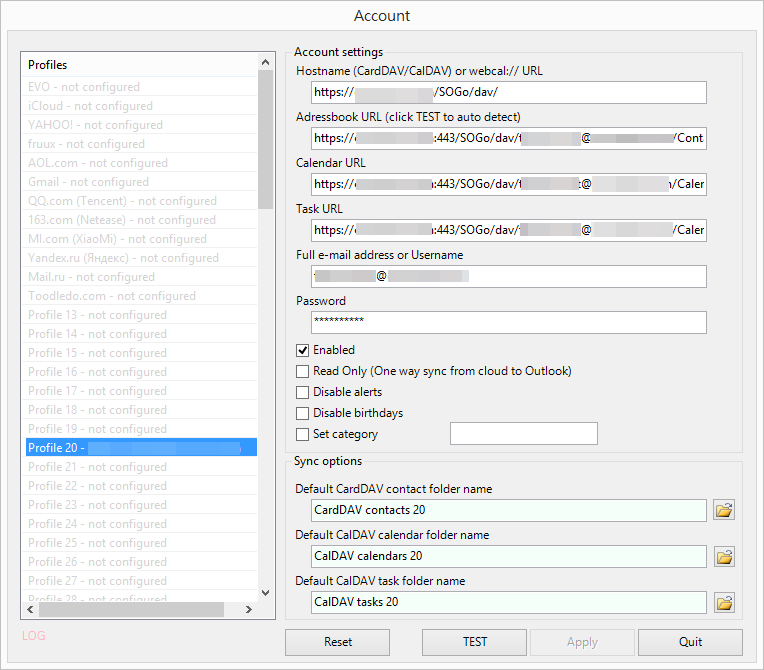
“Nothing complicated! All I did is entering server URL, user’s e-mail address and password. All that left is auto-discovery’s job. It is amazing!” 
He show me a screenshot of ECO’s Configure profile:


By looking at the screenshot, the server has a URL structure like:

https://<servername>/SOGo/dav/

If you happen to synchronize SOGo groupware's calendars and address book with Outlook 2007, 2010, 2013, 2016 or 2019, then you can give it a shot. It will save you lots of time to manage configurations on both server backend and Outlook parameters.


2017.11.01

2017/03/17

How to export your Outlook tasks?

Backing up your Outlook tasks offline

In absence of Outlook task synchronization with task server or services, such as CalDAV and Exchange servers, people would think about exporting their task entries into iCal files (.ics files), .csv files, .pst files, or Excel files. If you solely work with Outlook, then it is recommended to export them into .pst files for the best import result in the future. 

However, users most likely export Outlook tasks for use on other application or database import. The .csv method is not a good choice because foreign language characters in task entries will be corrupted after exporting. Thus, the best and the most compatible way to export is using iCal method.

EVO staff has once again made some useful Outlook add-in after EVO Collaborator for Outlook. It is called Power Toys for Outlook. This collection of add-ins include a nice task export tool for Outlook 2010, 2013, 2016 and 2019. There are 2 ways that PTO exports Outlook tasks:
1. Export tasks as vCalendars (Outlook ICal (ics)) – This is as same as Outlook’s Save As except Outlook can only save one task per operation. PTO is able to save the whole task folder at once.

2. Export tasks into one single vCalendar (iCal (ics)) – Since vCalendar protocol is able to store multiple tasks in one single file, PTO saves the hassle of managing 100s or even 1000s of iCal (ics) files.

Here is a general guideline to export your Outlook tasks:

1. Download Power Toys for Outlook from EVO’s Official website.

2. Close Outlook and run setup.exe with administrator’s privilege.

3. Open Outlook and click on Power Toys ribbon at top.


4. Click on Export tasks.

5. Select your Outlook tasks folder.


6. Click on 1 of the 2 export types.


7. A folder created by date will pop up showing all iCal (ics) files accordingly.


As you can see, exporting Outlook tasks becomes as easy as 1-2-3.

2016/10/17

Configure Gmail account in Microsoft Outlook 2016 or 2019

Configure Gmail account in Microsoft Outlook 2016

Applies to: Outlook 2016, Outlook 2013, Outlook 2010, Outlook 2007, Gmail, Google Calendar, Google Task

For various reasons, we like to integrate Gmail accounts into Outlook rather than using Gmail on web browsers. At this point, we use free Gmail account as an example to demonstrate on how to create a Gmail account inside Outlook using IMAP and SMTP protocols.


Adding Gmail account

Setting up Gmail account in Outlook can be as simple as a few steps below:

1. Click on [File] at top-left


2. Click on [+ Add Account]


3. Click on [E-mail Account] radial and 
fill in your name, E-mail Address and password. Then, click on [Next >] at lower-right


4. After 10 to 15 seconds of auto-discovery, your Gmail IMAP is successfully configured and click on [Finish] to exit [Add Account] window


5. At Navigation Pane to the left, you will see folders for your Gmail account


Unlike some on-premises mail server, whether they are free mail server or paid software that requires us to fill in server host name and supporting ports, Outlook is able to auto-detect Gmail configuration settings.

Managing subscribed folders

You can and you should take a look at the list of subscribed folders in your Gmail account, because you do not necessarily need to subscribe them all. For example, subscription to [Gmail]/All Mail folder can be omitted so that you can save a lot of time and bandwidth.


Streamline your Google experience in Outlook

For Outlook users who stick with Gmail accounts, it would be nice to also integrate their Google contacts, calendars and tasks from their Google accounts on Outlook. I personally recommend sync through Outlook add-ins. Since contacts, calendars and tasks are always changing all over the places, life is easier if things are synchronized throughout all your devices.


Surprisingly, it’s the year of 2016 and Gmail still doesn’t provide Push Mail Notification to Gmail account configured under Outlook. After observation for some time, the only way for me to be notified of new incoming mails for IMAP is if I leave the INBOX of my IMAP account selected.


Sync tools on the market

There are about a dozen of Outlook sync tools on the market, such as gSyncit, Companionlink, OggSync, Sync2, SyncMyCal and EVO Collaborator for Outlook. What if we want an all-in-one solution that synchronizes Google contacts and tasks while providing both real-time calendar sync and Gmail Push Mail to Outlook? EVO collaborator for outlook may be the only answer. I’d recommend Gmail users using Outlook as their default desktop mail client to try this add-in.


2015/12/08

Synchronize Exchange calendar with Google calendar

Synchronize Exchange calendar with Google calendar


Here is a situation:
"You like to sync your Google calendar with your company Exchange calendar for the sake of managing one calendar instead of two."
It is tough because Exchange calendar and Google calendar are following different protocols unlike CalDAV. 

There are a few third-party Outlook add-in capable of breaking the barrier and synchronizing them both into one calendar in your Outlook 2007, 2010, 2013, 2016 or 2019.

Let's look at a solution from third-party. EVO Collaborator for Outlook is an outlook plugin for CardDAV and CalDAV.

Let’s look at ECO’s size, which is only 5.6MB. Amazingly, when Outlook and ECO work together, you can enable Outlook to sync both contacts and calendars of your Exchange account with Google’s CardDAV and CalDAV bi-directionally.

What are CardDAV and CalDAV?


CardDAV and CalDAV are standard protocol API by IETF's RFC for contacts and calendars. Google is using those APIs at the backend to service they customers' needs for such information retrieval.

How to Sync Google calendar with Exchange account


It is easy to work with ECO: 
  1. Let’s assume that you have already configured your Exchange account which uses your default Outlook folders to store your mail, calendar, contact and task.
  2. Download ECO from EVO's Official Site. (when you install it, please run it as administrator)
  3. Open Outlook and click on EVO's tab (It is called command bar in Outlook 2007 and called ribbon in Outlook 2010, 2013 and 2016) at the top banner.
  4. Click on Configure profile(s) and select Profile #6 with filling in your Gmail account in space below Full e-mail address or username.
  5. Assign the contact, calendar and task folder under Sync options to your default Outlook folders, the same ones that are used by your Exchange account.
  6. Click on TEST button and you'll see an OAUTH authentication window during the account detection. Just authorize it and continue.
  7. When finished, click on Apply and Quit. Then, any newly added contacts, calendar under Gmail folder will be syncing in a bi-directional fashion. 
By the way, here is a good news. Microsoft is merging its Outlook.com into Office365 by end of 2015 and it means your outlook.com accounts are also hosted by Exchange. Thus, whether you have an Office365, hotmail, or outlook.com account, you can use the handy Outlook add-in to sync contacts, calendars, and tasks between Gmail and Exchange.

2015/10/08

How to sync Outlook with infomaniak?

Sync Outlook with infomaniak?

Infomaniak is a popular cloud service provider in various countries across European regions such as Switzerland, France, Germany, Italy, and Spain. It is providing decent mail, calendar, contact & task cloud service for its users. However, users are having difficulty to sync their way with Outlook for contacts, calendar and task. The main reason is that Outlook is lack of CalDAV and CardDAV protocol even until the recent Outlook 2016 or 2019.


Staffs from EVO Collaborator for Outlook is kind enough to make the synchonization possible. Yet, it is simple to configure and use. Six steps are all you need to sync your way.
  1. Download and install EVO Collaborator for Outlook.
  2. Open Configure profile(s)
  3. Click on Profile #19.
  4. To obtain username for logging in, following steps below:
    a. Browse to https://workspace.infomaniak.com/sync
    b. Click on blocks circled in the screenshot below:
    c. Copy and paste username part only next to User name (Not the whole e-mail)
  5. Enter username retrieved from step 4 & password in corresponding area.
  6. Click Test, Apply and Quit.
I think EVO is amazing of blending in lots of cloud services into one package and it really benefits users.