Showing posts with label contacts. Show all posts

2024/12/18

How to sync Outlook.com, Office365 and Exchange Online contacts and calendars with Outlook 2016, 2019 and Office365?

How to sync Outlook.com, Office365, Windows Live Hotmail and Exchange Online with Outlook 2010, 2013, 2016 and 2019?

As we step into 2024, a growing number of professions require remote work, a trend that persists beyond the COVID-19 pandemic. Syncing calendars, contacts, and tasks from home presents a challenge for those unaccustomed to this practice, despite its benefits for collaborating with colleagues.

In light of Google's provision of Gmail, what does Microsoft provide in a similar vein?

Microsoft Outlook.com

How can one synchronize Outlook.com contacts and calendars with Outlook versions 2007, 2010, 2013, 2016, and 2019 (Outlook classic)? (This method also applies to Office 365 and Exchange Online accounts.)

Let us try EVO Collaborator for Outlook to see if synchronization works?

eco_logo

  1. Download EVO Collaborator for Outlook and install it
  2. Click on Configure profiles

    eco_gui_eng_new

  3. Select Profile called outlook.com – not configured

    eco_configure_profile_office365

  4. Click TEST button at the bottom to proceed entering Outlook e-mail and password in popup window

    office365_auth_windows

  5. A list of permissions acknowledgement pops up and click on YES to grant ECO

    office365_permission_list

  6. Click off the window popup to continue
  7. Click on OK in Success box and then Apply to save configuration settings
  8. For existing local items before ECO installation, click on Browse local above CardDAV action for contacts and CalDAV action for calendars and perform O2C action (upload from outlook to microsoft)
As we know, steps are easy and no computer knowledge is involved. Installation and configuration are easy just as if you are adding an Exchange account.
outlook
Outlook.com contacts and calendars

What is , or Microsoft Graph API?

MICROSOFT-GRAPH-API

Numerous individuals endeavor to access their previous Hotmail or Outlook.com contacts and calendars using Outlook 2007, 2010, 2013, and 2016. While Outlook 2013 and 2016 excel in enabling users to integrate their Outlook.com accounts via Active Sync, a native Microsoft protocol utilized by Exchange Online service within Office 365, the compatibility of Outlook 2007 and 2010 raises questions. Despite Microsoft's indication that Outlook 2007 SP3 and 2010 SP2 resolve these issues, findings from various internet communities suggest otherwise. Moreover, mainstream support for Outlook 2007 ceased on 10/9/2012, followed by Outlook 2010 on 10/13/2015, further exacerbating the situation. Consequently, users seek a functional replacement or alternative, such as the Hotmail connector or Outlook.com connector for Outlook 2007 and 2010. Fortunately, third-party solutions like EVO Collaborator for Outlook offer assistance by supporting the Graph API, succeeding both the Outlook.com API and Live Connect API, thereby facilitating the synchronization of Outlook.com contacts and calendars.
 

Evolution of MSN

From MSN Hotmail to Windows Live Mail to Outlook.com to Office 365 (cloud service), the journey has been long and eventful. For many of you, Hotmail has been a steadfast companion since its inception in 1995. Following Microsoft's acquisition in 1997, it was rebranded as MSN Hotmail, with numerous attempts to integrate this service into the Windows infrastructure. In 2005, facing competition from Google's Gmail, MSN Hotmail underwent a transformation and emerged as Windows Live Hotmail, offering faster, easier, and more secure services. Subsequently, in 2012, Outlook.com was launched, gradually replacing Windows Live Hotmail by 2013. By the middle of 2015, Microsoft commenced the integration of all previous accounts, including Hotmail, MSN Hotmail, Windows Live Hotmail, and Outlook.com, into Office 365 services. Presently, users can still access the desktop version of Office software through their Office 365 portal.

How does EVO Collaborator for Outlook make it happen?

As we mentioned previously, Hotmail.com, Windows Live, and Outlook.com services were merged into Office 365 service collectively. Using Exchange Online service along with Microsoft Graph API, third-party software developers are able to sync a complete set of fields between Office 365 and Outlook 2007/2010, which has issues synchronizing ever since. Other userful information

2024.5.27

2024/05/11

Sync Yahoo calendar with Outlook 2016 and Outlook 2019

Import, Export, and Synchronize Yahoo! Contacts and Calendar with Microsoft Outlook

In 2024, an increasing number of jobs require people to work from home due to the COVID-19 pandemic. Syncing calendars, contacts, and tasks remotely from home to collaborate with colleagues has become a challenge for those unfamiliar with the process.

Just a few weeks ago, a friend from high school asked me a question: "My colleagues from the States keep bothering me. They want me to import their Yahoo! Address book and appointment information into Outlook 2016, 2019, and 2013 on their laptops because there's too much crucial information to miss out on. Now, I'm stressed because the old Yahoo! Sync method isn't effective anymore. What should I do?" When I heard about this, I suggested an idea to him: Try EVO Collaborator for Outlook! I previously mentioned to you all how amazing this software is for importing contacts and calendars from Gmail and iCloud, right? Just a few days ago, I came across an update history on the EVO Mail Server website about ECO, and now it can perform read/write/delete synchronization tasks on Yahoo! CardDAV and CalDAV! Let's learn how to sync Yahoo contacts and calendars with Outlook:

  1. Outlook and Download ECO software from EVO's Official Download
  2. Open Outlook and enter ECO’s “Configure Profile(s)”

    eco_gui_config_selected

  3. Select the third profile from the top at the left-hand side: YAHOO!

    yahoo_slot

  4. At the right-hand side, enter your complete Yahoo! E-mail address in “Full e-mail address or Username” field

    yahoo_username_pw

  5. About the password, we need to pay close attention. Yahoo! now requires any third-party application to use a separate password called “App Password” generated within your Yahoo! account settings. With this App Password, such sync application can then access information within the user account.
  6. Please follow Generating App Passwords instruction to create such password and enter this generated password in “Password” field.

    yahoo_pw_generate

  7. Click on “TEST” below. Once a pop-up box showing “Success” appears, click on “Apply” and then “Quit”
  8. At this moment, ECO will initiate an automated addressbook and Calendar synchronization
2024.05.12

2021/11/07

How to set up a CardDAV and CalDAV server on Windows 10/11

How to set up a carddav server on Windows 10/11?

In this year of 2020, more and more jobs require people to work from home due to COVID-19 pandamic. Syncing calendar, contact and task remotely from home in order to cope with colleagues has become an issue for those who have not done this before.

Many people want to host their own address book server for various reasons, for example, higher security, there are several address book (CardDAV) servers and calendar (CalDAV) server software programs are lying around, such as OwnCloud for Linux and Mac OS X server for Apple computers and etc. However, what is our choice if we want to setup one on Windows PC? Among all paid or free mail server software, I recommend one that takes a breeze to install: EVO Mail Server.

How to set up a caldav server on Windows Server?

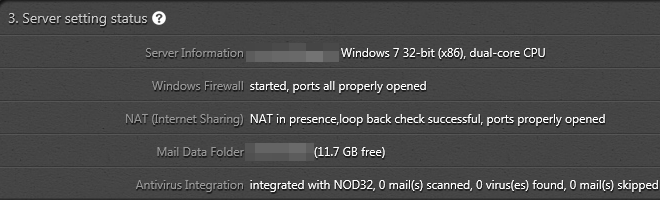
There are only a few steps before you can get the CardDAV/CalDAV server up and running: 1. Open port of 8008, 8443 (for SSL), and 8843 (for SSL) in network firewall or router If such a device does exist and you want it accessible across Internet. 2. Download EVO Mail Server from EVO Official Site and Install it. 3. At the Server setting status of Status page of EVO Mail Server, click on the looping circular arrows to the right-hand side of Windows Firewall to open CardDAV/CalDAV ports in Step 1.

1-3_computer_structure

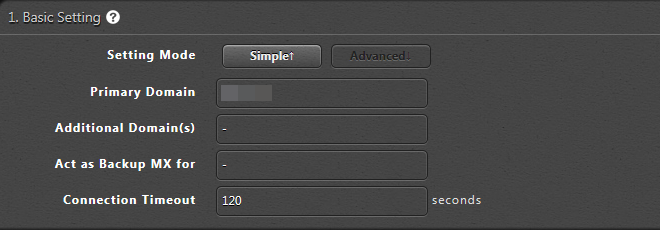
4. Enter domain name in Primary domain within Settings page of EVO Mail Server GUI, if you own an Internet domain name and want EVO to generate proper SSL certificate for that. Otherwise, your server internal IP or public IP can do it.

advanced_mode_1_basic

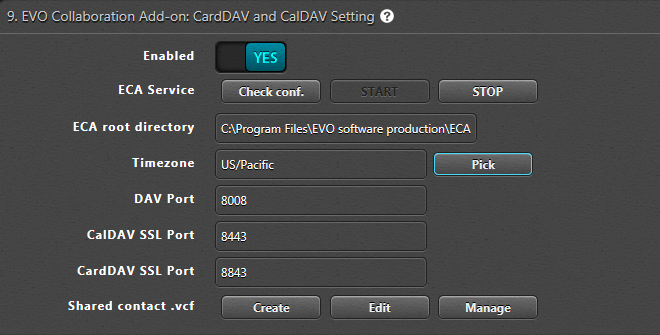
5. On the same Settings page, go to 9. EVO Collaboration Add-on: CardDAV and CalDAV Setting and click Enabled to YES.

eca_screenshot

6. Click Check conf. to the right of ECA Service and click on START to start the service. Then, a window will pop up informing you that the service is running. Note: you may be prompted to download MS VC++ 2008 runtime and ECA (EVO Collaboration Add-on) in this step. 7. Final step, sign your certificate with certificate authorities such as k-software or comodo, that will help clients to negotiate with server without a warning. Now, you may use any CardDAV/CalDAV synchronizer enabled clients such as EVO Collaborator for Outlook, iPhone/iPad devices, Apple iCal, Thunderbird’s Lightning add-on, and etc to access CardDAV/CalDAV resources.

2017/12/04

Outlook.com contacts not syncing with Outlook 2016 & 2019

Outlook.com contacts not syncing with Outlook 2016 & 2019

outlook.com, formerly known as hotmail
Today I was asked about this question, "Outlook.com contacts not syncing with Outlook 2016", I knew that Outlook should automatically sync with outlook.com contacts once the account is added.

However in real world, this kind of problems happened a lot in Microsoft products, don't try to call Microsoft support, You may end up with spending several hours with some dude, explaining your issue with the software again and again. I know, been there, done that! 


Resolving Outlook 2016 contacts not syncing with Outlook.com issue quickly


Since we don't have the time to explain with some dudes who don't have access to their R&D resources, why wasting time on that, just use something helpful instead.

We'd like to introduce you EVO Collaborator for Outlook. with this handy plugin, your outlook.com is just few minutes away from your Outlook 2016.

The setup is simple, I have written a tutorial for that before, please read sync outlook.com contacts and calendars with outlook here

2017/08/04

Transfer contacts and calendars from iCloud/iPhone to Gmail/Android

Transfer contacts and calendars from iCloud/iPhone to Gmail/Android

It’s time to share some new IT stuff with you guys.

A friend was asking me, “Can I Transfer contacts and calendars from iCloud/iPhone to Gmail/Android?”

Of course, you can.

I have done some research on Google and conclude with some solutions below:

Contacts: Users log in iCloud and save every contact into .vcf file and log back in Gmail and import those files.

Calendars: Many different ways of doing it. It is similar to the Contact solution. It has to go through an intermediate account, such as from iCloud to Android or iCloud to iCAL first and then from either Android or iCAL to the destination.

Experienced users must understand how time wasting it is. If there is a way to perform a direct transfer from iCloud to Gmail, then it is nice to have it, right?


Let’s look at EVO Collaborator for Outlook.

This Outlook plug-in enables Contacts and Calendars of Outlook 2007, 2010, 2013, 2016, and 2019 to be a bridge between multiple cloud services. Through this tunnel, a cloud-to-cloud on-the-fly duplication, moving, or synchronizing now becomes possible.


What is CardDAV and what is CalDAV? CardDAV and CalDAV are standard protocol API by IETF’s RFC for contacts and calendars. Google and Apple are using the contacts API and the calendar API to take care of contacts and calendars at the backend to service their customers’ needs on such information..

How to perform cloud-to-cloud contacts and calendar duplication and transfer on-the-fly? 1. Download ECO from EVO’s official website


STEP.1


Download URL (when you install it, please log in as administrator) 2. Set up Gmail account within ECO’s Configuring profile(s)

a. Go to ‘Configuring profile(s)’ under EVO ribbon


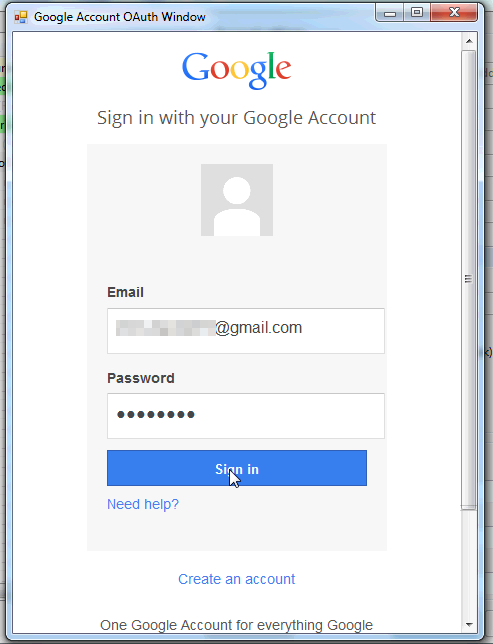
b. Due to OAuth, there will pop up a small browser for Gmail logon. Once authenticated, close the window


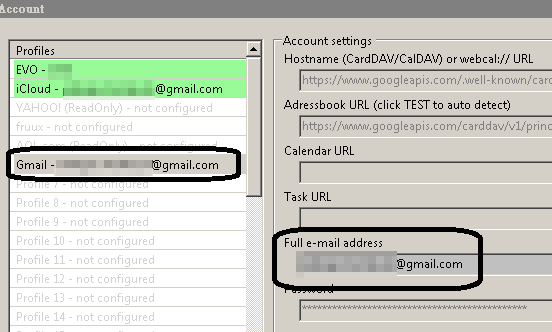
c. Once completed, Gmail contact, calendar will be bi-directionally synchronized. Data from Android mobile devices will be sync’d too.

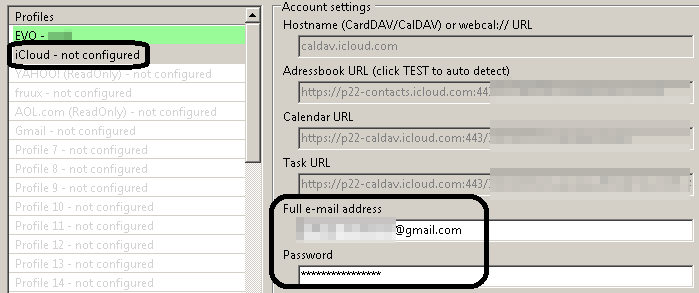
3. Create iCloud profile

a. Repeat account adding like Gmail


b. There will be no OAuth window popping up, but you will need to use Apple ID's App password, to do that you also have to enable 2-steps verifications in Apple.

c. Once completed, iCloud contact, calendar will be bi-directionally synchronized. Data from iPhone mobile devices will be syn’d too

4. Synchronize contacts between iCloud and Gmail

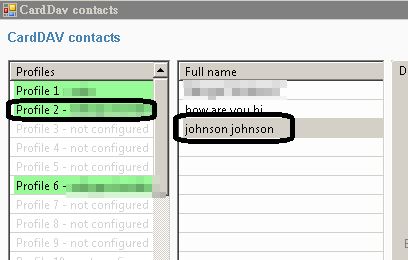
a. Click on ‘Explore server’ under ‘CardDAV actions for contacts’ on ECO ribbon


b. Click on ‘Profile2’ in the ‘Profiles’ section

c. At this moment, ‘Full name’ in the middle will display all contacts under this iCloud account.


d. Hold ‘Ctrl’ and mouse left-click for selecting multiple contacts

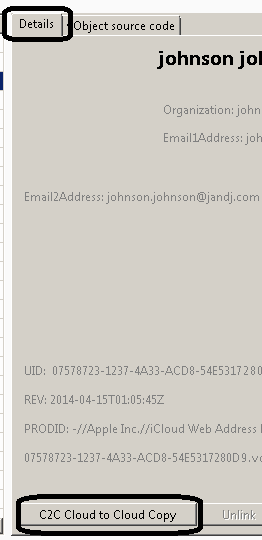
e. Go to bottom of ‘Detail’ tab and click on ‘C2C Cloud to Cloud Copy’


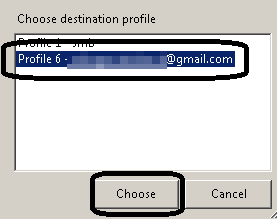
f. In the pop-up box, click on Profile6 to continue duplicating


g. Once completed, a message box appears and inform number of success and failed items


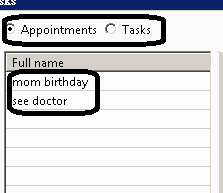
5. For the calendar part, it is similar to step 4. The difference is clicking on ‘Explore server’ under ‘CalDAV actions for calendars’ in step a. Under Full name, all calendar and task will be shown and you can click on either radial button at the top from step c. However, Gmail does not provide Tasks service.


All the tutorials above can also provide synchronization between different other cloud services that run on CardDAV and CalDAV. Also, one easy-to-use alternative choice rather than cloud solution is EVO Mail Server. It has both CardDAV and CalDAV of its own for better performance over the slow and scolded information retrieval from Gmail services on contacts and calendars. Try it out: EVO Mail Server

2018.01.05

2016/10/17

Configure Gmail account in Microsoft Outlook 2016 or 2019

Configure Gmail account in Microsoft Outlook 2016

Applies to: Outlook 2016, Outlook 2013, Outlook 2010, Outlook 2007, Gmail, Google Calendar, Google Task

For various reasons, we like to integrate Gmail accounts into Outlook rather than using Gmail on web browsers. At this point, we use free Gmail account as an example to demonstrate on how to create a Gmail account inside Outlook using IMAP and SMTP protocols.


Adding Gmail account

Setting up Gmail account in Outlook can be as simple as a few steps below:

1. Click on [File] at top-left


2. Click on [+ Add Account]


3. Click on [E-mail Account] radial and 
fill in your name, E-mail Address and password. Then, click on [Next >] at lower-right


4. After 10 to 15 seconds of auto-discovery, your Gmail IMAP is successfully configured and click on [Finish] to exit [Add Account] window


5. At Navigation Pane to the left, you will see folders for your Gmail account


Unlike some on-premises mail server, whether they are free mail server or paid software that requires us to fill in server host name and supporting ports, Outlook is able to auto-detect Gmail configuration settings.

Managing subscribed folders

You can and you should take a look at the list of subscribed folders in your Gmail account, because you do not necessarily need to subscribe them all. For example, subscription to [Gmail]/All Mail folder can be omitted so that you can save a lot of time and bandwidth.


Streamline your Google experience in Outlook

For Outlook users who stick with Gmail accounts, it would be nice to also integrate their Google contacts, calendars and tasks from their Google accounts on Outlook. I personally recommend sync through Outlook add-ins. Since contacts, calendars and tasks are always changing all over the places, life is easier if things are synchronized throughout all your devices.


Surprisingly, it’s the year of 2016 and Gmail still doesn’t provide Push Mail Notification to Gmail account configured under Outlook. After observation for some time, the only way for me to be notified of new incoming mails for IMAP is if I leave the INBOX of my IMAP account selected.


Sync tools on the market

There are about a dozen of Outlook sync tools on the market, such as gSyncit, Companionlink, OggSync, Sync2, SyncMyCal and EVO Collaborator for Outlook. What if we want an all-in-one solution that synchronizes Google contacts and tasks while providing both real-time calendar sync and Gmail Push Mail to Outlook? EVO collaborator for outlook may be the only answer. I’d recommend Gmail users using Outlook as their default desktop mail client to try this add-in.


2016/05/31

How to sync Axigen Mail Server contacts in Outlook without Outlook connector via CardDAV?

How to sync Axigen contacts in Outlook without Outlook connector via CardDAV?

Among free mail server and paid server ware, if you are in IT industry for some time, you have probably heard of Axigen Mail Server. Its powerful features and scalability are proven to provide a decent alternative to Microsoft Exchange Server.


On the other day, when I saw EVO Collaborator for Outlook  was released and it supports synchronization with Axigen Mail Server's contacts or address book, I decided to try it out.


How to sync Axigen Mail Server contacts with Outlook using CardDAV protocol?


Once I got my trial installation of Axigen Mail Server done, all I did was opening my Outlook 2016 and manually entering contact URL in the following syntax:

https://<servername>/Contacts/


Then, I enter my full e-mail address and password. The next thing is clicking on TEST button, Apply button and Quit button.

As a result, the synchronization went successfully:


However, I notice that domain and public contacts are not yet to be synchronized through CardDAV.

I googled a little bit and found requests of implementing CalDAV and CardDAV support were brought up years back:

https://www.axigen.com/forum/forum/support-discussion-lists/feature-requests/3792-caldav-support

On Axigen's Google+ page, support for CardDAV was mentioned and made available back in Q2 2015.

https://plus.google.com/communities/102973968071431941505

Then, I found a good news on Axigen's Product Community update that CalDAV may be available in Q4 2016:

https://axigen.uservoice.com/forums/294255-general/suggestions/13322535-caldav-support

Many thanks to Axigen's R&D staffs on their effort making things possible. This is really awesome that users from Outlook 2019, 2016, 2010, 2013 and 2007 will benefit from it!