Showing posts with label calendars. Show all posts

2024/12/18

How to sync Outlook.com, Office365 and Exchange Online contacts and calendars with Outlook 2016, 2019 and Office365?

How to sync Outlook.com, Office365, Windows Live Hotmail and Exchange Online with Outlook 2010, 2013, 2016 and 2019?

As we step into 2024, a growing number of professions require remote work, a trend that persists beyond the COVID-19 pandemic. Syncing calendars, contacts, and tasks from home presents a challenge for those unaccustomed to this practice, despite its benefits for collaborating with colleagues.

In light of Google's provision of Gmail, what does Microsoft provide in a similar vein?

Microsoft Outlook.com

How can one synchronize Outlook.com contacts and calendars with Outlook versions 2007, 2010, 2013, 2016, and 2019 (Outlook classic)? (This method also applies to Office 365 and Exchange Online accounts.)

Let us try EVO Collaborator for Outlook to see if synchronization works?

eco_logo

  1. Download EVO Collaborator for Outlook and install it
  2. Click on Configure profiles

    eco_gui_eng_new

  3. Select Profile called outlook.com – not configured

    eco_configure_profile_office365

  4. Click TEST button at the bottom to proceed entering Outlook e-mail and password in popup window

    office365_auth_windows

  5. A list of permissions acknowledgement pops up and click on YES to grant ECO

    office365_permission_list

  6. Click off the window popup to continue
  7. Click on OK in Success box and then Apply to save configuration settings
  8. For existing local items before ECO installation, click on Browse local above CardDAV action for contacts and CalDAV action for calendars and perform O2C action (upload from outlook to microsoft)
As we know, steps are easy and no computer knowledge is involved. Installation and configuration are easy just as if you are adding an Exchange account.
outlook
Outlook.com contacts and calendars

What is , or Microsoft Graph API?

MICROSOFT-GRAPH-API

Numerous individuals endeavor to access their previous Hotmail or Outlook.com contacts and calendars using Outlook 2007, 2010, 2013, and 2016. While Outlook 2013 and 2016 excel in enabling users to integrate their Outlook.com accounts via Active Sync, a native Microsoft protocol utilized by Exchange Online service within Office 365, the compatibility of Outlook 2007 and 2010 raises questions. Despite Microsoft's indication that Outlook 2007 SP3 and 2010 SP2 resolve these issues, findings from various internet communities suggest otherwise. Moreover, mainstream support for Outlook 2007 ceased on 10/9/2012, followed by Outlook 2010 on 10/13/2015, further exacerbating the situation. Consequently, users seek a functional replacement or alternative, such as the Hotmail connector or Outlook.com connector for Outlook 2007 and 2010. Fortunately, third-party solutions like EVO Collaborator for Outlook offer assistance by supporting the Graph API, succeeding both the Outlook.com API and Live Connect API, thereby facilitating the synchronization of Outlook.com contacts and calendars.
 

Evolution of MSN

From MSN Hotmail to Windows Live Mail to Outlook.com to Office 365 (cloud service), the journey has been long and eventful. For many of you, Hotmail has been a steadfast companion since its inception in 1995. Following Microsoft's acquisition in 1997, it was rebranded as MSN Hotmail, with numerous attempts to integrate this service into the Windows infrastructure. In 2005, facing competition from Google's Gmail, MSN Hotmail underwent a transformation and emerged as Windows Live Hotmail, offering faster, easier, and more secure services. Subsequently, in 2012, Outlook.com was launched, gradually replacing Windows Live Hotmail by 2013. By the middle of 2015, Microsoft commenced the integration of all previous accounts, including Hotmail, MSN Hotmail, Windows Live Hotmail, and Outlook.com, into Office 365 services. Presently, users can still access the desktop version of Office software through their Office 365 portal.

How does EVO Collaborator for Outlook make it happen?

As we mentioned previously, Hotmail.com, Windows Live, and Outlook.com services were merged into Office 365 service collectively. Using Exchange Online service along with Microsoft Graph API, third-party software developers are able to sync a complete set of fields between Office 365 and Outlook 2007/2010, which has issues synchronizing ever since. Other userful information

2024.5.27

2024/05/11

Sync Yahoo calendar with Outlook 2016 and Outlook 2019

Import, Export, and Synchronize Yahoo! Contacts and Calendar with Microsoft Outlook

In 2024, an increasing number of jobs require people to work from home due to the COVID-19 pandemic. Syncing calendars, contacts, and tasks remotely from home to collaborate with colleagues has become a challenge for those unfamiliar with the process.

Just a few weeks ago, a friend from high school asked me a question: "My colleagues from the States keep bothering me. They want me to import their Yahoo! Address book and appointment information into Outlook 2016, 2019, and 2013 on their laptops because there's too much crucial information to miss out on. Now, I'm stressed because the old Yahoo! Sync method isn't effective anymore. What should I do?" When I heard about this, I suggested an idea to him: Try EVO Collaborator for Outlook! I previously mentioned to you all how amazing this software is for importing contacts and calendars from Gmail and iCloud, right? Just a few days ago, I came across an update history on the EVO Mail Server website about ECO, and now it can perform read/write/delete synchronization tasks on Yahoo! CardDAV and CalDAV! Let's learn how to sync Yahoo contacts and calendars with Outlook:

  1. Outlook and Download ECO software from EVO's Official Download
  2. Open Outlook and enter ECO’s “Configure Profile(s)”

    eco_gui_config_selected

  3. Select the third profile from the top at the left-hand side: YAHOO!

    yahoo_slot

  4. At the right-hand side, enter your complete Yahoo! E-mail address in “Full e-mail address or Username” field

    yahoo_username_pw

  5. About the password, we need to pay close attention. Yahoo! now requires any third-party application to use a separate password called “App Password” generated within your Yahoo! account settings. With this App Password, such sync application can then access information within the user account.
  6. Please follow Generating App Passwords instruction to create such password and enter this generated password in “Password” field.

    yahoo_pw_generate

  7. Click on “TEST” below. Once a pop-up box showing “Success” appears, click on “Apply” and then “Quit”
  8. At this moment, ECO will initiate an automated addressbook and Calendar synchronization
2024.05.12

2021/11/07

How to set up a CardDAV and CalDAV server on Windows 10/11

How to set up a carddav server on Windows 10/11?

In this year of 2020, more and more jobs require people to work from home due to COVID-19 pandamic. Syncing calendar, contact and task remotely from home in order to cope with colleagues has become an issue for those who have not done this before.

Many people want to host their own address book server for various reasons, for example, higher security, there are several address book (CardDAV) servers and calendar (CalDAV) server software programs are lying around, such as OwnCloud for Linux and Mac OS X server for Apple computers and etc. However, what is our choice if we want to setup one on Windows PC? Among all paid or free mail server software, I recommend one that takes a breeze to install: EVO Mail Server.

How to set up a caldav server on Windows Server?

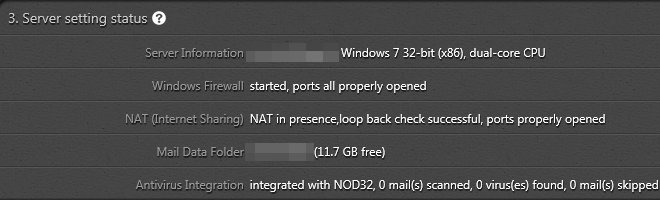
There are only a few steps before you can get the CardDAV/CalDAV server up and running: 1. Open port of 8008, 8443 (for SSL), and 8843 (for SSL) in network firewall or router If such a device does exist and you want it accessible across Internet. 2. Download EVO Mail Server from EVO Official Site and Install it. 3. At the Server setting status of Status page of EVO Mail Server, click on the looping circular arrows to the right-hand side of Windows Firewall to open CardDAV/CalDAV ports in Step 1.

1-3_computer_structure

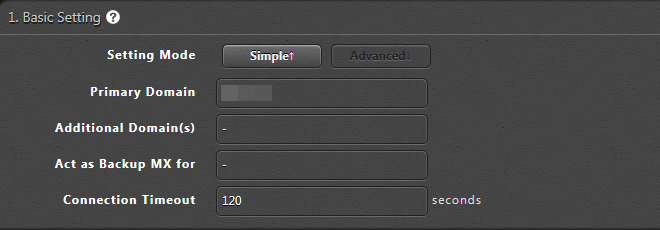
4. Enter domain name in Primary domain within Settings page of EVO Mail Server GUI, if you own an Internet domain name and want EVO to generate proper SSL certificate for that. Otherwise, your server internal IP or public IP can do it.

advanced_mode_1_basic

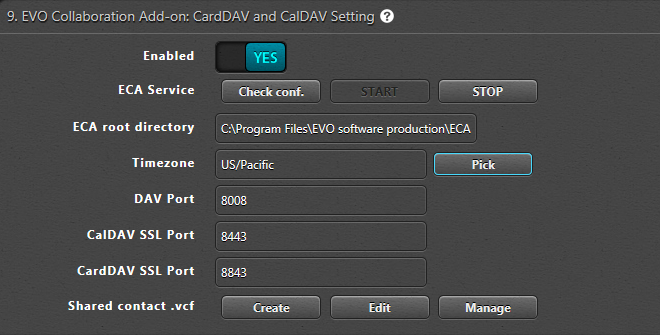
5. On the same Settings page, go to 9. EVO Collaboration Add-on: CardDAV and CalDAV Setting and click Enabled to YES.

eca_screenshot

6. Click Check conf. to the right of ECA Service and click on START to start the service. Then, a window will pop up informing you that the service is running. Note: you may be prompted to download MS VC++ 2008 runtime and ECA (EVO Collaboration Add-on) in this step. 7. Final step, sign your certificate with certificate authorities such as k-software or comodo, that will help clients to negotiate with server without a warning. Now, you may use any CardDAV/CalDAV synchronizer enabled clients such as EVO Collaborator for Outlook, iPhone/iPad devices, Apple iCal, Thunderbird’s Lightning add-on, and etc to access CardDAV/CalDAV resources.

2018/08/02

How to share calendar between outlook 2007 and 2010?

How to share calendar between outlook 2007 and 2010?

How to share an Outlook calendars with other people without Exchange server? This is a simple question with no easy answer. If you go to Microsoft website, they will tell you that you can share your calendar by e-mail or an exchange server account. We all know that is not we wanted. Anyway, the above case has been discussed in another article that I wrote: How to share my Outlook calendar with another user?

Let's try another scenario, you have one desktop in office, one desktop at home and one laptop in your car. One of them is Outlook 2007 and two of them are Outlook 2010. Here comes a very easy way to do it:
  1. First, you need to get an online calendar account such as fruux, or you can use your existing iCloud or Gmail account.
  2. Download EVO Collaborator for Outlook from EVO's Official Site and install it with administrator's privilege. This 5.5MB Outlook add-in is the magic that makes everything possible.
    EVO Collaborator for Outlook, an Outlook add-in from EVO software production
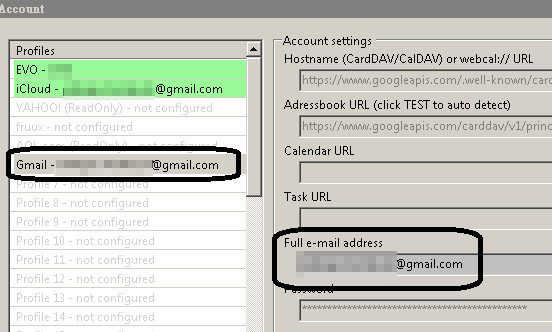
  3. Install ECO on your computer at work. In Configure profile(s), select Gmail profile at the left-hand side. Enter your Gmail account at the right-hand side. Click TEST to complete OAuth process. Once you quit Configure profile(s), synchronization will start automatically.
  4. Install ECO on your computer at home. In Configure profile(s), select Gmail profile at the left-hand side. Enter your Gmail account at the right-hand side. Click TEST to complete OAuth process. Once you quit Configure profile(s), synchronization will start automatically.
  5. Install ECO on your laptop on the road. In Configure profile(s), select Gmail profile at the left-hand side. Enter your Gmail account at the right-hand side. Click TEST to complete OAuth process. Once you quit Configure profile(s), synchronization will start automatically.
From now on, when you turn on any of your computers and open Outlook, ECO will start synchronization and update your calendar events automatically.

Not only between Outlook 2007 and 2010, it can be deployment between all Outlook versions from 2007, 2010, 2013, 2016 to 2019. Yet, if you run your mobile life on iPhone or Android, it would be even more convenient. Let say if you meet someone in business meetings on the road, you simply add new potential customer's contact on your mobile phone. When you go back to office, you will see the new contact entry on your PC's Outlook once sync session is taking place. It will work in similar fashion for future meetings created on the road.

What was mentioned above is a scenario that has always worked for users with Exchange accounts. However, what we are talking about now is a much cheaper alternative that everyone can afford even for a one-man company with no complicated infrastructure involved.


2017/08/04

Transfer contacts and calendars from iCloud/iPhone to Gmail/Android

Transfer contacts and calendars from iCloud/iPhone to Gmail/Android

It’s time to share some new IT stuff with you guys.

A friend was asking me, “Can I Transfer contacts and calendars from iCloud/iPhone to Gmail/Android?”

Of course, you can.

I have done some research on Google and conclude with some solutions below:

Contacts: Users log in iCloud and save every contact into .vcf file and log back in Gmail and import those files.

Calendars: Many different ways of doing it. It is similar to the Contact solution. It has to go through an intermediate account, such as from iCloud to Android or iCloud to iCAL first and then from either Android or iCAL to the destination.

Experienced users must understand how time wasting it is. If there is a way to perform a direct transfer from iCloud to Gmail, then it is nice to have it, right?


Let’s look at EVO Collaborator for Outlook.

This Outlook plug-in enables Contacts and Calendars of Outlook 2007, 2010, 2013, 2016, and 2019 to be a bridge between multiple cloud services. Through this tunnel, a cloud-to-cloud on-the-fly duplication, moving, or synchronizing now becomes possible.


What is CardDAV and what is CalDAV? CardDAV and CalDAV are standard protocol API by IETF’s RFC for contacts and calendars. Google and Apple are using the contacts API and the calendar API to take care of contacts and calendars at the backend to service their customers’ needs on such information..

How to perform cloud-to-cloud contacts and calendar duplication and transfer on-the-fly? 1. Download ECO from EVO’s official website


STEP.1


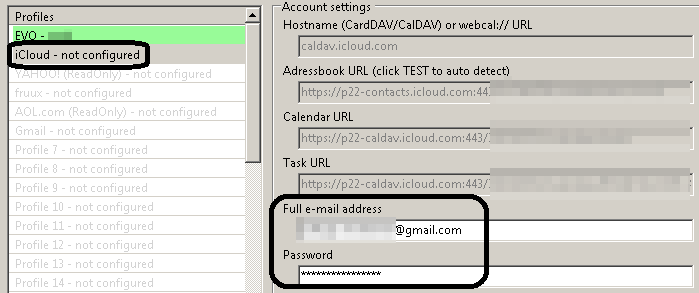
Download URL (when you install it, please log in as administrator) 2. Set up Gmail account within ECO’s Configuring profile(s)

a. Go to ‘Configuring profile(s)’ under EVO ribbon


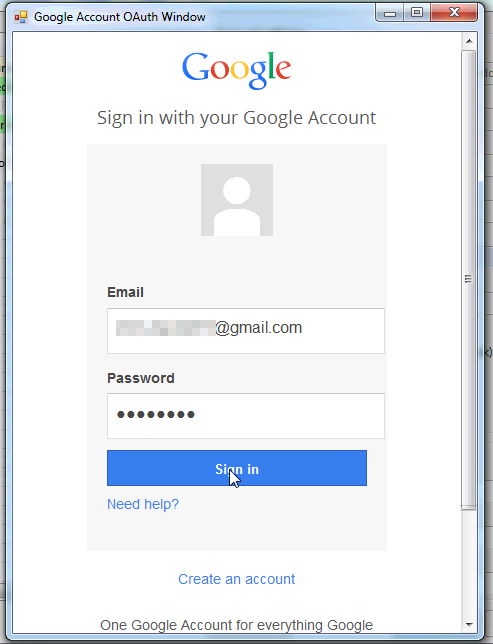
b. Due to OAuth, there will pop up a small browser for Gmail logon. Once authenticated, close the window


c. Once completed, Gmail contact, calendar will be bi-directionally synchronized. Data from Android mobile devices will be sync’d too.

3. Create iCloud profile

a. Repeat account adding like Gmail


b. There will be no OAuth window popping up, but you will need to use Apple ID's App password, to do that you also have to enable 2-steps verifications in Apple.

c. Once completed, iCloud contact, calendar will be bi-directionally synchronized. Data from iPhone mobile devices will be syn’d too

4. Synchronize contacts between iCloud and Gmail

a. Click on ‘Explore server’ under ‘CardDAV actions for contacts’ on ECO ribbon


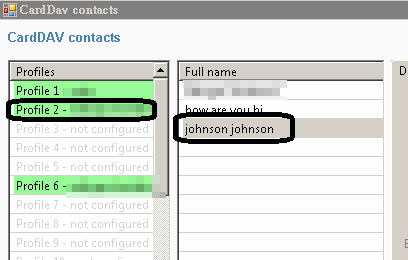
b. Click on ‘Profile2’ in the ‘Profiles’ section

c. At this moment, ‘Full name’ in the middle will display all contacts under this iCloud account.


d. Hold ‘Ctrl’ and mouse left-click for selecting multiple contacts

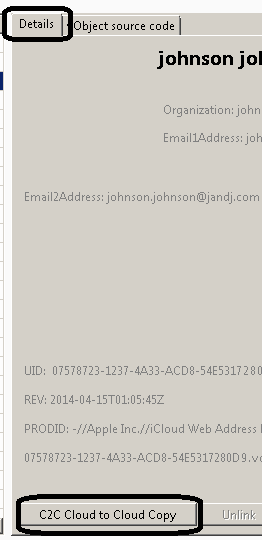
e. Go to bottom of ‘Detail’ tab and click on ‘C2C Cloud to Cloud Copy’


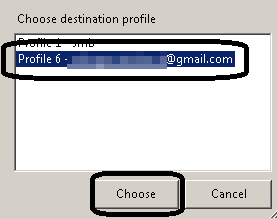
f. In the pop-up box, click on Profile6 to continue duplicating


g. Once completed, a message box appears and inform number of success and failed items


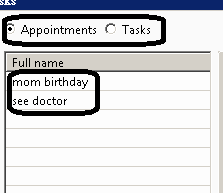
5. For the calendar part, it is similar to step 4. The difference is clicking on ‘Explore server’ under ‘CalDAV actions for calendars’ in step a. Under Full name, all calendar and task will be shown and you can click on either radial button at the top from step c. However, Gmail does not provide Tasks service.


All the tutorials above can also provide synchronization between different other cloud services that run on CardDAV and CalDAV. Also, one easy-to-use alternative choice rather than cloud solution is EVO Mail Server. It has both CardDAV and CalDAV of its own for better performance over the slow and scolded information retrieval from Gmail services on contacts and calendars. Try it out: EVO Mail Server

2018.01.05