Showing posts with label tasks. Show all posts

2024/12/18

How to sync Outlook.com, Office365 and Exchange Online contacts and calendars with Outlook 2016, 2019 and Office365?

How to sync Outlook.com, Office365, Windows Live Hotmail and Exchange Online with Outlook 2010, 2013, 2016 and 2019?

As we step into 2024, a growing number of professions require remote work, a trend that persists beyond the COVID-19 pandemic. Syncing calendars, contacts, and tasks from home presents a challenge for those unaccustomed to this practice, despite its benefits for collaborating with colleagues.

In light of Google's provision of Gmail, what does Microsoft provide in a similar vein?

Microsoft Outlook.com

How can one synchronize Outlook.com contacts and calendars with Outlook versions 2007, 2010, 2013, 2016, and 2019 (Outlook classic)? (This method also applies to Office 365 and Exchange Online accounts.)

Let us try EVO Collaborator for Outlook to see if synchronization works?

eco_logo

  1. Download EVO Collaborator for Outlook and install it
  2. Click on Configure profiles

    eco_gui_eng_new

  3. Select Profile called outlook.com – not configured

    eco_configure_profile_office365

  4. Click TEST button at the bottom to proceed entering Outlook e-mail and password in popup window

    office365_auth_windows

  5. A list of permissions acknowledgement pops up and click on YES to grant ECO

    office365_permission_list

  6. Click off the window popup to continue
  7. Click on OK in Success box and then Apply to save configuration settings
  8. For existing local items before ECO installation, click on Browse local above CardDAV action for contacts and CalDAV action for calendars and perform O2C action (upload from outlook to microsoft)
As we know, steps are easy and no computer knowledge is involved. Installation and configuration are easy just as if you are adding an Exchange account.
outlook
Outlook.com contacts and calendars

What is , or Microsoft Graph API?

MICROSOFT-GRAPH-API

Numerous individuals endeavor to access their previous Hotmail or Outlook.com contacts and calendars using Outlook 2007, 2010, 2013, and 2016. While Outlook 2013 and 2016 excel in enabling users to integrate their Outlook.com accounts via Active Sync, a native Microsoft protocol utilized by Exchange Online service within Office 365, the compatibility of Outlook 2007 and 2010 raises questions. Despite Microsoft's indication that Outlook 2007 SP3 and 2010 SP2 resolve these issues, findings from various internet communities suggest otherwise. Moreover, mainstream support for Outlook 2007 ceased on 10/9/2012, followed by Outlook 2010 on 10/13/2015, further exacerbating the situation. Consequently, users seek a functional replacement or alternative, such as the Hotmail connector or Outlook.com connector for Outlook 2007 and 2010. Fortunately, third-party solutions like EVO Collaborator for Outlook offer assistance by supporting the Graph API, succeeding both the Outlook.com API and Live Connect API, thereby facilitating the synchronization of Outlook.com contacts and calendars.
 

Evolution of MSN

From MSN Hotmail to Windows Live Mail to Outlook.com to Office 365 (cloud service), the journey has been long and eventful. For many of you, Hotmail has been a steadfast companion since its inception in 1995. Following Microsoft's acquisition in 1997, it was rebranded as MSN Hotmail, with numerous attempts to integrate this service into the Windows infrastructure. In 2005, facing competition from Google's Gmail, MSN Hotmail underwent a transformation and emerged as Windows Live Hotmail, offering faster, easier, and more secure services. Subsequently, in 2012, Outlook.com was launched, gradually replacing Windows Live Hotmail by 2013. By the middle of 2015, Microsoft commenced the integration of all previous accounts, including Hotmail, MSN Hotmail, Windows Live Hotmail, and Outlook.com, into Office 365 services. Presently, users can still access the desktop version of Office software through their Office 365 portal.

How does EVO Collaborator for Outlook make it happen?

As we mentioned previously, Hotmail.com, Windows Live, and Outlook.com services were merged into Office 365 service collectively. Using Exchange Online service along with Microsoft Graph API, third-party software developers are able to sync a complete set of fields between Office 365 and Outlook 2007/2010, which has issues synchronizing ever since. Other userful information

2024.5.27

2021/06/16

How do I sync Toodledo with Outlook?

How to sync Toodledo with Outlook?

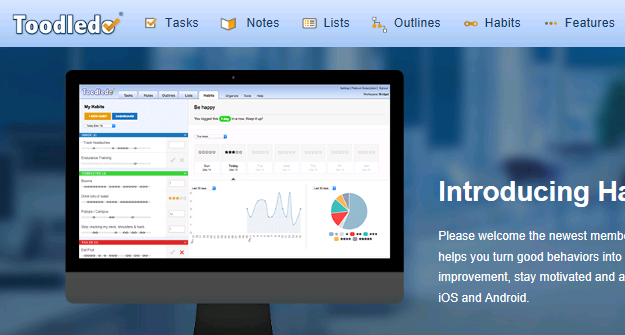
Toodledo online has been a popular task management service provider for the past few years. Being different from regular Google Tasks, Outlook Tasks and  iCloud Reminder, Toodledo provides multi-dimensional ways of keeping your tasks in various areas such as Life Goals, Folder, Location, GTD (getting things done), and Subtasks. Especially, GTD believers found Toodledo suitable to arrange their to-do lists efficiently that they will not drop or forget what has to be done.

toodledo_website

A task is capable of existing in several categories at the same time through its relative interconnectivity to other task items. It is only available if you have either free or paid services from Toodledo.com. Toodledo interface is available in Toodledo’s own web GUI, iPhone app and Android app. Even some 3rd party applications support it with write/read or read-only one way or another. Somehow, discussions have been going on for quite a while on a working and useful plug-ins that sync between Toodledo and Outlook environment.  Before I start to try all those plug-in recommendations, I received a newsletter from EVO staff about the availability on supporting Toodledo. I guess I might as well start with this since I bought EVO Collaborator for Outlook a long time ago.

How do I configure EVO Collaborator for Outlook to sync with Toodledo?

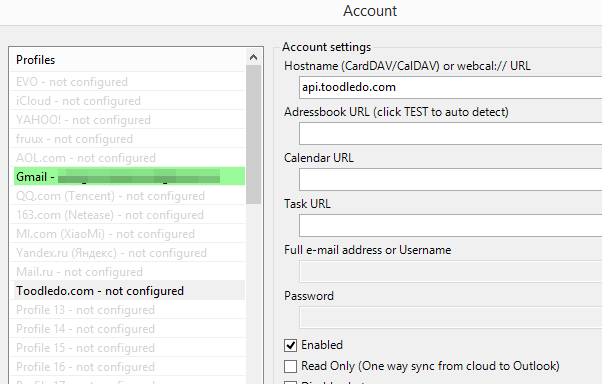
  1. Click on Configure profile
  2. Select Profile 13 – Not configured (this is the profile for toodledo)

    toodledo_config_profile_en

  3. Click on TEST
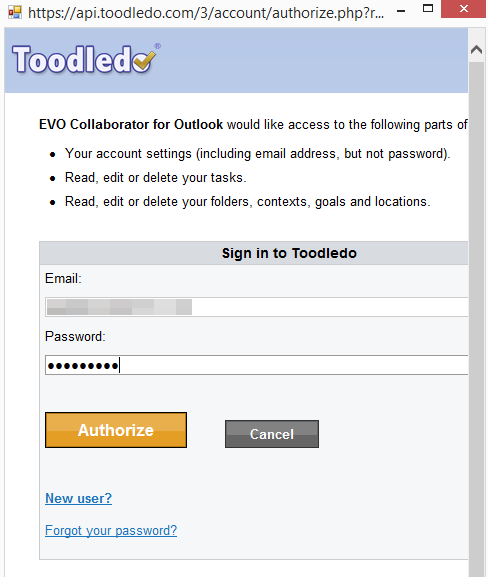
  4. In Toodledo’s OAUTH Authorize window, enter your username and password

    toodledo_authorize

    .
  5. Click on Authorize
  6. Once completed, click cross at top-right
  7. A Success box will pop up and we are done

    toodledo_result_en

After your Toodledo account is properly configured, we need to verify if we are able to sync tasks.
  1. Create a task on Toodledo web GUI
  2. Manipulate task’s property such as folder, context, goal, location, status, priority and tags
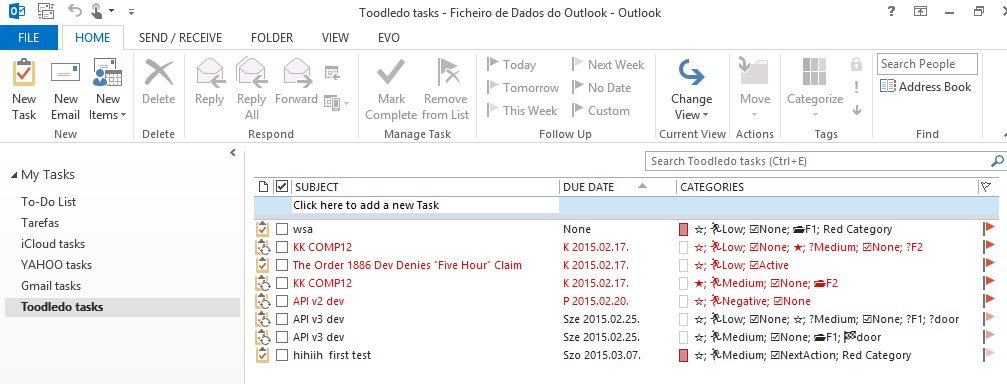
  3. Once task is synchronized with Outlook, go to Outlook and check the matching item in Tasks section
  4. Take a look at various symbols under category, they match each of the task’s property that you just manipulated on web GUI.
  5. Reversely, edit the testing task’s properties such as title and elements in category. Then check back with your Toodledo web-GUI and see if sync takes place.
  6. Here is the emoji mapping table for your reference: Star emoji: ★☆ Folder emoji: ๐Ÿ“‚ Context emoji: @ Goal emoji: ๐Ÿ Location emoji: ๐Ÿ“ Status emoji: ☑ Possible values:         ☑None,         ☑NextAction,         ☑Active,         ☑Planning,         ☑Delegated,         ☑Waiting,         ☑Hold,         ☑Postponed,         ☑Someday,         ☑Canceled,         ☑Reference Priority emoji: ๐Ÿƒ Possible values:            ๐ŸƒNegative,            ๐ŸƒLow,            ๐ŸƒMedium,            ๐ŸƒHigh,            ๐ŸƒTop
I believe EVO Collaborator for Outlook is doing a decent job this time to incorporate Toodledo into Outlook 2007, 2010, 2013, 2016 or 2019 and it comes in handy for those who use both Toodledo and Outlook.