Showing posts with label app password. Show all posts

2017/06/07

How to setup Gmail POP in Outlook? How to setup Gmail IMAP in Outlook?


How to setup Gmail POP in Outlook? How to setup Gmail IMAP in Outlook?

A majority of users are used to using Gmail on browsers. However, there are occasions integrating Gmail accounts into Outlook user-interface is more convenient. Thus, we do not need to flip between Outlook and browser while working on mails between accounts under Outlook.


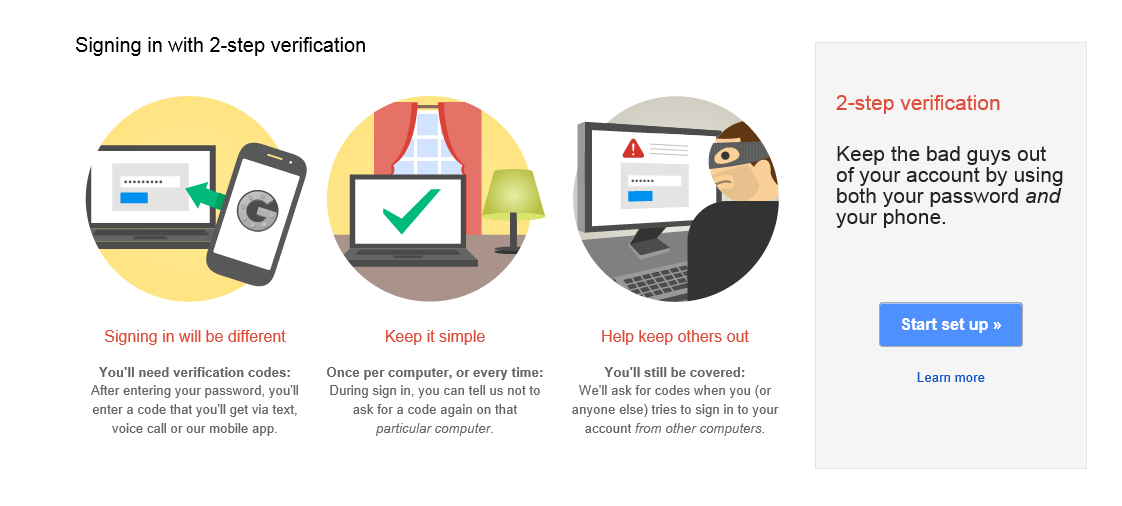
Most users may wonder why Gmail cannot be easily configured in Outlook lately? Recently, Gmail, iCloud and Yahoo! mail have implemented an additional security feature that require users to enter a second password for any third-party application including Outlook that is trying to access their email, calendars, contacts and tasks information.

It is called 2-step verification. You must enable it in order to use Gmail under Outlook. 

Here is how to enable it:


Log in your Gmail and go to Account / Security / Password. Click on Setup next to 2-step Verification. Right there, proceed its following instructions.

Then, how do I setup Gmail email in Outlook?

1.      In your account’s Google Account page, go to Security tab at the top and click on Settings (if it appears Disabled) next to Access for less secure apps under Account permissions.Click on radial of Enable next to Access for less secure apps and Done.


3.      Within Gmail, select Settings from the gear-icon pull-down menu at the top right-hand side.


4.      Under Settings page, click on Forwarding and POP/IMAP tab and turn on POP3 and/or IMAP upon your choice. Shown as below:


5.      How to setup Outlook for Gmail? Go to Outlook, click on File at top-left and select Account settings
6.      Manually create a mail profile as usual. On Account Type, choose POP or IMAP according to your preference. Enter password which you just obtained from 2-step Verification.

7.      Click on More settings to the right. Click on Outgoing Server tab and check the box of My outgoing server (SMTP) requires authentication.

8.      Go to next tab of Advanced, check the box of This server requires an encrypted connection (SSL) and the port number will change to 995 for POP and 993 for IMAP.
                                      

9.      Then, change Outgoing server (SMTP): to 587 if value of Use the following type of encryption connection: is TLS.

10.   change Outgoing server (SMTP): to 465 if value of Use the following type of encryption connection: is SSL.

11.  Click OK to exit and OK all the way.

Now we can use Gmail's mail feature in Outlook. But what about contacts and
calendars? There is an Outlook add-in called EVO Collaborator for Outlook and it is able
to handle this type of 2-steps verification process in Gmail, iCloud and Yahoo!. You can
download it from its official website and try it out.

EVO Collaborator for Outlook is compatible with:

Public contact, calendar, task services such as Gmail, iCloud, Yahoo! and fruux

On-premise CardDAV/CalDAV servers such as EVO Mail Server, Mac OS X Server,
OwnCloud and Zimbra

After ECO installation, any contact, calendar and task items created by other means of
mobile devices or web-based interface will be synced to Outlook and vice versa.

For all items before ECO installation, you may manually select items and upload them to
your CardDAV/CalDAV account.

I think it is worth every penny of it.

Please refer to the following links on how to sync popular CardDAV/CalDAV services
with Outlook 2007, 2010, 2013, 2016 or 2019.

3. Sync Mac OS X, Zimbra or OwnCloud with Outlook

2014/10/12

How to configure POP in Outlook? How to configure IMAP in Outlook?


How to configure POP in Outlook? How to configure IMAP in Outlook?


  1. How to setup Outlook for an IMAP or POP account accessing paid or free mail server? Go to Outlook, click on File at top-left and select Account settings


  2. Manually create a mail profile as usual. On Account Type, choose POP or IMAP according to your preference. Enter your account name and password which you just obtained from your administrator.


  3. Click on More settings to the right. Click on Outgoing Server tab and check the box of My outgoing server (SMTP) requires authentication.
  4. Go to next tab of Advanced, check the box of This server requires an encrypted connection (SSL) and the port number will change to 995 for POP and 993 for IMAP.
  5. Then, change Outgoing server (SMTP): to 587 if value of Use the following type of encryption connection: is TLS.
  6. Change Outgoing server (SMTP): to 465 if value of Use the following type of encryption connection: is SSL.
  7. Click OK to exit and OK all the way.
Now we can use Outlook’s mail feature through IMAP or POP. But what about contacts and calendars? There is an Outlook 2007/2010/2013/2016/2019 add-in called EVOCollaborator for Outlook and it is able to handle this type of 2-steps verification process in Gmail, iCloud and Yahoo!. You can download it from EVO Official website and try it out.

EVO Collaborator for Outlook is compatible with:
  1. Public contact, calendar, task services such as Gmail, iCloud, Yahoo! and fruux

    Notes: ECO supports Gmail’s 2-step verification, Yahoo!’s App passwords and upcoming iCloud’s 2-step verification. 
  2. On-premise CardDAV/CalDAV servers such as EVO Mail Server, Mac OS X Server, OwnCloud and Zimbra
After ECO installation, any contact, calendar and task items created by other means of mobile devices or web-based interface will be synced to Outlook and vice versa.

For all items before ECO installation, you may manually select items and upload them to your CardDAV/CalDAV account.

I think it is worth every penny of it.

Please refer to the following links on how to sync popular CardDAV/CalDAV services with Outlook.
  1. Sync iCloud with Outlook
  2. Sync Mac OS X, Zimbra or OwnCloud with Outlook

How to setup Yahoo! POP in Outlook? How to setup Yahoo! IMAP in Outlook?


How to setup Yahoo! POP in Outlook? How to setup Yahoo! IMAP in Outlook?

A majority of users are used to using Yahoo! on browsers. However, there are occasions integrating Yahoo! accounts into Outlook user-interface is more convenient. Thus, we do not need to flip between Outlook and browser while working on mails between accounts under Outlook.


Most users may wonder why Yahoo! cannot be configured in Outlook lately? Recently, Gmail, iCloud and Yahoo! have or will have implemented an extra security feature that require users to enter a second password for any third-party application including Outlook that is trying to access their email, calendars, contacts and tasks information.


It is called 2-step Verification. You must enable it in order to use Yahoo! under Outlook. However, Yahoo! offers App passwords in this scenario. Please read on for more detail:

  1. Log in your Yahoo! and go to Account Info. Click on Setup your second sign-in verification under Sign-In and Security.
  2. Click on Generate app password.
  3. Fill in name of software that needs access under Name the app that requires a password and click on Generate password. Write down code below Enter the app password. Click Done and leave.

 How do I setup Yahoo! email in Outlook?


1.      How to setup Outlook for Gmail? Go to Outlook, click on File at top-left and select Account settings
2.      Manually create a mail profile as usual. On Account Type, choose POP or IMAP according to your preference. Enter password which you just obtained from Generate password.
                                  

3.   Click on More settings to the right. Click on Outgoing Server tab and check the box of My outgoing server (SMTP) requires authentication.

4.      Go to next tab of Advanced, check the box of This server requires an encrypted connection (SSL) and the port number will change to 995 for POP and 993 for IMAP.
                                     

5.      Then, change Outgoing server (SMTP): to 587 if value of Use the following type of encryption connection: is TLS.

6.       change Outgoing server (SMTP): to 465 if value of Use the following type of encryption connection: is SSL.

7.      Click OK to exit and OK all the way.

Now we can use Gmail's mail feature in Outlook. But what about contacts and 
alendars? There is an Outlook add-in for 2007, 2010, 2013, 2016 and 2019 called EVOCollaborator for Outlook and it is able
to handle this type of 2-steps verification process in Gmail, iCloud and Yahoo!. You can
download it from EVO official website and try it out.

EVO Collaborator for Outlook is compatible with:

Public contact, calendar, task services such as Gmail, iCloud, Yahoo! and fruux

On-premise CardDAV/CalDAV servers such as EVO Mail Server, Mac OS X Server,
OwnCloud and Zimbra

After ECO installation, any contact, calendar and task items created by other means of
mobile devices or web-based interface will be synced to Outlook and vice versa.

For all items before ECO installation, you may manually select items and upload them to
your CardDAV/CalDAV account.

I think it is worth every penny of it.

Please refer to the following links on how to sync popular CardDAV/CalDAV services
with Outlook.


Sync Mac OS X, Zimbra or OwnCloud with Outlook

How to sync iCloud with Outlook: using two-step verification and app password?


How to sync iCloud with Outlook: using iCloud two-step verification and app password?


You may have heard of Snowden’s incident and Hollywood celebrity’s naked photos. Particularly, celebrity’s photos spread out like snowflakes on Internet due to hackers breaking into users’ iCloud accounts.

Here is a quote from Apple:

If you use iCloud with any third party apps (such as Microsoft Outlook, Mozilla Thunderbird, or BusyCal) you can generate app-specific passwords that allow you to sign in securely, even if the app you're using doesn't support two-step verification. Using an app-specific password also ensures that your primary Apple ID password isn't collected or stored by any third party apps you might use. Starting on October 1, 2014, app-specific passwords will be required to sign in to iCloud using any third party apps.


Before Apple’s announcement, two-step-verification and app password have already been deployed by Google and Yahoo!.


These security mechanisms seem to be popular trends. Two-step verification sends out cellular text message containing confirmation code. After we enter the code on Apple’s verifying website, our identities are proven legit. Now, we are able to create app password and use it to access our iCloud data within third-party applications.

For deploying Apple’s Two-step-verification and app password, please refer to instructions in Apple’sFAQ about two-step-verification for Apple ID. One reminder is that you must enable 2-step-verification before obtaining an app password.

Outlook is one of the popular third-party applications that require app password in order to access Gmail, Yahoo! and iCloud. Outlook users may enter app password to retrieve e-mails through Outlook’s built-in IMAP or POP. For CardDAV and CalDAV, they may use the same app password on Outlook add-in, such as EVO Collaborator for Outlook, to retrieve their Outlook 2007/2010/2013/2016/2019 Contacts, Calendars and Tasks.

Nevertheless, if you do have a serious need of keeping NSA intrusion or hackers off limit, both on-premises mail server and CardDAV/CalDAV server are really what you are looking for. EVO Mail Server is one of your options that integrate all email messaging, contacts, calendars, and tasks in one package. Download from EVO Official Site and try it out.