2024/04/01

Sync Outlook with Kerio Connect Server

Sync Outlook with Kerio Connect Server 

The Kerio Connect Server is a favored messaging solution among mid-sized and small businesses. Notably, it offers beneficial features like contact, calendar, and task sharing, facilitating collaboration within the company.


A decent Exchange alternative

As an Exchange alternative distinct from free mail servers, Kerio offers its own Outlook Connector, allowing Outlook users to access their data on the Kerio Connect Server. However, there have been user reports indicating that it operates sluggishly.

Exploring Mysterious CardDAV and CalDAV URLs

However, if we aim to retrieve CardDAV and CalDAV data from third-party software like Thunderbird on the Kerio Connect Server, we must acquire the URLs for contacts, calendars, and tasks. Although Kerio's KB provides tutorials for this (http://kb.kerio.com/product/kerio-connect/email-clients/mobile-devices/manual-configuration-of-caldav-and-carddav-accounts-1327.html), these URLs often prove ineffective.

In discovering URLs that really work


Here, I found EVO Collaborator for Outlook handy and it works on CardDAV and CalDAV URLs auto discovery. Here is how:

  1. Download and install EVO Collaborator for Outlook from its official website
  2. Open Outlook and go to Configure profiles

  3. Enter your Kerio Connect Server IP like this:

    https://<Server_IP>:port
  4. Enter username and password. Then click on TEST
  5. CardDAV URL and CalDAV URLs will appear, shown as below:

Personal and Public folders 

In ECO's Configure profiles, beside the URLs, there are folder icons that allow you to choose between Personal or Public folders. Opting for the public folder will display public URLs. However, upon examination, we notice that these URLs differ from those instructed in Kerio's KB.

If you utilize Outlook 2007, 2010, 2013, 2016, or 2019, you can proceed with ECO. If you wish to access the Kerio server from Thunderbird, you can simply copy and paste the provided URLs into the SoGO connector and Lightning plug-ins for Thunderbird.

2021/11/07

How to set up a CardDAV and CalDAV server on Windows 10/11

How to set up a carddav server on Windows 10/11?

In this year of 2020, more and more jobs require people to work from home due to COVID-19 pandamic. Syncing calendar, contact and task remotely from home in order to cope with colleagues has become an issue for those who have not done this before.

Many people want to host their own address book server for various reasons, for example, higher security, there are several address book (CardDAV) servers and calendar (CalDAV) server software programs are lying around, such as OwnCloud for Linux and Mac OS X server for Apple computers and etc. However, what is our choice if we want to setup one on Windows PC? Among all paid or free mail server software, I recommend one that takes a breeze to install: EVO Mail Server.

How to set up a caldav server on Windows Server?

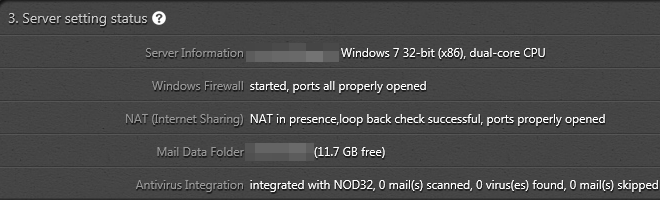
There are only a few steps before you can get the CardDAV/CalDAV server up and running: 1. Open port of 8008, 8443 (for SSL), and 8843 (for SSL) in network firewall or router If such a device does exist and you want it accessible across Internet. 2. Download EVO Mail Server from EVO Official Site and Install it. 3. At the Server setting status of Status page of EVO Mail Server, click on the looping circular arrows to the right-hand side of Windows Firewall to open CardDAV/CalDAV ports in Step 1.

1-3_computer_structure

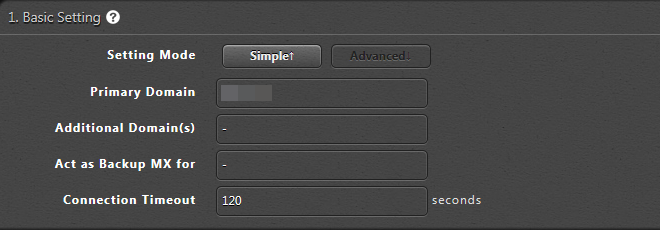
4. Enter domain name in Primary domain within Settings page of EVO Mail Server GUI, if you own an Internet domain name and want EVO to generate proper SSL certificate for that. Otherwise, your server internal IP or public IP can do it.

advanced_mode_1_basic

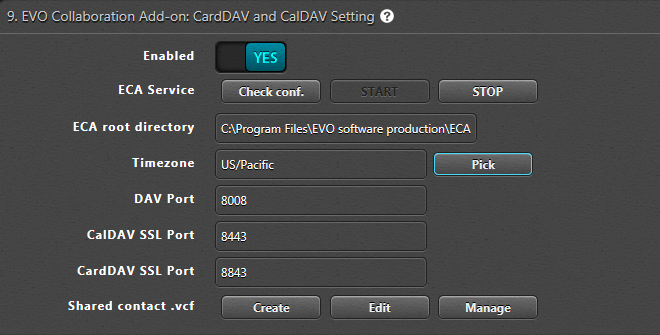
5. On the same Settings page, go to 9. EVO Collaboration Add-on: CardDAV and CalDAV Setting and click Enabled to YES.

eca_screenshot

6. Click Check conf. to the right of ECA Service and click on START to start the service. Then, a window will pop up informing you that the service is running. Note: you may be prompted to download MS VC++ 2008 runtime and ECA (EVO Collaboration Add-on) in this step. 7. Final step, sign your certificate with certificate authorities such as k-software or comodo, that will help clients to negotiate with server without a warning. Now, you may use any CardDAV/CalDAV synchronizer enabled clients such as EVO Collaborator for Outlook, iPhone/iPad devices, Apple iCal, Thunderbird’s Lightning add-on, and etc to access CardDAV/CalDAV resources.

2021/06/16

How do I sync Toodledo with Outlook?

How to sync Toodledo with Outlook?

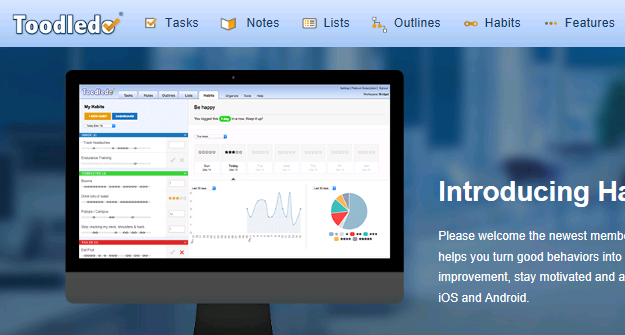
Toodledo online has been a popular task management service provider for the past few years. Being different from regular Google Tasks, Outlook Tasks and  iCloud Reminder, Toodledo provides multi-dimensional ways of keeping your tasks in various areas such as Life Goals, Folder, Location, GTD (getting things done), and Subtasks. Especially, GTD believers found Toodledo suitable to arrange their to-do lists efficiently that they will not drop or forget what has to be done.

toodledo_website

A task is capable of existing in several categories at the same time through its relative interconnectivity to other task items. It is only available if you have either free or paid services from Toodledo.com. Toodledo interface is available in Toodledo’s own web GUI, iPhone app and Android app. Even some 3rd party applications support it with write/read or read-only one way or another. Somehow, discussions have been going on for quite a while on a working and useful plug-ins that sync between Toodledo and Outlook environment.  Before I start to try all those plug-in recommendations, I received a newsletter from EVO staff about the availability on supporting Toodledo. I guess I might as well start with this since I bought EVO Collaborator for Outlook a long time ago.

How do I configure EVO Collaborator for Outlook to sync with Toodledo?

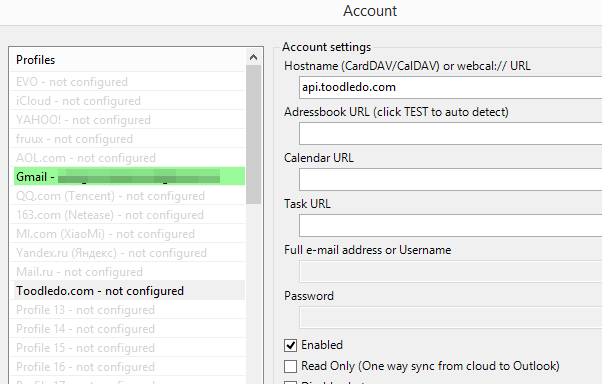
  1. Click on Configure profile
  2. Select Profile 13 – Not configured (this is the profile for toodledo)

    toodledo_config_profile_en

  3. Click on TEST
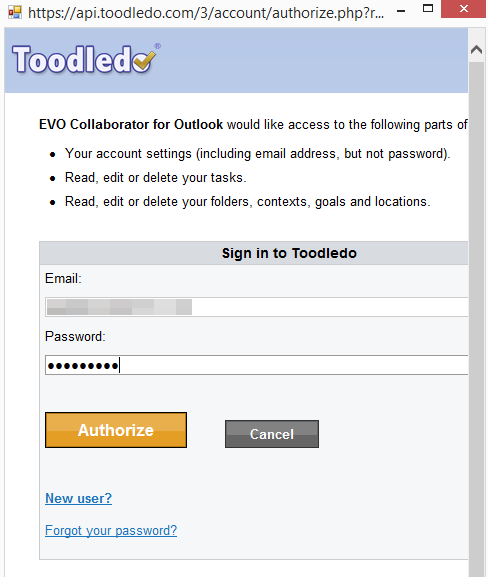
  4. In Toodledo’s OAUTH Authorize window, enter your username and password

    toodledo_authorize

    .
  5. Click on Authorize
  6. Once completed, click cross at top-right
  7. A Success box will pop up and we are done

    toodledo_result_en

After your Toodledo account is properly configured, we need to verify if we are able to sync tasks.
  1. Create a task on Toodledo web GUI
  2. Manipulate task’s property such as folder, context, goal, location, status, priority and tags
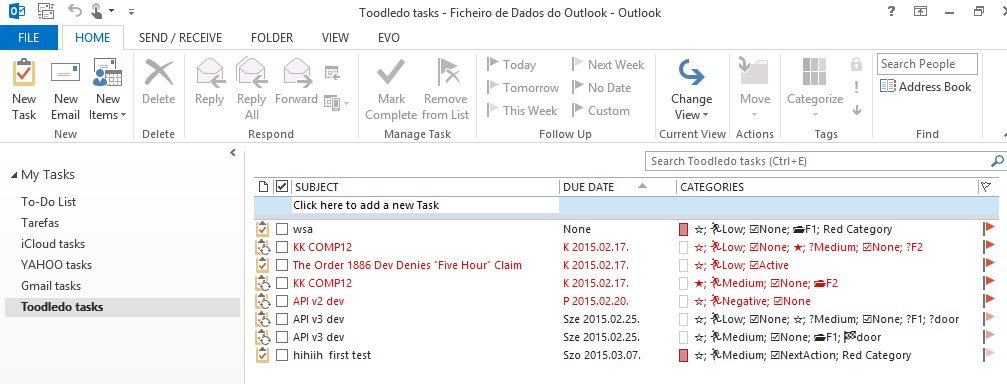
  3. Once task is synchronized with Outlook, go to Outlook and check the matching item in Tasks section
  4. Take a look at various symbols under category, they match each of the task’s property that you just manipulated on web GUI.
  5. Reversely, edit the testing task’s properties such as title and elements in category. Then check back with your Toodledo web-GUI and see if sync takes place.
  6. Here is the emoji mapping table for your reference: Star emoji: ★☆ Folder emoji: ๐Ÿ“‚ Context emoji: @ Goal emoji: ๐Ÿ Location emoji: ๐Ÿ“ Status emoji: ☑ Possible values:         ☑None,         ☑NextAction,         ☑Active,         ☑Planning,         ☑Delegated,         ☑Waiting,         ☑Hold,         ☑Postponed,         ☑Someday,         ☑Canceled,         ☑Reference Priority emoji: ๐Ÿƒ Possible values:            ๐ŸƒNegative,            ๐ŸƒLow,            ๐ŸƒMedium,            ๐ŸƒHigh,            ๐ŸƒTop
I believe EVO Collaborator for Outlook is doing a decent job this time to incorporate Toodledo into Outlook 2007, 2010, 2013, 2016 or 2019 and it comes in handy for those who use both Toodledo and Outlook.

2021/06/10

Synchronize iPhone Contacts and Calendars with Outlook 2016 and 2019

Synchronize iPhone 14 Contacts and Calendars with Outlook 365


In this year of 2022, more and more jobs require people to work from home due to COVID-19 pandamic. Syncing calendar, contact and task remotely from home in order to cope with colleagues has become an issue for those who have not done this before.

Someone asked me about “Can I sync iPhone contacts and calendars to Outlook?” Of course, you can do it with EVO Collaborator for Outlook, aka ECO.

ECO is an outlook plugin for synchronization

eco_logoWith a file size of less than 7MB, ECO and Outlook work together and perform a two-way sync of contacts, calendars and tasks between CardDAV/CalDAV services and Outlook 2007, 2010, 2013, 2016.

What are CardDAV and CalDAV anyway?

carddav_vs_caldav_logoCardDAV and CalDAV are standard protocol API by IETF’s RFC for contacts and calendars. Apple is using this open standard to take care of contacts and calendars between Apple devices.  How to sync iphone contacts with Outlook 2016/2019 and Office 365? It is easier than a breeze with ECO. Simply:

  1. Download ECO from EVO Official Site and install it with admin’s privilege on your Outlook.
  2. Open Outlook and click on EVO ribbon at the top banner.
  3. Click on Configure profile

    eco_gui_config_selected

  4. Select Profile #2 for iCloud profile. Edit it by filling your iCloud account and app password (enable 2 steps verifications on Apple's website and create your app password for 3rd party software)
  5. Upon sync completion, Items on your iCloud account will be sync’d to your Outlook.

Build your own Cloud!

iCloud is a great tool for individuals, but it may not be suitable when it comes down to a company-size scale where lots of information scatter around. Why not build one for your company itself? Mail Server   Download EVO Mail Server and install along with CardDAV and CalDAV addon (ECA). Once ready, all Outlook’s contacts, calendars and tasks can all go sync’d. Again, this solution I just mentioned is not a bad choice to choose from.  

2021/06/09

Five Best Online Calendar services Review (FREE)

Five Best Online Calendar services Review (FREE)

In this year of 2022, more and more jobs require people to work from home due to COVID-19 pandamic. Syncing calendar, contact and task remotely from home in order to cope with colleagues has become an issue for those who have not done this before. If you have not tried it before, it is time to take a look now since we do not know how much longer this pandamic will last in near future.

After 8/1/2014, some of you may be disappointed by the termination of Google Calendar Sync services for Outlook. However, it is not the end of the world. There are still Gmail alternatives to choose from, and these online calendaring services are mostly free. If you want to share you appointments or events with someone else, you may try any of the following.

  1. Yahoo! -

    yahoo

    This United states based calendar sharing service is always there on its web based interface, OS X, iOS APP, and Android. To use it under Windows Outlook environment, you need an add-in such as EVO Collaborator for Outlook which links your online calendar to Outlook.

  2. iCloud -

    icloud

    This service is a good one under Apple machines and devices. Though it has an iCloud Control Panel but it has a few problems like you can only sync with one iCloud account and it is impossible to use Outlook default calendar to sync with iCloud. If you use iPhone then this online calendar reminder service will work very well. It also provides holidays events for your convenience.

  3. fruux (Germany) -

    fruux

    This scheduling service has a good web base GUI and tutorials on how clients configure calendar/contact applications in different platforms are well written. However, it does not have its own Outlook add-in. Perhaps you can use ECO add-in to access calendar/contact in Outlook. It is free to sign up for users world-wide although it is a German based service provider.
  4. QQ and 163 (China) -

    qq

    If you are somewhere in China, these two agenda cloud service providers are the ones you can count on and the speed are fast.
  5. Google -

    gmail_calendar_spanish

    Why Google is still on the list? The reason being is that Apple and Android are still good on it for mobility and collaboration. If you happen to be the victims using Outlook, then you can still survive by syncing some kind of add-in by thirld party software vendor such as EVO Collaborator for Outlook.

If you were to use more than one service from above in you Outlook 2007, 2010, 2013, 2016 or 2019, then you may want to try EVO Collaborator for Outlook. It is compatible with all services mentioned plus some other on-premise CardDAV/CalDAV platforms, paid or free mail server such as EVO Mail Server, OwnCloud, Zimbra, SabreDAV and etc. 

REFERENCE: Synchronizace Google kalendรกล™e s Outlookem - postล™ehy ze svฤ›ta poฤรญtaฤลฏ a internetu

2018/11/30

How to build a Mail Server on an iSCSI SAN with HA?

Low cost SAN with cluster to achieve Failover

I have recently been window shopping for some networking stuff on Amazon. Amazingly, 10GbE NICs and switches of name brands and Cat7 cables are getting cheaper than ever. I started to wonder if I could build a mail server on iSCSI SAN and cluster to make it HA-capable? Since my concept is not totally automated, perhaps I should call it MA (medium availability) rather than HA (high availability)? LOL…

Name Brand Solution

For the past two decades or so, mail server solution on HA cluster must have definitely been available from big names, such as Microsoft Exchange Server, IBM Lotus Domino, Oracle Veritas Cluster Server/Messaging Server and etc. But, the implementation cost of such solutions is rocket-high, like 10 grand, 20 grand or more. They all come with top hardware specs, server license, cluster license, cluster node license, mail server connection license, directory service connection license, tech support tickets, man labor and blah blah.

Amazon Solution

In 2019, prices on SSD and 10GbE parts are dropping and getting more accessible than ever. DIY iSCSI SAN and HA cluster implemntation makes this solution no longer for enterprise only. My DIY idea comes from equipping mail server with more advanced but less expensive NAS gadgets as well as lower cost PCs for cluster purpose.

Theory

According to 10GbE spec sheet, the 10Gb/s transmitting speed is roughly 1250MB/s, which is 1.25GB/s. For SATA-3, it is about 6Gb/s and that turns out to be 750MB/s.
Dual-port 10GbE NIC
In the reality, there must be some bandwidth loss during network transmission due to many factors. Thus, let’s cut 1.25GB/s in half and it is 625MB/s. For SATA-3, let it optimally remain 70% of spec value and make it 525MB/s. The 625MB/s outruns 525MB/s during data transmission no matter what and it is unprecedented in the past.

Next, we will discuss about software and hardware spec that compose the iSCSI SAN & HA Cluster infrastructure.

Network Speed

In the past, 1GbE NIC used to be good enough upgrading from 100MbE NIC. At that time, perhaps only data center could afford 10GbE equipments. Nowadays, these gadgets have become so affordable for regular users. To achieve 10GbE transmission speed, it requires SFP+ (copper or fiber) or RJ-45 (Cat6 or Cat7 cable) for cabling between Cluster Server and NAS.

SSD storage

Just about one year ago, a 1TB SSD used to be over USD$400. Recently, 1TB SATA-3 SSD is running about USD$150 and it is dirt cheap comparing what it used to cost. For my personal brand preference, I use either Micron or Intel:
Crucial MX500 2TB
  • Crucial/Micron MX500 2TB: USD$289 / 1TB: USD$134
  • Intel 545S 1TB: USD$222

Synology NAS

Due do gradual price drop on SSD drives over time, building a RAID-5 or -6 based on 4 Micron 2TB or 1TB SSD is a great news for IT staff because users will less likely complain about poor disk performance. For non-IT people, NAS is an easier solution. When it comes to Synology NAS, I think DS1517+ is not a bad choice. Also, to achieve my design of iSCSI NAS plus HA Cluster Mail Server, DS1517+'s hot-swappable HDD capability and expandability to 10GbE E10G18-T2 (dual-port high-speed 10GBASET add-in card) are must-have. By the way, upgrading memory module to 16GB for the best performance is a great plus.
Synology DS1517+
So far, issues of mail data backup and contingency plan are resolved on Synology unit. For example, on DS1517+, we can store mail data on a RAID-5 composed of 4 SSDs. Then, install a 4TB conventional HDD on the 5th drive bay for storing ancient mail archive as well as virtua disk images of Windows and Windows Backup data. Or, another option is using the 5th drive bay for SSD cache and it is not a bad idea either.

Cluster PC

  • Hardware: Buy two computers with specs of Intel i7, 16GB RAM, and one 120GB SSD. Equip each PC with 10GbE NIC for connections with NAS. The built-in 1GbE NIC is used to connect to switch or router. Then, do we still need additional NIC for cluster heartbeat? We will discuss about it later in this article.
  • Software: Install Windows 10 and EVO Mail Server on each of PC described above. Then, do we need to deploy VMWare Workstation to virtualize the mail services? Also, we will discuss about it later in this article.

Cluster Heartbeat Myth

Generally, a separate NIC will be installed on each member PC of a cluster group for heartbeat purpose. Windows Server 2008, 2012 and 2016 and Linux Server have this built-in feature of hearbeat. But, there is no such feature on Windows 10, which is a part of my design for money saving. I also googled it but found no answer. If you happen to know any such tool software available for Windows 10, please let me know and thanks in advance.

The purpose of hearbeat feature works along with quorum disk to automatically determine whether the backup server should take over the primary server or not. I think such automated decision makings should be used on mission-critical servers, such as web servers or database servers.

For mail server, from another point of view, I do not think mail server operation is that mission-critical. With a bit higher fault-tolerance, IT staff can take a a few minutes to diagnose what went wrong and then judge if backup server should take over the primary server. Factors on decision-making:
  • Resolving issues on primary server and continue?
  • Immediate action of taking over primary server?
In general, issues are likely to be one of the following incidents:
  • Hardware: mainboard, memory module, harddisk, power, NIC, network cable – If parts replacement is not readily available, then switch to backup server asap.
  • Software: Bugs on OS or mail server software – If opearting system is breaking down and cannot boot up, then switch to backup server asap. If a bug can be fixed within 10 minutes or so, such as a version update or parameter adjustment, then there is no need to switch.
There may be some delay on restoring mail service before IT staff diagnoses issues and makes decision. However, it is always not a bad idea if IT staffs keep the whole situation under control.

Necessary to deploy VMWare?

Whether or not deploying VMWare is a debatable issue. I think if there is sufficient fund, then it is always better to prepare additional contingency plan other than a cluster backup server by installing VMWare Workstation on the primary server.
VMWare Workstation 15
This is how I plan:
  • On the primary server, install a virtual Windows 10 under VMWare Workstation. Let’s call it VM A.
  • Once VM A runs mail service properly, shut it down.
  • Install another 120GB SSD on primary server.
  • Copy VM A image file to the new SSD and make it VM B.
  • Let’s assume that the primary server hardware is working. Under the circumstance that VM A image is broken, we can immediately start VM B to continue mail services.

Backup server taking over primary server

In the case of deploying EVO Mail Server, since all data of mail, certificate and configuration and etc are all located on NAS, the role of cluster PCs is solely for running mail server services, accessing NAS data, and communicating with LAN/WAN. Each IT staff has his or her own preference on switching from primary server to backup server. I list some of the ways below for you to make decision on which one fits your need:
  • If servers are inside LAN:
    • Log in router and change the LAN IP under Port Forwarding page (some router calls it Virtual Server) to backup server's internal IP.
    • If you always bring primary server offline first before throwing backup server online, then we can disconnect backup server from the network by turning off its NIC while standing by. When the switch-over is about to take place, we turn backup server’s NIC back on. In this scenario, backup server’s LAN IP can be configured as the same as primary server’s. The downside of it is that we cannot perform the swtich-over remotely and have to do it by actually logging in the backup server.
    • For the above method, there is a workaround. While backup server is standing by, its NIC is enabled and assigned with an separate internal IP other than the primary server’s IP to avoid conflict. Before switching-over, disconnect primary server from the LAN first. Then, log in the backup server and change its LAN IP to primary server’s IP.
    • If the primary server is equipped with VMWare and if server’s hardware is working normally but VM A image is corrupted, launch VM B image to take over mail services. (Note: VM A and VM B have the same public IP)
  • If servers are in DMZ or directly connect to Internet:
    • Log in DNS hosting service or your own DNS server first. Then, modify IP of mail server host name’s (literally MX record) A record to backup server’s public IP. Such DNS record modification will usually take mintues to a few hours to kick in.
    • If the primary server is equipped with VMWare and if server’s hardware are working normally but VM A image is corrupted, run VM B image to take over mail services. (Note: VM A and VM B have the same public IP)
Note:
  • Before switching-over, if the primary server is still accessible, simply log in the server and de-activate EVO Mail Server license key first.
  • Before switching-over, if the primary server already inaccessible, use other email account to contact EVO staff and let them manually de-activate license key. Then, activate the license key again on backup server.
  • To make switch-over quicker, purchase two EVO Mail Server licenses, one for primary and one for backup, and activate them separately. Once backup server is active, copy its license.dat file to the license key folder location on NAS and overwrite the existing one. Then, start mail service.
  • If VM images solution is deployed, there is no need to de-activate and re-activate since both VM A and VM B are actually identical. However, make sure not to boot up both images at the same time. Otherwise, both Windows license and mail server license will conflict each other.
  • The last one is even easier. Install identicaal hot-swappable drive bays on both servers. If any hardware parts fails but the 120GB OS SSD. Then, simply take out drawer containing the OS SSD. Stuff it into backup server's drive bay and boot up immediately. However, it is recommended to prepare a spare ready-to-boot 120GB OS SSD aside.

Build NAS, iSCSI SAN and Cluster PC together

Let’s assume EVO Mail Server is operating normally. For installing, configuring and testing EVO Mail Server, please refer to this article.
  1. On Synology NAS, create iSCSI storage:
    • If NAS storage volume has not been created, follow instruction here. If already created, go to next step.
    • Now, build TARGET and build LUN. If they have been configured, then skip this part or make slight modification if necessary.
    • Open iSCSI Manager.
      Synology iSCSI Manager
    • Let’s start from scratch.
      iSCSI overview
    • Click on Target to the left and click on Create.
      Create target
    • Enter name and IQN as well as making decision to enable CHAP or not.
      Create target setting
    • The next step is mapping LUN. Here, we will click on Create a new iSCSI LUN.
      Create new LUN mapping
    • Define capacity of iSCSI LUN.
      Determine volume size
    • Confirm settings and click on Apply to save settings.
      Target confirm settings
    • Click on Target to the left again to double-check settings.
      Target summary
    • Click on LUN to the left again to confirm if target mapping is connected.
      LUN summary
    • Click on Settings to the left to increase I/O Queue Depth value. Setting a greater value will improve 10GbE network connectivity and SSD performance.
      I/O Queue Depth Value
    • Finally, click on Overview to confirm whether iSCSI has already been properly configured.
  2. Enable iSCSI initiator in Windows 10.
    • There are a few articles that you can read through on what can be done for iSCSI optimzation on Windows end.
    • Next, search iSCSI initiator and open it in Windows 10.
      Search for iSCSI initiator
    • In iSCSI initiator window, under Targets tab, enter NAS IP and click on Quick Connect… button to initiate a quick search and connection.
      Enter iSCSI target IP
    • In Quick Connect window, available target is listed and the state is connected.
      Quick Connect window
    • Upon closing Quick Connect window, Discovered targets will list the connected NAS as well.
      Discovered target
    • Search Computer Management and open it in Windows 10.
      Search for Computer Management
    • Click on Storage/Disk Management and the newly created disk is already listed.
      Convert to GPT
    • In the screenshot above, mouse right-click on Disk 2 area and click on Convert to GPT Disk. Why GPT? GPT enables creating partition beyond 2.2TB.
    • Next, mouse right-click on area of newly created partition to continue creating volume and formatting it.
      New Simple Volume Wizard
    • Check the formatted disk. 
      New Simple Volume Wizard
  3. Move mail server related data to iSCSI disk.
    • Open EVO Mail Server GUI. Click on Status page and scroll down to Server setting status.
      EVO Mail Server Server setting status
    • In the screenshot above, click on arrow loop symbol to the right of Mail Data Folder. There will open a window browsing folder tree.
      EVO Mail Server Server setting status
    • Once a folder is selected, click on OK. There will be a Reminder popping up and inform actions being taking place.
      EVO Mail Server Server setting status
    • Once data migration is complete, another Reminder will pop up and inform actions taken place.
      Mail Data Relocation Summary
    • At the moment, Mail Data Folder is displaying new folder location.
      Mail folder location relocated
  4. Finally, perform testing routines described in the setting up mail server article I mentioned previously.

Price breakdown

Nowadays, running a company with 100 to 200 employees is never an easy task. IT infrastructure investment ought to be carefully assessed. Here is a rough price quote for what it costs to build this solution:
  • Intel i7, 16GB RAM, 120GB SSD, 10GbE NIC (options are fiber and RJ-45), 450W power supply, Windows 10 computer x 2, USD$2000
  • Synology NAS DS1517+ x 1, USD$1000
  • Synology DDR3 Memory Module, USD$300
  • Synology E10G18-T2 or E10G17-F2 NIC x 2, USD$270 or USD$257
  • Micron MX500 2TB SSD x 4, USD$1200
  • WD 4TB HD (Mail Archive HD) External (if 5th drive bay is used for SSD cache) or Internal (if using 5th drive bay) x 1, USD$99 or USD$169
  • VMWare Workstation 15 x 1, USD$249 (optional if VMWare VM A and VM B solution is deployed)
All prices above are just random search from Amazon. The total price may be cheaper than USD$15000 if looking around more. But, the bottomline is that 10GbE NIC and TB-grade SSDs must stay. Here are comments on particularly these two parts:
  • NIC: If possible, use fiber NIC. You will be rewarded with much better performance.
  • NAS: Other than DS1517+, DS1817+ (8GB RAM version, USD$1400) is a good choice. It has two 10GbE ports built-in. Yet, two drive bays can be used for building SSD cache while there are still six drive bays for constructing RAID-5 or -6. Any idea on sizes for SSD cache drives? Consult your SSD dealer or check out this article. Though DS1817+ is USD$200 more expensive than DS1517+, RAM modules and 10Gbe NIC are taken care of. The overall expenses on NAS is USD$200 less at least. Nevertheless, hardware spec on NAS varies from one to another. It is up to you to decide.
  • NAS SSD: Why I strongly recommend on getting 2TB SSDs? Based on technical aspect, the bigger capacity the faster speed it is. Hence, if I were you, I would get 2TB SSDs once for all and it will definitely last longer.

Conclusion

It is a long article and it took me a long time to wrap it up. I just happened to write this article because I thought that we can benefit from huge price drop on both 10GbE NIC and TB-grade SSD. There are definitely other ways of implementation giving even faster performance, such as stuffing several PCI-e and NVME SSDs directly into mail server machine itself.

But, my main focus this time is providing a low-budget solution that offer fault tolerance for mail server. For exqmple, NAS running on RAID-5 or -6 provide fault-tolerance for storage while cluster deployment provides fault-tolerance for hardware failure.

At last, this article is for your reference when you happen to build a fault-tolerance mail server. However, each company has different IT environment. Perhaps you can survey on all left-over IT assets that are sitting around first. Then, purchase what is missing. Eventually, you will save even more for yourself or for your boss. Hope your server keep running and lasting. Yet, you can have sweet dreams every night with no emergency call from IT colleagues.

2018/08/02

How to share calendar between outlook 2007 and 2010?

How to share calendar between outlook 2007 and 2010?

How to share an Outlook calendars with other people without Exchange server? This is a simple question with no easy answer. If you go to Microsoft website, they will tell you that you can share your calendar by e-mail or an exchange server account. We all know that is not we wanted. Anyway, the above case has been discussed in another article that I wrote: How to share my Outlook calendar with another user?

Let's try another scenario, you have one desktop in office, one desktop at home and one laptop in your car. One of them is Outlook 2007 and two of them are Outlook 2010. Here comes a very easy way to do it:
  1. First, you need to get an online calendar account such as fruux, or you can use your existing iCloud or Gmail account.
  2. Download EVO Collaborator for Outlook from EVO's Official Site and install it with administrator's privilege. This 5.5MB Outlook add-in is the magic that makes everything possible.
    EVO Collaborator for Outlook, an Outlook add-in from EVO software production
  3. Install ECO on your computer at work. In Configure profile(s), select Gmail profile at the left-hand side. Enter your Gmail account at the right-hand side. Click TEST to complete OAuth process. Once you quit Configure profile(s), synchronization will start automatically.
  4. Install ECO on your computer at home. In Configure profile(s), select Gmail profile at the left-hand side. Enter your Gmail account at the right-hand side. Click TEST to complete OAuth process. Once you quit Configure profile(s), synchronization will start automatically.
  5. Install ECO on your laptop on the road. In Configure profile(s), select Gmail profile at the left-hand side. Enter your Gmail account at the right-hand side. Click TEST to complete OAuth process. Once you quit Configure profile(s), synchronization will start automatically.
From now on, when you turn on any of your computers and open Outlook, ECO will start synchronization and update your calendar events automatically.

Not only between Outlook 2007 and 2010, it can be deployment between all Outlook versions from 2007, 2010, 2013, 2016 to 2019. Yet, if you run your mobile life on iPhone or Android, it would be even more convenient. Let say if you meet someone in business meetings on the road, you simply add new potential customer's contact on your mobile phone. When you go back to office, you will see the new contact entry on your PC's Outlook once sync session is taking place. It will work in similar fashion for future meetings created on the road.

What was mentioned above is a scenario that has always worked for users with Exchange accounts. However, what we are talking about now is a much cheaper alternative that everyone can afford even for a one-man company with no complicated infrastructure involved.