2017/11/01

How to sync SOGo Groupware Server with Outlook?

How to sync SOGo Groupware Server with Outlook?

In this year of 2020, more and more jobs require people to work from home due to COVID-19 pandamic. Syncing calendar, contact and task remotely from home in order to cope with colleagues has become an issue for those who have not done this before.

A scenario from my client:

“Our CIO told me to migrate company’s Exchange Server to some other open-source solution due to an IT budget cut. After evaluation on different solutions of free mail servers like SOGo, Zimbra, Kolab and Zarafa, I chose SOGo Groupware Server. Why? Not only SOGo has a sturdy groupware but also has a seamless integration with Thunderbird. For mails, users can connect through IMAP, which I do not have much trouble with. What about contact and calendar? I went through SOGo website’s Native Microsoft Outlook Configuration Guide but it seems too much hassle. Is there any easier out?”
As far as I know that SOGo supports CardDAV and CalDAV, I told my ex-colleague, “Why don’t you try EVO Collaborator for Outlook?” They do adapt their product to fit in various CardDAV/CalDAV servers. 

After a few days, my ex-colleague told me EVO Collaborator for Outlook is now compatible with SOGo. Here is his experience sharing below:
“Nothing complicated! All I did is entering server URL, user’s e-mail address and password. All that left is auto-discovery’s job. It is amazing!” 
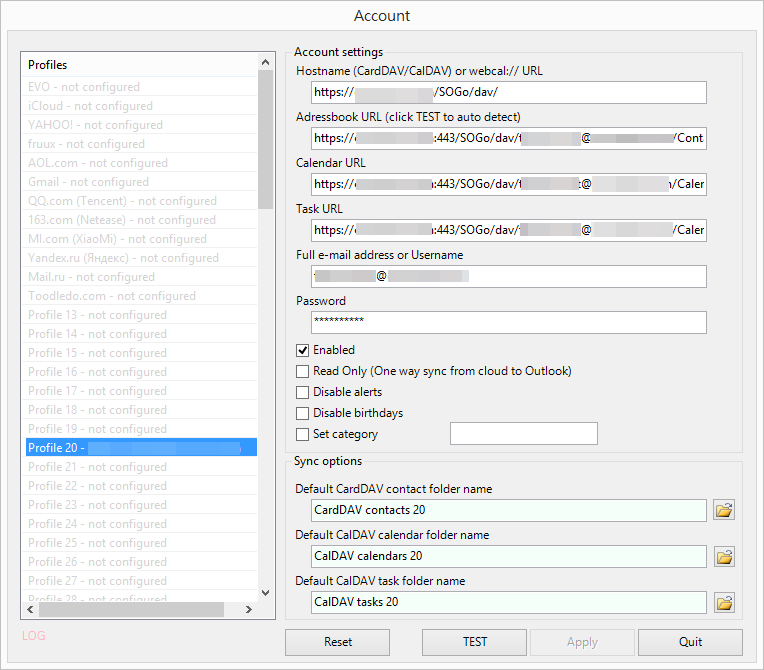
He show me a screenshot of ECO’s Configure profile:


By looking at the screenshot, the server has a URL structure like:

https://<servername>/SOGo/dav/

If you happen to synchronize SOGo groupware's calendars and address book with Outlook 2007, 2010, 2013, 2016 or 2019, then you can give it a shot. It will save you lots of time to manage configurations on both server backend and Outlook parameters.


2017.11.01

2017/10/02

How to get Gmail push notification on all of your devices

Being notified on time - How to get Gmail push notification on all of your devices

From time to time, when we log in our Gmail accounts, we see mails that came in hours ago but did not receive any notification. As a result, we may miss some deadline by hours. 

Knowing Exchange mail account and Google Apps have push mail notification for the users, they always get notified on time and this is why most business people use these paid services. Now, we may wonder is it possible for free Gmail accounts to also get this kind of push mail notification benefit?

In fact, there are 4 ways through which we can get notified and they are available on several platforms:

1. Chrome:

Android - Just use Gmail App for Android to achieve email notification as described in next section.


iOS - Just use Gmail App for iOS to achieve email notification as described in next section.


OS X - Log in your Gmail account on the respective device. Then, refer to tutorial on Change email notification. However, the downfall is that Chrome, Firefox, or Safari must be opened at all time if you wish to receive such email notification via Chrome. The notification will pop up in 1 to 2 minutes after the mail was delivered.

Windows - Log in your Gmail account on the respective device. Then, refer to tutorial on Change email notification. However, the downfall is that Chrome or Firefox must be opened at all time if you wish to receive such email notification via Chrome. The notification will pop up in 2 to 4 minutes after the mail was delivered.

2. Gmail App:

Android - Gmail for Android: According to my experiment, Gmail's push notification pops up 2 to 4 minutes after I sent an e-mail from my another Outlook.com account.However, you need to make sure the Notification Center on your Android enables notification for Gmail:

iOS - Gmail for iOS: Like Gmail App for Android, you need to make sure the notification alert for Gmail App is turned on somehow.

OS X - N/A: Currently, there is no Gmail App by Google.

Windows - Google: This is a Windows 10 App gathering all Google services in a browser view. When you click on Gmail icon, a Gmail web-UI session will pop up. Thus, it works the same as how Chrome Gmail Push Notification works. Please refer to what we wrote earlier above.

3. Third-party tool:

Android - Just use Gmail App for Android to achieve email notification.

iOS - Just use Gmail App for iOS to achieve email notification.

OS X -


Aura - Once you install this Chrome extension, Aura will ask you to complete Google OAuth and stay in Status menus at top-right. According to my experiment, Gmail's push notification pops up less than 1 minute after I sent an e-mail from my another e-mail account.There are some other similar Chrome extension utilities such as Gmail Notifier, and they work the same way.

Windows -

EVO Collaborator for Outlook under Outlook environment (Sync Google Calendar with Outlook 2007) - If you use Outlook to send/receive e-mail messages for your Gmail account, then you need to be aware of that Outlook 2007, 2010, 2013, 2016, or 2019 can only periodically check for incoming e-mail messages according to a pre-defined timer interval. Yet, you need to keep Gmail's INBOX folder selected.However, if you use EVO Collaborator for Outlook to synchronize your Gmail contact, calendar and task, there is an extra feature of monitoring for Gmail push notification. Once deployed, you can browse around Outlook instead of keeping INBOX folder selected and ECO will still remind you of arrival of incoming e-mail messages by playing "ding" notification sound  or a pre-defined wave file.

Gmail Notifier Pro - This is a stand-alone monitoring and e-mail software, in which you configure your Gmail account with username & password.
Then, you can use it for notification purpose as well as e-mail writing. You may close the application and it will go to Windows system tray area at lower-right. According to my experiment, a notification alert 2 to 4 minutes after the testing e-mail was sent from my 
Outlook.com account.

Checker Plus for Gmail - This is a Chrome extension. You can add this extension to your Chrome. Then, open the extension configuring page and put a check mark next to Run in background when Google Chrome is closed.
According to my experiment, the notification alert appears above Windows system tray area within 2 to 4 minutes after the testing e-mail was sent from my Outlook.com account.

4. Third-party mail application:

Android - Just use Gmail App for Android to achieve email notification.

iOS - Just use Gmail App for iOS to achieve email notification.

OS X - , MailTab for Gmail - This is a small mail software utility. Once Gmail OAuth is complete, it will start monitoring incoming Gmail e-mail messages in the background and the notification will pop up in 1 to 2 minutes after the mail was delivered.

Windows - Mail app for Windows 10 (how to enable instant notification on Windows 10?): It is good that Mail app for Windows 10 does not have to be running in order to get notification since Notification and Action will monitor incoming Gmail e-mail messages in the background and the notification will pop up in 2 to 4 minutes after the mail was delivered.

2017/08/04

Transfer contacts and calendars from iCloud/iPhone to Gmail/Android

Transfer contacts and calendars from iCloud/iPhone to Gmail/Android

It’s time to share some new IT stuff with you guys.

A friend was asking me, “Can I Transfer contacts and calendars from iCloud/iPhone to Gmail/Android?”

Of course, you can.

I have done some research on Google and conclude with some solutions below:

Contacts: Users log in iCloud and save every contact into .vcf file and log back in Gmail and import those files.

Calendars: Many different ways of doing it. It is similar to the Contact solution. It has to go through an intermediate account, such as from iCloud to Android or iCloud to iCAL first and then from either Android or iCAL to the destination.

Experienced users must understand how time wasting it is. If there is a way to perform a direct transfer from iCloud to Gmail, then it is nice to have it, right?


Let’s look at EVO Collaborator for Outlook.

This Outlook plug-in enables Contacts and Calendars of Outlook 2007, 2010, 2013, 2016, and 2019 to be a bridge between multiple cloud services. Through this tunnel, a cloud-to-cloud on-the-fly duplication, moving, or synchronizing now becomes possible.


What is CardDAV and what is CalDAV? CardDAV and CalDAV are standard protocol API by IETF’s RFC for contacts and calendars. Google and Apple are using the contacts API and the calendar API to take care of contacts and calendars at the backend to service their customers’ needs on such information..

How to perform cloud-to-cloud contacts and calendar duplication and transfer on-the-fly? 1. Download ECO from EVO’s official website


STEP.1


Download URL (when you install it, please log in as administrator) 2. Set up Gmail account within ECO’s Configuring profile(s)

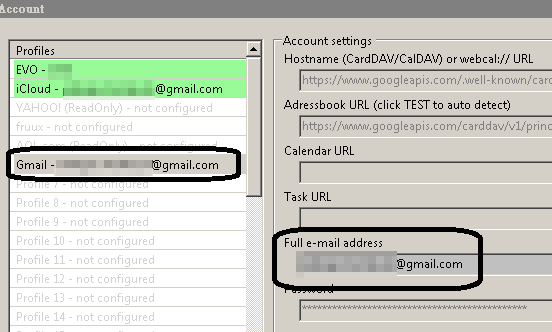
a. Go to ‘Configuring profile(s)’ under EVO ribbon


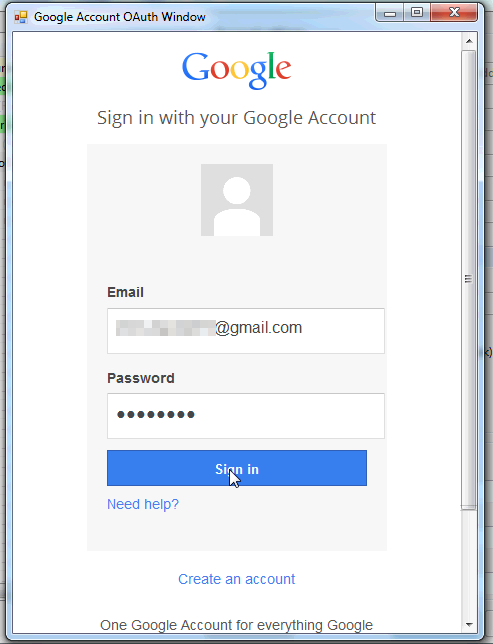
b. Due to OAuth, there will pop up a small browser for Gmail logon. Once authenticated, close the window


c. Once completed, Gmail contact, calendar will be bi-directionally synchronized. Data from Android mobile devices will be sync’d too.

3. Create iCloud profile

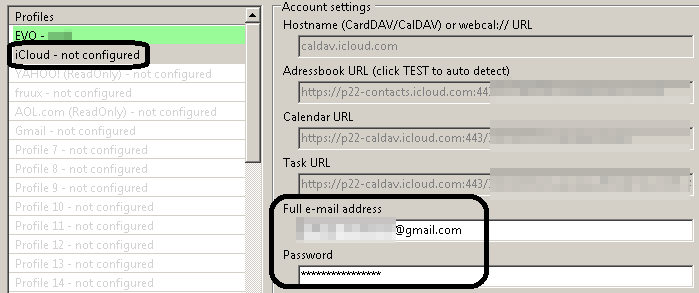
a. Repeat account adding like Gmail


b. There will be no OAuth window popping up, but you will need to use Apple ID's App password, to do that you also have to enable 2-steps verifications in Apple.

c. Once completed, iCloud contact, calendar will be bi-directionally synchronized. Data from iPhone mobile devices will be syn’d too

4. Synchronize contacts between iCloud and Gmail

a. Click on ‘Explore server’ under ‘CardDAV actions for contacts’ on ECO ribbon


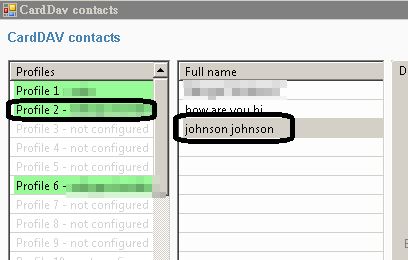
b. Click on ‘Profile2’ in the ‘Profiles’ section

c. At this moment, ‘Full name’ in the middle will display all contacts under this iCloud account.


d. Hold ‘Ctrl’ and mouse left-click for selecting multiple contacts

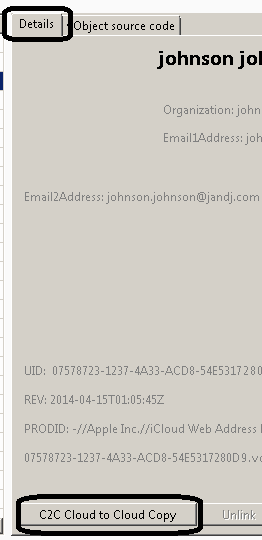
e. Go to bottom of ‘Detail’ tab and click on ‘C2C Cloud to Cloud Copy’


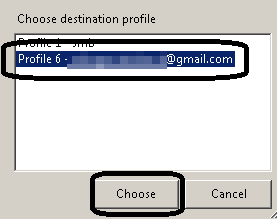
f. In the pop-up box, click on Profile6 to continue duplicating


g. Once completed, a message box appears and inform number of success and failed items


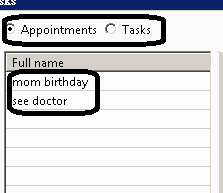
5. For the calendar part, it is similar to step 4. The difference is clicking on ‘Explore server’ under ‘CalDAV actions for calendars’ in step a. Under Full name, all calendar and task will be shown and you can click on either radial button at the top from step c. However, Gmail does not provide Tasks service.


All the tutorials above can also provide synchronization between different other cloud services that run on CardDAV and CalDAV. Also, one easy-to-use alternative choice rather than cloud solution is EVO Mail Server. It has both CardDAV and CalDAV of its own for better performance over the slow and scolded information retrieval from Gmail services on contacts and calendars. Try it out: EVO Mail Server

2018.01.05

2017/06/09

Google Calendar Sync error code 2016


Google Calendar Sync error 2016


For those who have enjoyed the benefits brought by Google Calendar Sync software, you are perhaps disappointed by now as of 8/1/2014. Why? Google is shutting down the service mercilessly.

For smartphone users, non-Outlook users, or Google Apps for Business (GASMO), Education and Government users, they have their own way out. What about for the rest of Outlook users? All they get is error code 2016!


I have done some research looking for alternatives. I came up with three solutions as below:


  1. EVO Collaborator for Outlook


    Up to 100 profiles covering more CardDAV/CAlDAV services than just Google’s, such as iCloud, Yahoo!, SabreDAV, Zimbra, OwnCloud and EVO Mail Server. Once installed, all you need to do is keying in username and password. Synchronization will be triggered once profile changes take place or any contact, calendar or task change Outlook 2007, 2010, 2013, 2016 and 2019 is detected, or every 300 seconds. One highlight is the capability of synchronizing cloud to cloud.
  2. Bynari WebDAV Collaborator
    Once installed, more than 10 fields have to be configured per profile. It is somewhat not user friendly. I don’t know how to define synchronization mode. One highlight is the synchronization schedule. If you know exactly how to configure what you want from it, it is good.
  3. ICal4OL
    More complicated than Bynari. It may be advanced and flexible. However, you need to understand lots of tech terms. To be honest, I gave upon it because I am just an ordinary Outlook user busy on my assignments rather than being a IT guru.

Even though Google is giving us a hard time unless we pay for GASMO, there are still alternatives to choose from and make our day. Guys! Don’t you give up! try EVO Collaborator for Outlook.


2017/06/07

How to setup Gmail POP in Outlook? How to setup Gmail IMAP in Outlook?


How to setup Gmail POP in Outlook? How to setup Gmail IMAP in Outlook?

A majority of users are used to using Gmail on browsers. However, there are occasions integrating Gmail accounts into Outlook user-interface is more convenient. Thus, we do not need to flip between Outlook and browser while working on mails between accounts under Outlook.


Most users may wonder why Gmail cannot be easily configured in Outlook lately? Recently, Gmail, iCloud and Yahoo! mail have implemented an additional security feature that require users to enter a second password for any third-party application including Outlook that is trying to access their email, calendars, contacts and tasks information.

It is called 2-step verification. You must enable it in order to use Gmail under Outlook. 

Here is how to enable it:


Log in your Gmail and go to Account / Security / Password. Click on Setup next to 2-step Verification. Right there, proceed its following instructions.

Then, how do I setup Gmail email in Outlook?

1.      In your account’s Google Account page, go to Security tab at the top and click on Settings (if it appears Disabled) next to Access for less secure apps under Account permissions.Click on radial of Enable next to Access for less secure apps and Done.


3.      Within Gmail, select Settings from the gear-icon pull-down menu at the top right-hand side.


4.      Under Settings page, click on Forwarding and POP/IMAP tab and turn on POP3 and/or IMAP upon your choice. Shown as below:


5.      How to setup Outlook for Gmail? Go to Outlook, click on File at top-left and select Account settings
6.      Manually create a mail profile as usual. On Account Type, choose POP or IMAP according to your preference. Enter password which you just obtained from 2-step Verification.

7.      Click on More settings to the right. Click on Outgoing Server tab and check the box of My outgoing server (SMTP) requires authentication.

8.      Go to next tab of Advanced, check the box of This server requires an encrypted connection (SSL) and the port number will change to 995 for POP and 993 for IMAP.
                                      

9.      Then, change Outgoing server (SMTP): to 587 if value of Use the following type of encryption connection: is TLS.

10.   change Outgoing server (SMTP): to 465 if value of Use the following type of encryption connection: is SSL.

11.  Click OK to exit and OK all the way.

Now we can use Gmail's mail feature in Outlook. But what about contacts and
calendars? There is an Outlook add-in called EVO Collaborator for Outlook and it is able
to handle this type of 2-steps verification process in Gmail, iCloud and Yahoo!. You can
download it from its official website and try it out.

EVO Collaborator for Outlook is compatible with:

Public contact, calendar, task services such as Gmail, iCloud, Yahoo! and fruux

On-premise CardDAV/CalDAV servers such as EVO Mail Server, Mac OS X Server,
OwnCloud and Zimbra

After ECO installation, any contact, calendar and task items created by other means of
mobile devices or web-based interface will be synced to Outlook and vice versa.

For all items before ECO installation, you may manually select items and upload them to
your CardDAV/CalDAV account.

I think it is worth every penny of it.

Please refer to the following links on how to sync popular CardDAV/CalDAV services
with Outlook 2007, 2010, 2013, 2016 or 2019.

3. Sync Mac OS X, Zimbra or OwnCloud with Outlook

2017/06/05

Synchronize Google Tasks with Outlook

Synchronize Google Tasks with Outlook

In this year of 2020, more and more jobs require people to work from home due to COVID-19 pandamic. Syncing calendar, contact and task remotely from home in order to cope with colleagues has become an issue for those who have not done this before. If you are the boss and try to survive through this pandamic by cutting budget, you may wanna try using a cheaper way of collaboration team work other than Outlook 365 or GSuite.

Some visitors of my blog asked if it is possible to sync Google Tasks with Outlook 2007, 2010, 2013, 2016 or 2019? I told them to use Tasks/Reminders feature of iCloud or Yahoo!. They said it is not the same. Then, I started to wonder why a lot of users are so getting used to Google Tasks?


Google Tasks API vs. CalDAV Tasks API

After doing some research, I found Google Tasks API is actually not the same with CalDAV protocol like others do and it is not compatible with CalDAV Tasks. 


As a Google loyal user, you should notice that Google Tasks sticks within Gmail rather than Google Calendar (using CalDAV API) in your Google account. Meanwhile CalDAV Tasks and CalDAV Appointments belong to the same family. 


One of the Google Tasks API’s advantages is the tree structure of Tasks that tasks can be created under one another. It is sort of task and sub-task relationship.

Testing ECO’s new feature

Not long ago, I received a newsletter from EVO Software Production telling me that its EVO Collaborator for Outlook: Sync Google Calendar with Outlook is now compatible with Google Tasks. I did not pay too much attention to it.

Since I have ECO on my computer, let us examine if EVO Collaborator for Outlook really works for Google Tasks:


  1. Download the latest release of ECO from EVO’s official website
  2. Install ECO with administrator’s privilege
  3. Open Configure profile from EVO ribbon and fill up Gmail account
  4. Click on TEST and finish Gmail OAuth routine
  5. You will see Tasks URL is automatically filled in with matching URL address
  6. Next to Tasks URL, you will see a folder icon if you do have multiple task folders. Click on it to select which folder you like to use
  7. Click on Apply and Quit.
  8. After synchronization is completed, go to Tasks and you will see items are being listed

ECO seems to be working on Google Tasks. But, we need to confirm that if Outlook feature such as Importance and Gmail Tasks’ tree structure will be ripped off? I wrote back to EVO staffs and mentioned about this concern. They told me not to worry about it for all metadata will be well preserved.

Yesterday, I installed ECO for my colleagues. They saw their Google Tasks sync result and check back what they have on their Gmail web-GUI. They were very happy about it.


2017/03/17

How to export your Outlook tasks?

Backing up your Outlook tasks offline

In absence of Outlook task synchronization with task server or services, such as CalDAV and Exchange servers, people would think about exporting their task entries into iCal files (.ics files), .csv files, .pst files, or Excel files. If you solely work with Outlook, then it is recommended to export them into .pst files for the best import result in the future. 

However, users most likely export Outlook tasks for use on other application or database import. The .csv method is not a good choice because foreign language characters in task entries will be corrupted after exporting. Thus, the best and the most compatible way to export is using iCal method.

EVO staff has once again made some useful Outlook add-in after EVO Collaborator for Outlook. It is called Power Toys for Outlook. This collection of add-ins include a nice task export tool for Outlook 2010, 2013, 2016 and 2019. There are 2 ways that PTO exports Outlook tasks:
1. Export tasks as vCalendars (Outlook ICal (ics)) – This is as same as Outlook’s Save As except Outlook can only save one task per operation. PTO is able to save the whole task folder at once.

2. Export tasks into one single vCalendar (iCal (ics)) – Since vCalendar protocol is able to store multiple tasks in one single file, PTO saves the hassle of managing 100s or even 1000s of iCal (ics) files.

Here is a general guideline to export your Outlook tasks:

1. Download Power Toys for Outlook from EVO’s Official website.

2. Close Outlook and run setup.exe with administrator’s privilege.

3. Open Outlook and click on Power Toys ribbon at top.


4. Click on Export tasks.

5. Select your Outlook tasks folder.


6. Click on 1 of the 2 export types.


7. A folder created by date will pop up showing all iCal (ics) files accordingly.


As you can see, exporting Outlook tasks becomes as easy as 1-2-3.