Sync Outlook with Egroupware server?
This is an experience sharing from one of my previous jobs. One day, my boss wanted me to do some search on a contact, calendar and task synchronization solution to Egroupware collaboration server to which decided to migrate from a pure paid or free mail server.
The bottom line is that the solution must be cost-effective and providing perpetual licenses while keeping sync in a simple and straight fashion.
I googled it and found a few candidates: iCAL4OL, EVO Collaborator for Outlook and OutlookDAV. Among them, iCAL4OL is not available. OutlookDAV appears to require way too many steps to configure. EVO Collaborator for Outlook is an add-in within Outlook 2007, 2010, 2013, 2016, or 2019and it takes no more than 6 short steps to configure:
- Download and install EVO Collaborator for Outlook.
- Open Configure profile(s)
- Click on Profile #15 or later as long as it is vacant.
- In server URL space, enter:
http://egroupware_server_domain/install_path/groupdav.php/
Example:
https://davtest.egroupware.de/egw/groupdav.php/
- Enter username & password in corresponding area.
- Click Test, Apply and Quit.
I think EVO is doing a good job
How to sync with DAViCAL calendar server?
After I posted the article about EVO Collaborator for Outlook syncing with ownCloud server, I started to receive many feedbacks wondering if EVO Collaborator for Outlook is able to support other services such as Kolab, SOGo or DAViCAL too? One of the special case is DAViCAL. They tried their luck if they can connect to DAViCAL but they failed. These audiences are running DAViCAL calendar server for company mostly. Let’s find out if EVO Collaborator for Outlook can handle the job?
Since DAViCAl is also an open-source server like ownCloud and both of them are based on CalDAV, there should be less complication to sync. However, before I test, I wrote EVO staffs and wonder if ECO supports sync with DAViCAL? They replied that "yes", so I wil give this add-in for Outlook 2007, 2010, 2013, 2016 or 2019 a try if want. Why not, right? However, since
Once I received the beta release, I quickly installed it and configure it following instruction given by EVO staffs as below:
- As usual, select Profile 15 – not configure or below
- Since DAViCAL seems like not being to support server auto-discovery, we need to manually enter generic DAViCAL calendar URL in space next to Calendar URL:
http://<server_hostname>/caldav.php/<username>/calendar/
- Click TEST and Apply when authentication is complete
- DAViCAL calendar will start sync
I am quite impressed that EVO staffs have done a good job on picking up almost every popular CardDAV/CalDAV services either cloud or on-premises within eight months as of early march of 2015. This is an outstanding report card I should say.
Sync Outlook with MailEnable Server
MailEnable Server is a popular messaging solution for mid and small business companies. One of its useful collaboration features is sharing contacts, calendars and tasks for collaboration purposes.
A decent Exchange alternative
To be an Exchange alternative other than free mail server, MailEnable provides its own Outlook Connector that enables Outlook users to access their information on MailEnable Server. Somehow, there has been user feedback saying it is running slowly and is buggy.
Exploring Mysterious CardDAV and CalDAV URLs
However, when we want to access CardDAV and CalDAV data on MailEnable Server from third-party software, such as Thunderbird, we need to know URLs of contact, calendar and task. But how? It is easy! Use an iOS device to add a CalDAV or CardDAV service; you can find the the real URL in Advance Settings.
In finding a CalDAV and CardDAV solution that really works in Outlook
Here, I found EVO Collaborator for Outlook handy and it works on CardDAV and CalDAV
URLs auto discovery. Here is how:
- Download and install EVO Collaborator for Outlook from its official website
- Open Outlook and go to Configure profiles
- Enter your MailEnable Server IP like this:
https://<Server_IP>:port
- Enter username and password. Then click on TEST
- CardDAV URL and CalDAV URLs will appear, shown as below:
Detecting multiple folders and choose among them
In ECO’s Configure profiles, right next to the URLs, we click on the folder icons to choose between Personal or Public folder. If you select public folder, then public URLs will show..
If you do use Outlook 2007, 2010, ,2013, 2016 or 2019, then you can continue with ECO. If you need to access MailEnable server from Thunderbird, you can copy and paste the above URLs within SoGO connector and Lightning plug-ins for Thunderbird.
Six useful Outlook Add-ins
As quoted from http://emailclientmarketshare.com/, desktop Outlook users are just behind portable devices and Gmail’s web-GUI. We are talking about 9% out of 1.16 billion users worldwide. In other words, there are 100 million desktop users that stick with Outlook desktop software.
Lots of extra features are missing from the original package. Yet, many software vendors have developed Outlook add-ins through program API for Outlook. These utilities are fairly small and quite handy when you need to do tasks that require features missing from Outlook itself.
Here is a wish list of add-ins that may be exactly what you need:
- Microsoft Outlook Hotmail Connector –
With this add-in, your desktop Outlook is able to access and manage e-mails, contacts and calendars of your hotmail.com, outlook.com and live.com. Supporting Outlook 2003 to 2010 x86 & x64 compatible.
- Duplicate Email Remover –
Remover detects duplicate email messages according to your pre-configured criteria and there are flexible ways for users to decide what to do with them. Supporting Outlook XP to 2013.
- Outlook Password –
Recovers Outlook Personal Storage files (Personal Folders or Outlook Data files) as well as e-mail account passwords and server settings saved in Microsoft Outlook records. Supporting Outlook 97 to 2013 x86 & x64 compatible.
- Email Scheduler –
Sends specific messages with attachment of selected individual files or files within a selected folder once at selected time and date or on a periodic basis. Supporting Outlook XP to 2013.
- YouSendIt –
A large file delivery service by Hightail. Different levels of subscription is available according to your needs. Files are sent over secure TLS/SSL connections
- EVO Collaborator for Outlook –
Accessing contacts, calendars and tasks of your cloud services such as Gmail, iCloud, Yahoo!, AOL, fruux, QQ.com, 163.com, DaviCAL, Kolab, Toodledo, MI.com, Yandex.ru, Mail.ru from Outlook 2007, 2010, 2013, 2016, or 2019. Additionally, you can also connect to your on-premises CardDAV/CalDAV services such as Baikal, ownCloud, Zimbra and EVO Mail Server.
Thunderbird syncs with Gmail Contact
Thunderbird is one of the popular e-mail clients on the market. As the demand for collaboration arises, Thunderbird plug-in developers have written plug-ins for both contact (address book) and calendar that can be associated with a variety of contact and calendar services such as Gmail.
Associating Thunderbird with Google Contact is feasible but it requires lots of steps. You can follow steps below to do it:
- Install Thunderbird’s newest build from Mozilla website.
- Open Thunderbird and open Tools --> Add-ons.
- At Add-ons Manager page’s top-right, enter google contacts and search. You will get Google Contacts 0.7.xx in the search result. Click on Install.
- Restart Thunderbird afterwards.Now. go to Extensions tab to the left and click on Options next to Google Contacts.i
- Add your Gmail account by click on Add. Then go to Experimental tab and define a time interval in Auto reload to reload if you like to sync your address book more frequently. Then click on OK to exit window.
- Restart Thunderbird, you will be prompted to perform OAuth 2.0. Proceed with entering password.
- Click on Tools --> Address Book. You will see You will see an address book: Google-username@gmail.com.
As you see, importing and synchronizing between your Gmail Contacts and Thunderbird require lots of steps. However, synchronization of contacts does not occur explicitly. You may need to watch out for any content change. Yet, restarting Thunderbird will sync trigger the sync. In case you are using Outlook, you can try EVO Collaborator for Outlook which enables you to synchronize your Gmail Contacts bi-directionally.
Thunderbird syncs with Googlel Calendar
Thunderbird is one of the popular e-mail clients on the market. As the demand for collaboration arises, Thunderbird plug-in developers have written plug-ins for both contact (address book) and calendar that can be associated with a variety of contact and calendar services such as Gmail.
Associating Thunderbird with Google Calendar is feasible but it requires lots of steps. You can follow steps below to do it:
- Install Thunderbird’s newest build from Mozilla website
- Open Thunderbird and open Tools Add-ons.
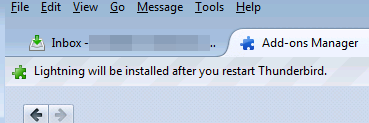
- Click on Lightning and click on Add to Thunderbird.

- Save the add-on to a folder for later use.Click on gear icon and click on Install Add-on From File. Browse to the folder where the .xpi file was saved and click on Open
- Click on Install Now to continue and restart Thunderbird.
- Once Thunderbird restarted, click on Extensions in Add-ons Manager page.
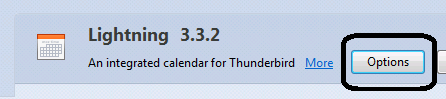
- Click on Options to the right and adjust your time zone.
- At Add-ons Manager page’s top-right, enter provider and search. You will get Provider for Google Calendar in the search result. Click on Install. Restart Thunderbird afterwards.
- Now. click on File -> New -> Calendar…. Select On the Network and click on Next >.
- Select Google Calendar and proceed with Next >. Then enter your Gmail account in the space provided and then Next >. Proceed with OAuth 2.0.
- Select calendar to synchronize and click on Finish on next window.
- You can change sync interval by selecting Manually next to Refresh Calendar:
.
As you see, importing and synchronizing between your Gmail Calendar and Thunderbird require lots of steps. In case you are using Outlook 2007/2010/2013/2016/2019, you can try EVO Collaborator for Outlook which enables you to synchronize your Gmail Calendar bi-directionally.
How to sync android with iCloud calendar / contacts (or Zimbra contacts)
Android phones occupy more than half of smartphone population worldwide. Many of the Samsung galaxy, Sony Xperia and HTC users are asking the following question:
How to sync Android with iCloud (or Zimbra)?
These Android phone owners just barely got their new phones or they decide to try out new generation of iPhones. They are spending lots of time migrating or moving between iPhone iOS and Android back and forth. Therefore, data syncing has become a common issue along the way.
We all know that Google phones, such as Nexus, are working fine with Gmail seamlessly. However, what about cloud services such as iCloud, Zimbra, OwnCloud and etc? What if we need to synchronize Android calendars and address books with iCloud (iPhone/iTunes)?
There are two APPs that can help you out: CardDAV-sync and CalDAV-sync.
CardDAV-sync is available at Google Play store.https://play.google.com/store/apps/details?id=org.dmfs.carddav.Sync
It helps your Android phone to synchronize contacts with Apple iCloud or Zimbra or other generic CardDAV services.
CalDAV-sync is available at Google Play store.https://play.google.com/store/apps/details?id=org.dmfs.caldav.lib
This App makes it possible for your Google Smartphone to sync calendars with iCloud, OwnCloud or other generic CalDAV services such as EVO Mail Server Prime.
Why CardDAV-sync and CalDAV-sync are able to perform such tasks? The reason behind is that all the major cloud services are operating based on CardDAV and CalDAV protocols. You can check these APPs out on their website: http://www.dmfs.org/ These two APPs cost you a few dollars but it is worth every of your penny.
The above solution is for users on Android platform. What about Outlook platform? What if you want to synchronize Gmail/iCloud contacts and calendars with Outlook?
You can try download EVO Collaborator for Outlook. This outlook add-in is very easy to setup and it can sync your Outlook 2007/2010/2013/2016/2019 with Gmail/iCloud account almost instantly. For any modern mobile users, CardDAV-sync, CalDAV-sync & EVO Collaborator for Outlook are 3 must-have for better productivity on the road.