2014/10/12

Exchange alternatives Windows or Linux


Exchange alternatives Windows or Linux

When people talk about email or messaging solution for business, they usually refer to Microsot Exchange Server. However, not every company can afford the pricey solution and its management efforts.
There are alternative paid or free mail server to Exchange Server (or vs Gmail). The following is a list of decent mail server for your consideration:
  1. EVO Mail Server -
    This is a good choice for its performance per cost from a TCO point of view. It features IMAP, CardDAV and CalDAV instead of Exchange Global Address List and ActiveSync. Integration with Outlook is also possible with EVO platform. An unlimited-user environment at $285/yr. Available in Windows
  2. Kerio -
    A decent collaboration server with web services covering pretty much all you need for its scalability. 50-user environment at $1680/yr. Available in Windows, OS X, Linux.
  3. Axigen -
    A solid collaboration server, as competitive as Kerio, is easy to deploy. 50-users encironment runs at $550. Available in Windows and Linux ports.
  4. Mail Enable –
    This unified messaging solution has a better TCO for its price and licensing. Unlimited-user environment at $349/yr. Available in Windows.
  5. MDaemon -
    A collaboration server with Exchange ActiveSync that can be expanded to a large scale up to 2500 users. 50-user environment at $760. Available in Windows.
  6. Zimbra -
    A Linux-based collaboration server fits your need if you do not use Windows server at all. 50-user environment at $1673. Available in Linux.

How to configure POP in Outlook? How to configure IMAP in Outlook?


How to configure POP in Outlook? How to configure IMAP in Outlook?


  1. How to setup Outlook for an IMAP or POP account accessing paid or free mail server? Go to Outlook, click on File at top-left and select Account settings


  2. Manually create a mail profile as usual. On Account Type, choose POP or IMAP according to your preference. Enter your account name and password which you just obtained from your administrator.


  3. Click on More settings to the right. Click on Outgoing Server tab and check the box of My outgoing server (SMTP) requires authentication.
  4. Go to next tab of Advanced, check the box of This server requires an encrypted connection (SSL) and the port number will change to 995 for POP and 993 for IMAP.
  5. Then, change Outgoing server (SMTP): to 587 if value of Use the following type of encryption connection: is TLS.
  6. Change Outgoing server (SMTP): to 465 if value of Use the following type of encryption connection: is SSL.
  7. Click OK to exit and OK all the way.
Now we can use Outlook’s mail feature through IMAP or POP. But what about contacts and calendars? There is an Outlook 2007/2010/2013/2016/2019 add-in called EVOCollaborator for Outlook and it is able to handle this type of 2-steps verification process in Gmail, iCloud and Yahoo!. You can download it from EVO Official website and try it out.

EVO Collaborator for Outlook is compatible with:
  1. Public contact, calendar, task services such as Gmail, iCloud, Yahoo! and fruux

    Notes: ECO supports Gmail’s 2-step verification, Yahoo!’s App passwords and upcoming iCloud’s 2-step verification. 
  2. On-premise CardDAV/CalDAV servers such as EVO Mail Server, Mac OS X Server, OwnCloud and Zimbra
After ECO installation, any contact, calendar and task items created by other means of mobile devices or web-based interface will be synced to Outlook and vice versa.

For all items before ECO installation, you may manually select items and upload them to your CardDAV/CalDAV account.

I think it is worth every penny of it.

Please refer to the following links on how to sync popular CardDAV/CalDAV services with Outlook.
  1. Sync iCloud with Outlook
  2. Sync Mac OS X, Zimbra or OwnCloud with Outlook

How to setup Yahoo! POP in Outlook? How to setup Yahoo! IMAP in Outlook?


How to setup Yahoo! POP in Outlook? How to setup Yahoo! IMAP in Outlook?

A majority of users are used to using Yahoo! on browsers. However, there are occasions integrating Yahoo! accounts into Outlook user-interface is more convenient. Thus, we do not need to flip between Outlook and browser while working on mails between accounts under Outlook.


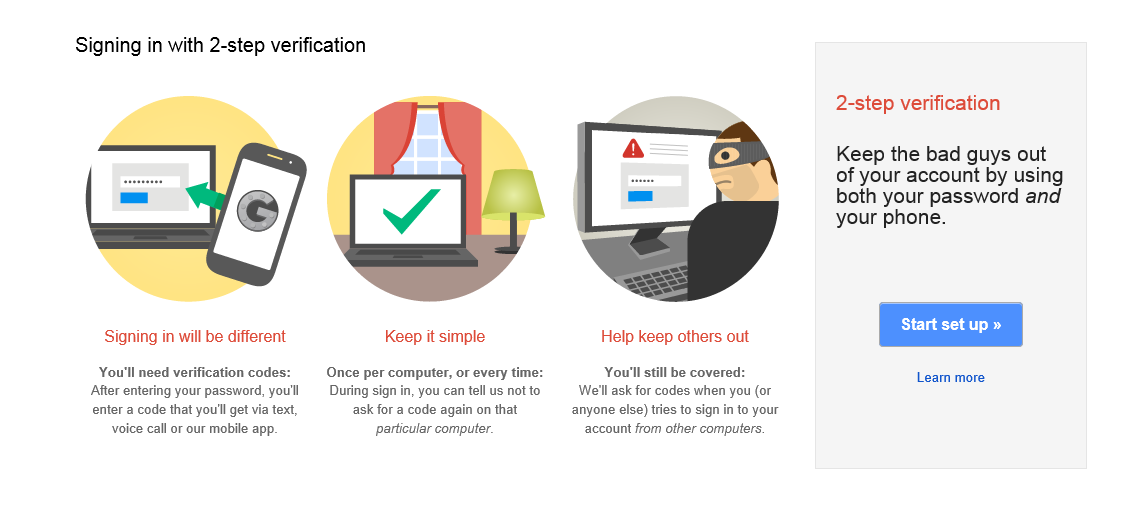
Most users may wonder why Yahoo! cannot be configured in Outlook lately? Recently, Gmail, iCloud and Yahoo! have or will have implemented an extra security feature that require users to enter a second password for any third-party application including Outlook that is trying to access their email, calendars, contacts and tasks information.


It is called 2-step Verification. You must enable it in order to use Yahoo! under Outlook. However, Yahoo! offers App passwords in this scenario. Please read on for more detail:

  1. Log in your Yahoo! and go to Account Info. Click on Setup your second sign-in verification under Sign-In and Security.
  2. Click on Generate app password.
  3. Fill in name of software that needs access under Name the app that requires a password and click on Generate password. Write down code below Enter the app password. Click Done and leave.

 How do I setup Yahoo! email in Outlook?


1.      How to setup Outlook for Gmail? Go to Outlook, click on File at top-left and select Account settings
2.      Manually create a mail profile as usual. On Account Type, choose POP or IMAP according to your preference. Enter password which you just obtained from Generate password.
                                  

3.   Click on More settings to the right. Click on Outgoing Server tab and check the box of My outgoing server (SMTP) requires authentication.

4.      Go to next tab of Advanced, check the box of This server requires an encrypted connection (SSL) and the port number will change to 995 for POP and 993 for IMAP.
                                     

5.      Then, change Outgoing server (SMTP): to 587 if value of Use the following type of encryption connection: is TLS.

6.       change Outgoing server (SMTP): to 465 if value of Use the following type of encryption connection: is SSL.

7.      Click OK to exit and OK all the way.

Now we can use Gmail's mail feature in Outlook. But what about contacts and 
alendars? There is an Outlook add-in for 2007, 2010, 2013, 2016 and 2019 called EVOCollaborator for Outlook and it is able
to handle this type of 2-steps verification process in Gmail, iCloud and Yahoo!. You can
download it from EVO official website and try it out.

EVO Collaborator for Outlook is compatible with:

Public contact, calendar, task services such as Gmail, iCloud, Yahoo! and fruux

On-premise CardDAV/CalDAV servers such as EVO Mail Server, Mac OS X Server,
OwnCloud and Zimbra

After ECO installation, any contact, calendar and task items created by other means of
mobile devices or web-based interface will be synced to Outlook and vice versa.

For all items before ECO installation, you may manually select items and upload them to
your CardDAV/CalDAV account.

I think it is worth every penny of it.

Please refer to the following links on how to sync popular CardDAV/CalDAV services
with Outlook.


Sync Mac OS X, Zimbra or OwnCloud with Outlook

How to sync iCloud with Outlook: using two-step verification and app password?


How to sync iCloud with Outlook: using iCloud two-step verification and app password?


You may have heard of Snowden’s incident and Hollywood celebrity’s naked photos. Particularly, celebrity’s photos spread out like snowflakes on Internet due to hackers breaking into users’ iCloud accounts.

Here is a quote from Apple:

If you use iCloud with any third party apps (such as Microsoft Outlook, Mozilla Thunderbird, or BusyCal) you can generate app-specific passwords that allow you to sign in securely, even if the app you're using doesn't support two-step verification. Using an app-specific password also ensures that your primary Apple ID password isn't collected or stored by any third party apps you might use. Starting on October 1, 2014, app-specific passwords will be required to sign in to iCloud using any third party apps.


Before Apple’s announcement, two-step-verification and app password have already been deployed by Google and Yahoo!.


These security mechanisms seem to be popular trends. Two-step verification sends out cellular text message containing confirmation code. After we enter the code on Apple’s verifying website, our identities are proven legit. Now, we are able to create app password and use it to access our iCloud data within third-party applications.

For deploying Apple’s Two-step-verification and app password, please refer to instructions in Apple’sFAQ about two-step-verification for Apple ID. One reminder is that you must enable 2-step-verification before obtaining an app password.

Outlook is one of the popular third-party applications that require app password in order to access Gmail, Yahoo! and iCloud. Outlook users may enter app password to retrieve e-mails through Outlook’s built-in IMAP or POP. For CardDAV and CalDAV, they may use the same app password on Outlook add-in, such as EVO Collaborator for Outlook, to retrieve their Outlook 2007/2010/2013/2016/2019 Contacts, Calendars and Tasks.

Nevertheless, if you do have a serious need of keeping NSA intrusion or hackers off limit, both on-premises mail server and CardDAV/CalDAV server are really what you are looking for. EVO Mail Server is one of your options that integrate all email messaging, contacts, calendars, and tasks in one package. Download from EVO Official Site and try it out.

How to migrate iCloud contacts Gmail? How to migrate iCloud calendars to Gmail?

How to transfer iCloud contacts Gmail? How to transfer iCloud calendars to Gmail?


It’s time to share some new IT stuff with you guys. A friend was asking me, “Can I transfer my iCloud address book and calendar to my Gmail because I am afraid my photos will be hacked like those Hollywood celebritites?” Of course, you can!

I have done some research on Google and conclude with some solutions below:
  • Contacts: Users log in iCloud and save every contact into .vcf file and log back in Gmail and import those files.
  • Calendars: Many different ways of doing it. It is similar to the Contact solution. It has to go through an intermediate account, such as from iCloud to Android or iCloud to iCAL first and then from either Android or iCAL to the destination.
Experienced users must understand how time wasting it is. If there is a way to perform a direct transfer from iCloud to Gmail, then it is nice to have it, right?

Let’s look at EVO Collaborator for Outlook. This Outlook 2007/2010/2013/2016/2019 plug-in enables Outlook’s Contacts and Calendars to be a bridge between multiple cloud services. Through this tunnel, a cloud-to-cloud on-the-fly duplication, moving, or synchronizing now becomes possible.

What is CardDAV and what is CalDAV?


CardDAV and CalDAV are standard protocol API by IETF’s RFC for contacts and calendars. Google is using the contacts API and the calendar API to take care of contacts and calendars at the backend to service their customers’ needs on such information.

How to perform cloud-to-cloud contacts and calendar duplication on-the-fly?


  1. Download ECO from EVO’s official website (when you install it, please log in as administrator)
    

  2. Set up Gmail account within ECO’s Configuring profile(s)a. Go to Configuring profile(s) under EVO ribbon


    b. Due to Google's OAuth 2.0, there will pop up a small browser for Gmail logon. Once authenticated, close the window
    c. Once completed, Gmail contact, calendar will be bi-directionally synchronized. Data from Android mobile devices will be syn’d too.
  3. Create iCloud profilea. Repeat adding account like Gmail
    b. There will be no OAuth window popping upc. However, please refer to my other post to obtain your iCloud app password. Once completed, iCloud contact, calendar will be bi-directionally synchronized. Data from iPhone mobile devices will be syn’d too
  4. Synchronize contacts between iCloud and Gmail
    a. Click on Explore server under CardDAV actions for contacts on ECO ribbon
    b. Click on Profile2 in the Profiles section. At this moment, Full name in the middle will display all contacts under this iCloud account
    d. Hold Ctrl and mouse left-click for selecting multiple contactse. Go to bottom of Detail tab and click on C2C Cloud to Cloud Copy
    f. In the pop-up box, click on Profile6 to continue duplicating
    g. Once completed, a message box appears and inform number of success and failed items

  5. For the calendar part, it is similar to step 4. The difference is clicking on Explore server under CalDAV actions for calendars in step a. Under Full name, all calendar and task will be shown and you can click on either radial button at the top from step c. However, please be aware that Gmail's Tasks is not CalDAV compatble and cannot be imported.
All the tutorials above can also provide synchronization between different other cloud services that run on CardDAV and CalDAV. Also, one easy-to-use alternative choice rather than cloud solution is EVO Mail Server. It has both CardDAV and CalDAV of its own for better performance over the slow and scolded information retrieval from Gmail services on contacts and calendars. Try it out: EVO Mail Server Official Site


How to sync Blackberry with Outlook?


How to import Blackberry contacts and calendars to Outlook?


In one of the business dinner, I heard one of the GM showed off his brand new Blackberry Z30 phone running on OS10 and tried to convince us to get one BB too. Though almost all of us are using iPhone, apparently, many of executive-level managers are still in favor of the BB for some reason. Suddenly, that manager was asking me how to synchronize his contacts and calendars into his Outlook 2007, 2010, 2013, 2016 or 2019 from BB?

Some would say BB’s Direct Link is good enough, but this method requires a wire in between. It does not sound that convenient. I have found an easy way to do it:

  1. Get a Gmail account.
  2. On your Blackberry phone, create a Gmail profile.


  3. Authenticate through Google's OAuth 2.0
  4. Next, download and install EVO Collaborator for Outlook from EVO's Official Site 
  5. In ECO’s Configure profile(s), set up Profile #6 for Gmail and click on TEST to go through OAuth 2.0 again.

  6. Once comleted, click on Apply and QUIT. Then, your Blackberry is sharing the same contacts and calendars by means of Gmail. 

2014/09/18

Yahoo!'s CardDAV server may have introduced a new bug!

Yahoo!'s CardDAV server may have introduced a new bug!


Today (2014-09-19), someone just reported a strange behavior while using EVO Collaborator for Outlook (which is a CardDAV client for Outlook).


The behavior occurs when you try to create a new contact via CardDAV protocol to Yahoo!'s carddav.address.yahoo.com server. No new contact is ever created. Yet, an existing contact is erased!

What a terrible problem! We tried to investigate the cause. First, we attempted to read RFC again; the RFC document for CardDAV is RFC6352

In section 6.3.2 Creating Address Object Resources, there it says:


When servers create new resources, it's not hard for the server to choose a unique URL. It's slightly tougher for clients, because a client might not want to examine all resources in the collection and might not want to lock the entire collection to ensure that a new one isn't created with a name collision. However, there is an HTTP feature to mitigate this. If the client intends to create a new address resource, the client SHOULD use the HTTP header "If-None- Match: *" on the PUT request. The Request-URI on the PUT request MUST include the target collection, where the resource is to be created, plus the name of the resource in the last path segment. The "If-None-Match" header ensures that the client will not inadvertently overwrite an existing resource even if the last path segment turned out to already be used.
After detailed and thorough tests, we are certain that the PUT request made by ECO is totally compatible with what the RFC says. Now we are almost certain that the problem is caused by  Yahoo!'s server.

But we still need a very strong evidence to confirm this. So, I added an Yahoo!'s carddav account on my iPhone, using "App password" (the yahoo password no longer works) and Viola! The same error happens with iPhone that when you create a new contact, it erases an existing one..

I hope Yahoo! can fix this soon!