How to sync Axigen contacts in Outlook without Outlook connector via CardDAV?
Among free mail server and paid server ware, if you are in IT industry for some time, you have probably heard of Axigen Mail Server. Its powerful features and scalability are proven to provide a decent alternative to Microsoft Exchange Server.
On the other day, when I saw EVO Collaborator for Outlook was released and it supports synchronization with Axigen Mail Server's contacts or address book, I decided to try it out.
How to sync Axigen Mail Server contacts with Outlook using CardDAV protocol?
Once I got my trial installation of Axigen Mail Server done, all I did was opening my Outlook 2016 and manually entering contact URL in the following syntax:
https://<servername>/Contacts/
Then, I enter my full e-mail address and password. The next thing is clicking on TEST button, Apply button and Quit button.
As a result, the synchronization went successfully:
However, I notice that domain and public contacts are not yet to be synchronized through CardDAV.
I googled a little bit and found requests of implementing CalDAV and CardDAV support were brought up years back:
https://www.axigen.com/forum/forum/support-discussion-lists/feature-requests/3792-caldav-support
On Axigen's Google+ page, support for CardDAV was mentioned and made available back in Q2 2015.
https://plus.google.com/communities/102973968071431941505
Then, I found a good news on Axigen's Product Community update that CalDAV may be available in Q4 2016:
https://axigen.uservoice.com/forums/294255-general/suggestions/13322535-caldav-support
Many thanks to Axigen's R&D staffs on their effort making things possible. This is really awesome that users from Outlook 2019, 2016, 2010, 2013 and 2007 will benefit from it!
PHP extension CURL missing error during Roundcube CardDAV initialization
I was setting up CardDAV plugin (Roundcube CardDAV 0.5.1) for my own Roundcube webmail v1.1.4 on my Wintel machine the other day. There was an error of
“The PHP extension CURL is not installed! Please install CURL to use the CardDAV plugin.”
occurring. I checked that php-curl.dll and its dependency .dll files are actually located in the Apache folder but it keeps on throwing me this kind of “php_curl.dll missing” error messages.
Then, I googled it and only found a few resulting links. One of them mentioned about the path to these files might not be included within Windows’ Environment Variables. So, I added the path to Path line and restarted the computer. Amazingly, it works.
php curl windows install
Let me recap the whole steps to add the path to Environment Variables below:
- Right-click on Computer and select Properties
-
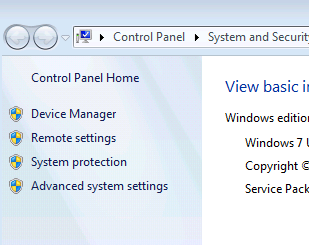
- Click on Advanced System Settings at lower-left
- Under Advanced tab, click on Environment Variables
- Then, under System variables, scroll down to Path and double-click on it
- To the right of Variable value, scroll to the end of space and add the actual path where Apache\bin can be located
- Restart Windows to be safe that this system variable change will take place
- Now, Apache will start smoothly as usual
How to sync Outlook calendar with ownCloud v9.0?
In Mar,2016, ownCloud v9.0 was released. Some feedbacks from existing ownCloud v8.2.3 upgrading to ownCloud v9.0 are good while some are bad. Anyway, out of curiosity, I did a test drive to check if EVO Collaborator for Outlook is compatible with it. It seems out of luck that ECO did not connect to ownCloud v9.0. I was a little disappointed because this Outlook add-in has been working for owncloud from v5.0 to v8.x.
Later, I was trying to find some clue on ownCloud’s on-line user manual about the server URL that we need to enter on iOS devices:
The URLs look like this:
- CalDAV URL: ADDRESS/remote.php/caldav/principals/username
- CardDAV URL: ADDRESS/remote.php/carddav/principals/username
I think it is too long to remember and enter during configuration.
Then, I contacted EVO staff about this. They said they were working on it and needed a few more days to wrap it up. A few days later, I received an e-mail from them telling me it is compatible with ownCloud v9.0 now.
I went ahead to try it. This time, EVO staff impressed me as usual. All I need to enter is the owncloud server hostname is the following format:
https://<servername_or_server_ip>/remote.php/
Unlike ownCloud’s user manual, EVO Collaborator for Outlook’s auto-detection only took a few seconds to detect all my CardDAV and CalDAV URL just like EVO's free mail server However, only the default contact (address book), calendar and task folders can be detected unlike iCloud or Gmail. Then I did a few sync rounds back and forth between ownCloud’s web-UI and Outlook. Synchronization went smoothly.
All I could say is that EVO Collaborator for Outlook is responding to new release of server or service on the market fast making sure Outlook 2007, 2010, 2013, 2016 and 2019 users can synchronize with it while improving itself toward perfection with fixes and updates. They deserve the credit of putting efforts and dedication.
How to verify SMTP server TLS version
For the past two decades, Internet population has exploded exponentially. SSL and TLS protocol have been doing their best to protect users during Internet communication underlying different types of Internet applications such as web browsing and mail delivery.
SSL v3, TLS v1.0, and TLS v1.1 were once to be flawless. After many exploits, such as Heartbeat, Beast, Poodle, and Crime, were attacking these old SSL / TLS encryption schemes, protection became almost useless. That is why SSL becomes obsolete and TLS has evolved to TLS v1.2.
If you are running your own on-premises mail server, then you need to be aware of whether or not the data encryption security level of your mail server is up to date? The most updated TLS protocol version is v1.2. For a better understanding of both SSL and TLS, please refer to Wikipedia on Transport Layer Security
There are several websites that are able to verify both SSL and TLS security level of your mail server such as:
http://www.checktls.com/index.html
https://ssl-tools.net/mailservers
These tests are important because they give you information about whether your mail server is robust enough on all TCP ports that are used during inbound and outbound SSL/TLS mail delivery, including TCP 993, 995, 587 and 465.
Besides SSL and TLS, there are several protocols you need to make sure your mail server also supports and/or prevents attacks:
- PFS (Perfect Forward Secrecy),
- Heartbleed
- BEAST (Browser Exploit Against SSL/TLS)
- POODLE
- CRIME (Compression Ratio Info-leak Made Easy)
- Weak ciphers. For optimal cipher protection, you may use the following string:
"ALL:!ECDHE-RSA-RC4-SHA:!ADH:!LOW:!EXP:!MD5:!RC4-SHA:@STRENGTH"
- SHA256 (https://en.wikipedia.org/wiki/SHA-2)
As a summary, a mail server equipped with TLS v1.2, PFS, Heartbleed-free, strong ciphers are considered to be optimally safeguarded against hacker attacks. It is difficult to configure a free mail server to have all these criteria. Here is a mail server option called EVO Mail Server that is natively having all the above built-in. By the way, a backward compatibility with SSL v3, TLS v1.0 and TLS v1.1 is somehow needed in a real-world environment because some mail clients applications may not yet be updated to support TLS v1.2.
Windows 10 port 80 used by system when you want to deploy Roundcube
If you were to run Roundcube Webmail along with free mail server such as EVO Mail Server on Windows 10, please note that Port 80 is pre-occupied by Windows 10 system itself. At this moment, we need to free up Port 80 by running a DOS command:
- Run CMD.EXE with Run as Administrator
- At command prompt, key in net stop http
- As shown in the screenshot, http service’s dependency services will also be terminated. The dependency services may more or less include the following:
World Wide Web Publishing Service; SSDP Discovery; Print Spooler; HomeGroup Provider; Function Discovery Resource Publication; Function Discovery Provider Host
- Enter Y to continue
- The port stopping drill is only temporary.
Here is a shortcut to the above steps:
The tip above is taking off too many services at once. Therefore, I tried a little experiement of taking down one service at a time to see if it is possible to do the minimum work and achieve the same result.
I went to Computer Management -> Services and Applications -> Services:
In the service list, I only picked and stopped World Wide Web Publishing Service and it was working! Yet, to avoid Port 80 to be pre-occupied by http service upon a system reboot, I changed Startup Type to Disabled as well.
How to synchronize Posteo's calendar and address book with Outlook?
Additional to GMX and WEB.DE, I found Posteo.de is another popular mail service provider in Germany. For the price of 1 euro per month, the services Posteo offers are worth every penny. Why I said so? It is ad-free.
Based on Posteo’s knowledgebase, Posteo’s calendar and address book synchronization with Outlook is currently supported by Bynari, cfos and OutlookDAV. Just out of curiosity to see if my EVO Collaborator for Outlook also supports it, I paid 12 Euros to take a test drive.
The result came out positive. All I did was entering server URL of https://posteo.de:8843/ as well as my full e-mail address and password. Once I clicked on TEST button, all calendar, contact and task (which seems not working because Posteo does not mention about task) URLs were well detected just like what I had with EVO's own free mail server. There was not any complication.
Then, I fooled around with adding, changing, and deleting contacts and calendars on both Posteo’s web-GUI and Outlook. The synchronization went smoothly.
For those of you who like a easy-to-use Outlook add-in to synchronize your Posteo contact and calendar with Outlook 2007, 2010, 2013, 2016 or 2019, I strongly recommend you to try out EVO Collaborator for Outlook.
Synchronize Exchange calendar with Google calendar
Here is a situation:
"You like to sync your Google calendar with your company Exchange calendar for the sake of managing one calendar instead of two."
It is tough because Exchange calendar and Google calendar are following different protocols unlike CalDAV.
There are a few third-party Outlook add-in capable of breaking the barrier and synchronizing them both into one calendar in your Outlook 2007, 2010, 2013, 2016 or 2019.
Let's look at a solution from third-party. EVO Collaborator for Outlook is an outlook plugin for CardDAV and CalDAV.
Let’s look at ECO’s size, which is only 5.6MB. Amazingly, when Outlook and ECO work together, you can enable Outlook to sync both contacts and calendars of your Exchange account with Google’s CardDAV and CalDAV bi-directionally.
What are CardDAV and CalDAV?
CardDAV and CalDAV are standard protocol API by IETF's RFC for contacts and calendars. Google is using those APIs at the backend to service they customers' needs for such information retrieval.
How to Sync Google calendar with Exchange account
It is easy to work with ECO:
- Let’s assume that you have already configured your Exchange account which uses your default Outlook folders to store your mail, calendar, contact and task.
- Download ECO from EVO's Official Site. (when you install it, please run it as administrator)
- Open Outlook and click on EVO's tab (It is called command bar in Outlook 2007 and called ribbon in Outlook 2010, 2013 and 2016) at the top banner.
- Click on Configure profile(s) and select Profile #6 with filling in your Gmail account in space below Full e-mail address or username.
- Assign the contact, calendar and task folder under Sync options to your default Outlook folders, the same ones that are used by your Exchange account.
- Click on TEST button and you'll see an OAUTH authentication window during the account detection. Just authorize it and continue.
- When finished, click on Apply and Quit. Then, any newly added contacts, calendar under Gmail folder will be syncing in a bi-directional fashion.
By the way, here is a good news. Microsoft is merging its Outlook.com into Office365 by end of 2015 and it means your outlook.com accounts are also hosted by Exchange. Thus, whether you have an Office365, hotmail, or outlook.com account, you can use the handy Outlook add-in to sync contacts, calendars, and tasks between Gmail and Exchange.